
Rollo driver installation can fail if your PC has an ARM processor or Windows is in S mode. On a supported Intel or AMD PC, unplug USB, extract the official package and run the installer as administrator.
For a DPInst.exe error on an ARM-based PC, ask Rollo support for a different installation route. Running the standard installer again won't change which processor it supports.
1. Check the Windows computer before downloading again
Open Settings > System > About. Under Device specifications, read System type. Look for ARM-based processor; a 64-bit PC can use a different kind of processor from the one the driver needs.
Rollo's Windows installation guide supports 32-bit and 64-bit Windows on x86 processors, the type used in Intel and AMD PCs. For an ARM DPInst.exe error, it directs you to support.
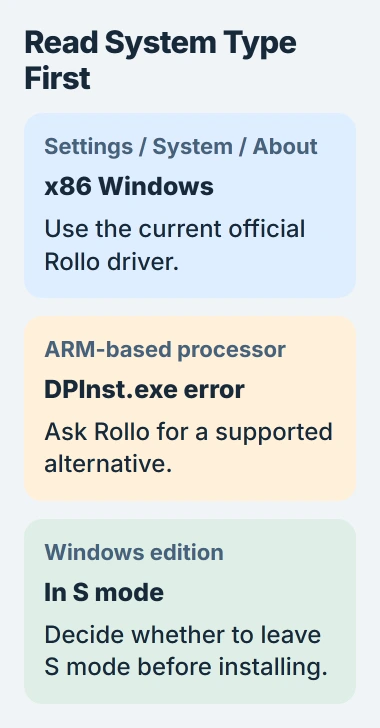
Snapdragon laptops and some Surface models use ARM. A 64-bit label alone doesn't mean the ordinary driver will work. If System type says ARM, send that wording and your printer model to Rollo before trying another package.
Check the Windows edition on the same About page too. If it includes in S mode, follow the next section. If neither limitation applies, continue to the official download and install steps.
I'd make these checks before deleting printer entries. Removing a print queue won't make an incompatible driver work or lift a Windows installation restriction.
2. Decide whether to leave S mode
Windows in S mode only lets you install Microsoft Store apps, so it blocks the Rollo installer. That's different from needing administrator permission or trying to install files still inside a ZIP.
If you want to leave S mode, use the official S mode switching instructions. Open the Switch out of S mode page in Microsoft Store and choose Get.
Microsoft says the switch is free and one-way. Read the confirmation carefully because you can't turn S mode back on afterward. On a work or school device, your administrator may control this choice.
Once the Store confirms the change, return to the driver installer. You can now install apps from outside the Store, but an x86 printer driver still won't become an ARM driver.
If you'd rather keep S mode, ask Rollo how you can print with your exact model. Check the cause of the installation message before paying for a Windows edition upgrade.
3. Extract the official package and install with USB unplugged
Save any open work, then disconnect the printer's USB cable from the PC. Keep its power adapter connected to a wall outlet. You'll reconnect USB after the driver is installed.
Download the official Rollo Windows package, named Rollo-Windows-Latest. Save the ZIP file to your computer rather than installing software offered by an unrelated driver updater.

In File Explorer, right-click the downloaded ZIP, choose Extract All, and open the extracted folder. Run the installer inside it, using Run as administrator, and follow its setup prompts.
The ZIP holds the installation files; opening it doesn't install the driver. Use the Windows ZIP extraction steps if you're still looking at a compressed folder.
Let the installer finish before reconnecting USB. If it stops with an error, save the full message, restart Windows, and try the extracted official installer once more as administrator.
If the same error returns, give support the full message. Don't turn off security features or use an unsigned driver from another brand just to get past it.
4. Connect the printer and check its queue
After installation, connect the USB cable from the printer to the PC. On Windows 11, open Settings > Bluetooth & devices > Printers & scanners and look for Rollo Printer.
On Windows 10, the list is under Settings > Devices > Printers & scanners. If no printer appears, reconnect the cable and try another USB port on the computer.
Seeing Rollo Printer means Windows has a queue where it can send print jobs. Check next that the labels are loaded correctly and your app is sending jobs to that queue.
The Wireless Rollo X1040 can print 4×6 labels over USB without the standard driver. Other sizes need the driver. Check your model and label size before following those instructions for a USB-only Rollo.
For an X1040 being set up from a phone, complete Bluetooth discovery and Wi-Fi joining before judging its print connection.
If Windows never reacts when you connect the cable, tell support. Compare the printer's own test with a print from Windows so they know whether it fails even without the computer.
5. Calibrate labels and make a test print
Turn on the printer using its rear switch. Load the label roll or stack through the back, with the printable side facing up. Feed the roll or stack rather than a single loose cut label.
Hold the top circular button until you hear one beep, then release it. The labels move while the printer learns their size. Hold again until two beeps and release to print its self-test.
A clear self-test tells you the printer can feed and print on its own. Next, print a sample label from your computer. Choose the correct Rollo queue and set the paper size to 4 x 6 inches for a 4×6 sample.
If Windows accepts the job but it stays waiting, use the stuck printer queue checks. If the self-test fails too, work through the printer, power and labels with Rollo support.
Give support your printer model, Windows version, processor type, full installer error and self-test result. That helps them tell an installation problem from a printer that's installed but can't finish a label.
The Short Version
Check processor type and S mode. On supported x86 Windows, unplug USB, extract the official driver and install as administrator. Reconnect and test the Rollo queue. For an ARM DPInst.exe error, ask Rollo for its alternative route.
Checked November 4, 2026.

Isaac Smith is the founder and editor of PC Glance, a website that covers computers, laptops, and technology. He is a tech enthusiast and a computer geek who loves to share his insights and help his readers make smart choices when buying tech gadgets or laptops. He is always curious and updated about the latest tech trends.