
For a Nintendo Switch that isn't charging, try resetting the power adapter before blaming the battery. Unplug the adapter from both the wall and console for 30 seconds, then connect it straight to the console and a wall outlet.
An empty battery can leave the screen dark with only a brief charging symbol. Allow 15 to 30 minutes before trying to start it. These checks cover Switch, OLED and Lite; Switch 2 has separate instructions.
1. Reset the adapter and connect without the dock
Take the Switch out of its dock. If it responds, hold POWER to open the menu and choose Power Options > Turn Off. Disconnect the adapter at both ends and leave it disconnected for at least 30 seconds.
Check the label while it's unplugged. The original Switch adapter is HAC-002. Try that one if you have it: a phone charger's plug may fit, but it may not supply power the same way.
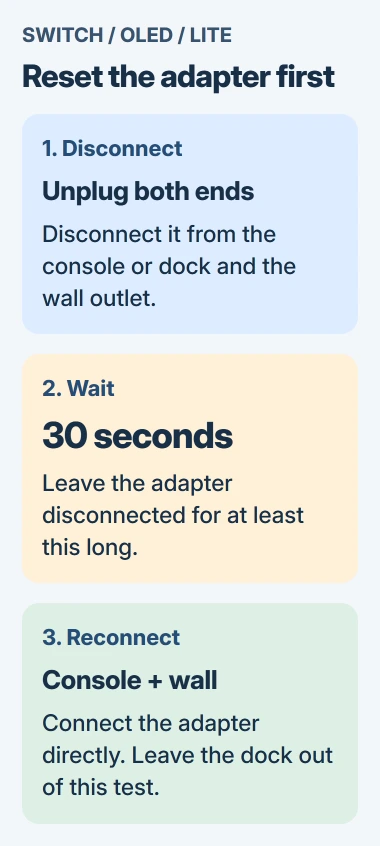
Nintendo says to start with an adapter reset. Plug it into the console's charging port and a working wall outlet, leaving the dock out of the first test.
Try another outlet if the first gives no response. With the dock disconnected, you can check whether power reaches the console directly. If it charges this way, leave it charging and check the dock later.
Stop using an adapter with exposed wire, a damaged plug or a badly frayed cable. The USB connector comparison helps you tell similar plugs apart. A matching plug doesn't mean two chargers work the same way.
2. Give an empty battery time to respond
Watch the screen as you connect the adapter. With an almost empty battery, a battery symbol may briefly appear near the top-left corner before the screen goes dark again. That brief symbol can be a normal response to power.
Leave it connected for 15 to 30 minutes before pressing POWER. Keep it plugged in without trying to start it during that time, so you can judge whether the empty battery is charging.
Once the console starts, look at the HOME Menu's battery symbol to see whether it's charging. Don't wait for a power light on the console itself; the original Switch doesn't have one.
A full charge normally takes about three hours with the original Switch family asleep or switched off. Playing can lengthen the charging time. The first half-hour check is for getting a response, not reaching 100 percent.
If the battery level rises while the console sleeps but falls during play, check the adapter you're using and repeat with the original one. That result differs from a console that never shows charging at all.
3. Restart a console that stays blank
For an original Switch, OLED model or Lite that remains unresponsive, hold POWER for 20 seconds, release it, then press POWER again. This is the force-shutdown step in the blank-screen procedure.
This can restart a console that's frozen rather than out of power. You could lose unsaved game progress, so use the normal power menu if the console still responds.
If the HOME Menu returns, let the console charge and watch whether the level increases. If it stays dark after the adapter check and time on charge, try another adapter or check whether the picture appears on the TV.
A Switch or OLED screen switching off when docked is normal when the game moves to the TV. Take it out of the dock before deciding that its handheld screen won't turn on.
If it works on the TV but its own screen remains blank after undocking, tell support that result. Support can then check the console's display instead of treating the dark screen as an empty battery.
4. Compare a second adapter, then the dock
If you have another working HAC-002 adapter, connect it directly to the Switch and a wall outlet. Use the same console and outlet so you're checking only whether changing the adapter helps.
If charging starts with the second adapter, replace the first one. If neither adapter charges it, have the console checked for repair. You don't need to buy several accessories just to finish this comparison.
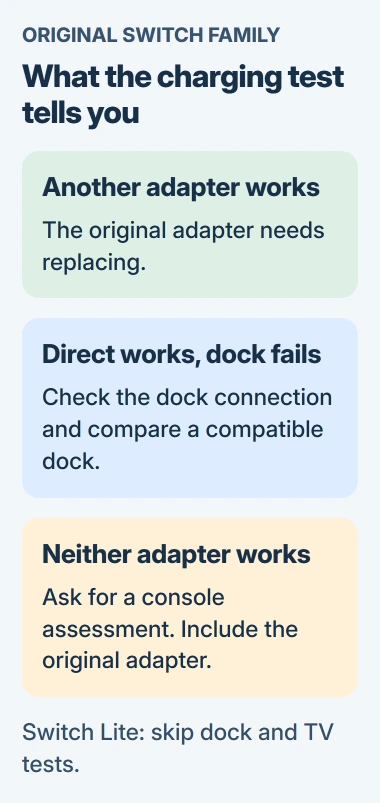
For a Switch or OLED that charges directly but fails in the dock, reconnect the adapter firmly to the dock's AC adapter port. Check that the console sits fully in the dock, then check the battery indicator on the TV.
Try another compatible working dock with the same adapter if you can. Charging through that dock suggests a fault in the original. Save a note of the working adapter and dock combinations for the repair team.
Switch Lite doesn't support TV mode, so skip dock tests on that model. Its charging check stays with the adapter connected to the console itself.
5. Use the Switch 2 charging instructions for Switch 2
Switch 2 has different charging hardware. Use its supplied adapter and USB-C charging cable for the first check, and connect directly to either the top or bottom USB-C port on the console.
Its charging instructions say to disconnect the adapter from the outlet and console or dock for about 20 seconds, then reconnect it. For a frozen Switch 2, hold POWER for at least 12 seconds before turning it on again.
The original Switch HAC-002 adapter can charge Switch 2 directly, but it can't power Switch 2's TV mode. Even if it charges the console in handheld mode, you'll need a suitable adapter for the dock.
With the Switch 2 dock, check the cable is in its AC adapter port and the console is seated correctly. If direct charging works while the dock doesn't, tell support which connection works and which cable and adapter you're using.
When the battery or charging hardware needs repair
Charge the original Switch in a room between 41 and 95 degrees Fahrenheit. If the console feels unusually hot, stop playing and let it cool before trying to charge it again.
A console that charges fully but runs down faster than it used to needs different checks from one that won't charge. The battery care guidance explains how age and repeated charging reduce battery life.
Ask Nintendo about repair when an adapter and dock that work with another console don't help, or when the battery can no longer hold a charge. Include the console and adapter; add the dock if the fault happens only while docked.
Once power is working, install any offered system update. If the console can't connect for that step, use the Switch network checks to restore its connection.
The Short Version
Reset the original Switch adapter for 30 seconds and try direct wall power. Give an empty battery time to respond, then check a frozen console, adapter or dock. Switch 2 needs its own charging instructions.
Checked November 4, 2026.

Isaac Smith is the founder and editor of PC Glance, a website that covers computers, laptops, and technology. He is a tech enthusiast and a computer geek who loves to share his insights and help his readers make smart choices when buying tech gadgets or laptops. He is always curious and updated about the latest tech trends.