
Turn on Auto-rotate, open an app that supports landscape, and hold your Android phone sideways. On a Samsung Galaxy, the same Quick settings button may say Portrait or Landscape while rotation is locked, so look for those names too.
The setting doesn't force every app or Home Screen to rotate. Enable it first, then check the screen you want sideways. If it turns in one app but stays upright in another, look at the app's own controls first.
Turn on automatic rotation on a Pixel
Pull down Quick Settings with a swipe starting at the display's top edge. Expand the panel if needed, then swipe through its tiles to find Auto-rotate. Tap it to turn automatic rotation on.
The Settings route on current Pixel software is Settings > Display & touch > Auto-rotate screen. Older software can label that section Display. Turn the rotation setting on, then return to your app.
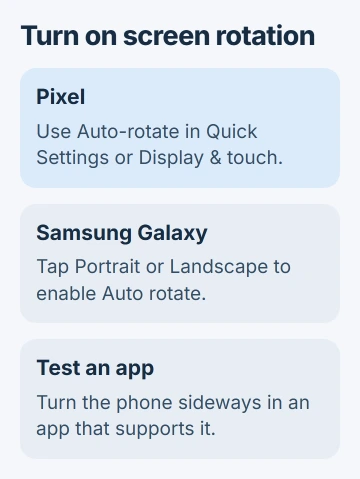
Google explains the Quick Settings and display routes for Pixel. The setting works on most screens, though some stay in a fixed position.
Hold the phone upright, open the app you want, then turn it onto its side. Keep the screen facing you; laying the phone flat on a desk makes the change in angle less clear.
Watch the picture or text inside the app, not just the phone's position. If it widens to fill the landscape view, automatic rotation is working there. You can leave the setting on for other supported apps.
Find the differently named control on a Galaxy
On recent One UI versions, pull downward at the display's upper-right edge to reveal Quick settings. On older layouts, use two fingers to pull down the expanded panel from the top edge. Look through its button pages.
The rotation button can display Auto rotate, Portrait or Landscape. Portrait means the screen is locked upright. Landscape means it's locked sideways. The same button changes its label to show the current mode.
Tap Portrait or Landscape to enable Auto rotate. Close the panel, then turn the phone while an app is open. Samsung describes these three rotation modes in its Galaxy instructions.
If the button isn't anywhere in the panel, open its pencil Edit control. On the current layout, tap Edit, add Auto rotate from the available buttons, and choose Done.
One UI versions arrange the editing screen differently. Look for the area with available buttons; the rotation control may be there even if it isn't in your panel. Adding the tile makes the setting easier to reach.
On another phone brand, search Settings for Auto-rotate or Screen rotation. The general Android navigation guide describes the setting, but phone makers can arrange their panels differently.
Lock the Galaxy in the position you want
To keep a supported screen sideways, first enable Auto rotate and turn the phone to landscape. Open Quick settings while holding that position, then tap Auto rotate again to lock it.
The button should now say Landscape. Move the phone back upright to check that the app stays sideways. If you want the normal upright lock instead, repeat the sequence while holding the phone vertically.
This is useful when reading a wide document without having every small movement change the view. An app designed only for portrait will still stay upright.
To let the phone turn automatically again, tap the Portrait or Landscape button to return it to Auto rotate. Check its label so you know which mode you've selected.
Check the app before changing Home Screen settings
Try another app or a full-screen video that supports landscape. If that rotates while your original app stays upright, check the original app's own viewing controls and help. That app may be designed to stay in one position.
Use a video player's full-screen control when you're trying to widen a video. An app's small video player can behave differently from the full app, so turning the phone alone may not give you the view you expected.
Check the Home Screen separately. On a Galaxy, touch and hold Auto rotate in Quick settings to open its options. Enable the available Home Screen rotation setting if that's the screen you want sideways.
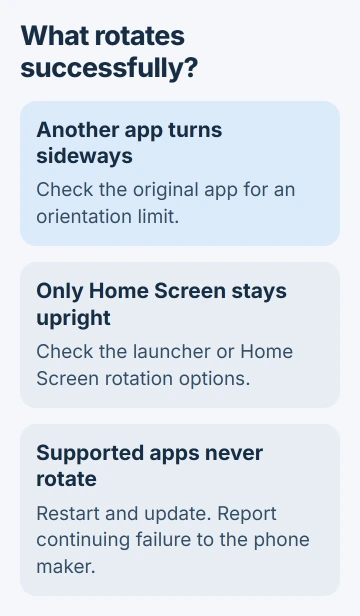
Galaxy options vary with the model and One UI version, so your phone may not show the same switch in the same place as another phone.
If the goal is two apps at once, use the Android split-screen steps separately. Rotating the phone changes its orientation; it doesn't open another app beside the first one.
When supported apps still won't turn
Release your finger from the display and turn the phone again. Holding a finger on a Galaxy screen can temporarily keep its orientation fixed even with Auto rotate enabled.
If rotation still fails across supported apps, restart the phone and check for software updates. On Pixel, open Settings > System > Software updates. For a Galaxy restart, use the Samsung restart controls.
The Pixel screen troubleshooting procedure suggests testing in safe mode, which temporarily turns off downloaded apps. Follow its linked safe-mode steps for your model.
If rotation works in safe mode, restart normally and check recently installed apps individually. Remove a suspected app, retest rotation, and keep track of which removal changes the result.
If rotation still fails, or stopped after damage, contact the phone maker. Report the model, software version, whether Auto-rotate is on and the apps you compared. I'd get that assessment before considering a factory reset.
The Short Version
Enable Auto-rotate, remembering that Galaxy labels the locked modes Portrait and Landscape. Test a supported app, check Home Screen options separately, and restart or update the phone when rotation fails across apps.
Checked November 5, 2026.

Isaac Smith is the founder and editor of PC Glance, a website that covers computers, laptops, and technology. He is a tech enthusiast and a computer geek who loves to share his insights and help his readers make smart choices when buying tech gadgets or laptops. He is always curious and updated about the latest tech trends.