
Yes, Apple Watch Series 2 and later can be used for shallow-water swimming in a pool or the ocean. The original Apple Watch and Series 1 shouldn't be submerged. Ultra models allow more water activities, with their own limits.
Check your exact model and band before getting in. Water Lock prevents accidental screen taps during the swim; it doesn't change which activities the watch can handle.
Match the watch to the water activity
Find your model in the paired iPhone's Watch app > My Watch > General > About. Check its specifications if you're unsure which watch you have or what its water rating means, especially with an older or secondhand watch.
Apple says Series 2 and later support shallow-water swimming in its water-resistance guidance. Ordinary Series models aren't suitable for diving, water skiing, fast-moving water or deeper submersion.
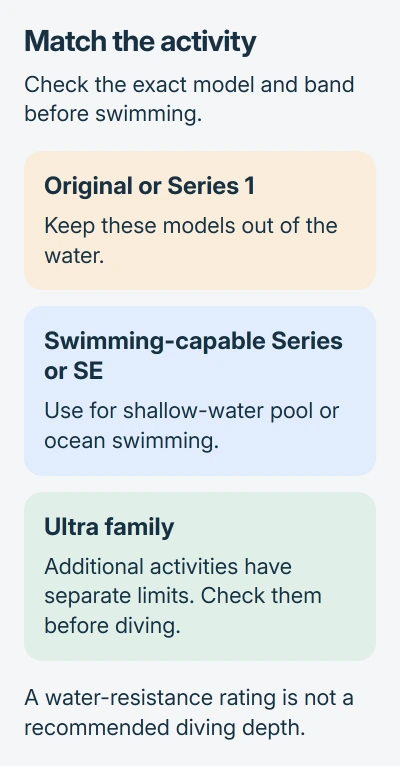
Ultra and later have a separate rating and support recreational scuba diving to 40 meters. Those diving limits don't apply to an ordinary Series model. Follow the Ultra's instructions for that activity before you dive.
The 50-meter water-resistance rating on a swimming-capable Series watch doesn't mean you should swim that deep. Check which activities it supports. A pool swim and water skiing put very different demands on the watch.
Water resistance can weaken with age or damage. Have the watch checked before swimming if the display is lifting, the case is cracked or it's taken a hard impact. I'd keep a visibly damaged watch out of the water.
Use a band intended for water
Choose a band its maker says you can swim with. The watch and strap have separate care instructions, so check both before taking them into the pool.
Leather, several metal bands and certain fabric bands aren't water resistant. Check your exact strap rather than judging by its appearance.
Bands on that list include Milanese Loop, Link Bracelet, Magnetic Link and several Modern Buckle and Hermes bands. Check the care instructions for your exact band before swimming with it.
Fasten the band securely and comfortably before getting in. If you've just changed it, check that both ends sit properly in the watch. A loose band needs attention even if the watch is water resistant.
The Apple Watch band-change guide explains the attachment controls. Use it while the watch and your hands are dry, then put the unsuitable band somewhere safe before the swim.
Start Pool Swim or Open Water Swim
Open Workout on the watch. Turn the Digital Crown to Pool Swim or Open Water Swim, and select the activity that matches where you're swimming.
For a pool workout, enter the pool's actual length before starting. The watch uses it to calculate how far you swim. If you enter the wrong length, the recorded workout can show the wrong distance.
Set the workout goal if you want one, then start. The swimming workout instructions describe the controls and the difference between pool and open-water recording.
Water Lock turns on automatically during a swimming workout and blocks ordinary screen taps so water doesn't press the controls. That's why the touchscreen won't respond during your swim; you don't need to restart the watch.
To pause or resume your swimming workout, press the side button together with the Digital Crown. These buttons work while the touchscreen is locked.
Unlock the screen and clear the speaker afterward
Once you're out of the water, hold the Digital Crown until Unlocked appears. The watch plays tones to help clear water from its speaker. Then finish the workout with End.
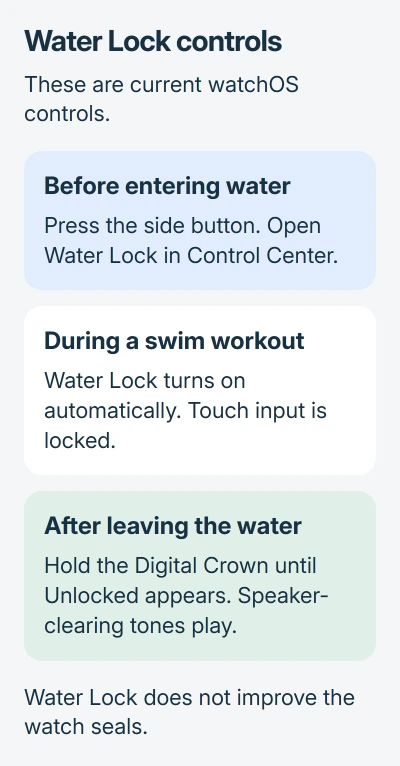
For a swim without recording a workout, turn on Water Lock yourself. On current watchOS, open Control Center with a side-button press. Tap the water-drop Water Lock control before getting in.
The Water Lock instructions explain the difference on watchOS 8 or earlier. On those versions, turn the Crown to unlock. On current versions, press and hold it.
If the speaker still sounds muffled, water may remain in its port. Give it time to dry naturally. Don't put anything into the openings or try to blow it dry with compressed air.
Rinse and dry the watch before putting it away
After swimming, gently rinse a swimming-capable watch under lightly running, warm, fresh water. Dry the watch and band with a nonabrasive, lint-free cloth. Dry your wrist too before wearing it again.
Follow the watch-cleaning instructions for the case and check your band's own care instructions. Take the band off if it needs different cleaning.
Keep soap, detergents, other chemicals, strong sprays, hot-air dryers and household cleaners away from the watch. Take it off before a steam room or, for ordinary Series models, a sauna. Use the gentle rinse and cloth.
Once the watch, its back and the charger are dry, try charging. If it won't connect, use the watch charging checks.
When the watch still has a problem after drying
If the speaker, microphone, display or charging still doesn't work properly after drying, contact Apple Support. Tell them your model, what you were doing and what still isn't working.
Stop using a watch with visible case or display damage until it's been checked. Water Lock can't repair a seal, and playing the water-clearing tones again won't fix damaged hardware.
The Short Version
Use a swimming-capable model and band. Start the swim workout, then unlock, rinse and dry afterward. Check Ultra activity limits separately. Water Lock blocks taps and clears the speaker; it doesn't improve seals.
Checked November 5, 2026.

Isaac Smith is the founder and editor of PC Glance, a website that covers computers, laptops, and technology. He is a tech enthusiast and a computer geek who loves to share his insights and help his readers make smart choices when buying tech gadgets or laptops. He is always curious and updated about the latest tech trends.