
An Apple Watch band slides sideways out of the case while its release button is held down. Put the watch face down on a soft cloth, press the small button beside the band slot, then slide that half of the band out.
The release button unlocks the band. Pulling the strap away from the watch or twisting its connector does not.
Release one side at a time
Take the watch off and place its screen on a clean, soft, lint-free surface. Turn it so the back and the two narrow band-release buttons are easy to reach.
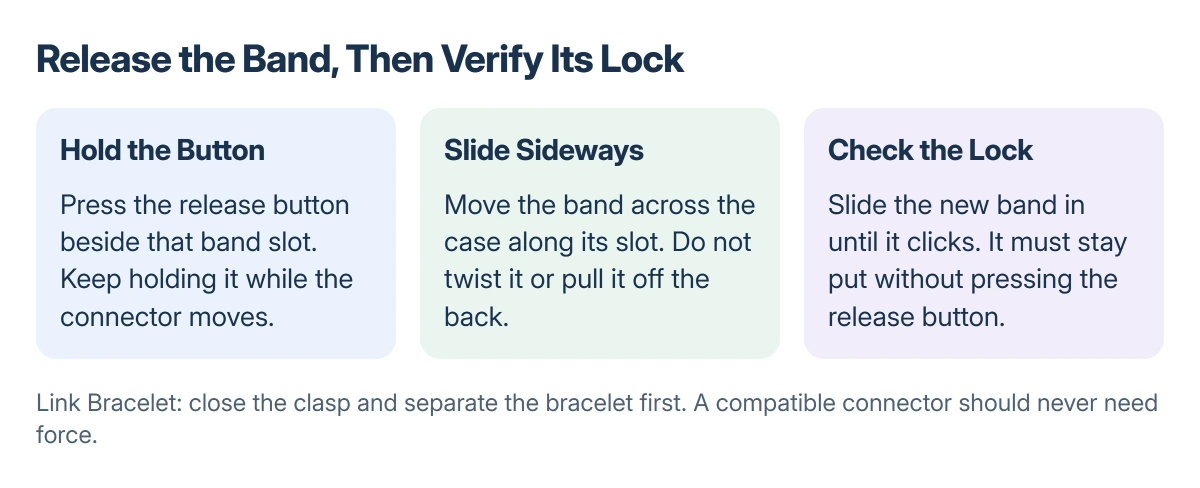
Press and hold the release button nearest the band half being removed. Keep the button depressed while sliding the band across the width of the case, along its slot.
Status: Apple's band-changing instructions checked 22 October 2026. These are documented handling steps; no watch or band was tested here.
Apple says to hold the release button again if the band does not slide out. In its band-changing instructions, the direction is across the slot, rather than pulling the connector straight off the back.
Repeat for the other half. Keep a finger on the release button for the side being removed; pressing the opposite button does not unlock it.
Fit the replacement and check the lock
Check the replacement band's compatibility with the exact watch model and case size. Wrist size determines strap length, while watch compatibility determines whether its connector belongs in the case.
With the band's text facing toward you, slide its connector into the slot until it clicks. Do the same with the second half.
Before putting the watch on, gently try sliding each connector sideways without touching the release button. It should stay in place. Apple states that a correctly installed band will not slide freely until its release button is held.
A connector that slides through has not locked. Center it in the slot, then gently wiggle it into position. Keep the watch off your wrist until both halves stay secured.
Do not force a mismatched connector into the case. A strap that appears to fit is not a safe replacement when its locking mechanism cannot engage.
A Link Bracelet needs an extra step
Apple documents separating a Link Bracelet into two pieces before removing it from the watch. This prevents the connected bracelet from being bent or stretched during removal.
Close its butterfly clasp, folding one side at a time until it clicks. Find a quick-release button on the inside of the bracelet, hold it, then gently pull the links apart.
Now remove each half from the case with its band-release button. The quick-release buttons separate bracelet links; the buttons on the watch release the connector. They serve different jobs.
Avoid treating every metal band as a Link Bracelet. Milanese Loop and Titanium Milanese Loop closures work differently. Follow the instructions for the actual band when opening or adjusting its clasp.
Set the fit after changing the band
Secure the new band comfortably, then check that the watch back stays in contact with your wrist. A loose replacement can cause repeated Apple Watch passcode requests.
A tighter strap is not an answer to irritated skin. For redness or irritation under the watch, take it off and follow the skin-care advice before wearing it again.
If a compatible band remains stuck or refuses to lock, ask Apple or the band maker to check the connector. Stop before using tools that could damage the slot or release button.
The Short Version
Hold the release button and slide the band sideways. Install the replacement with its text facing you, then check that it stays locked without pressing the button.
Separate a Link Bracelet first. Do not wear a watch whose replacement band still slides freely.
Where to Next
Keep the original band until the new one has passed the locking and fit checks. A damaged release mechanism needs inspection before the watch returns to your wrist.

Isaac Smith is the founder and editor of PC Glance, a website that covers computers, laptops, and technology. He is a tech enthusiast and a computer geek who loves to share his insights and help his readers make smart choices when buying tech gadgets or laptops. He is always curious and updated about the latest tech trends.