
Leave Private Browsing on your iPad by choosing your normal Tab Group in Safari's sidebar. On older layouts, open the tab overview and select the numbered tabs group or Start Page.
New pages will open in your regular group, but the private pages you left open will stay in Private. Close those separately if someone else will use the iPad and you don't want those pages left open.
Leave Private using Safari's sidebar
Open Safari and tap Show Sidebar in its toolbar. Look for the browsing groups, then choose a regular Tab Group instead of Private. The ordinary group may show a count of its open tabs.
If the sidebar is showing bookmarks or a list inside another section, return to its main list of groups first. Choose the group with your ordinary pages, then tap a page to keep browsing.
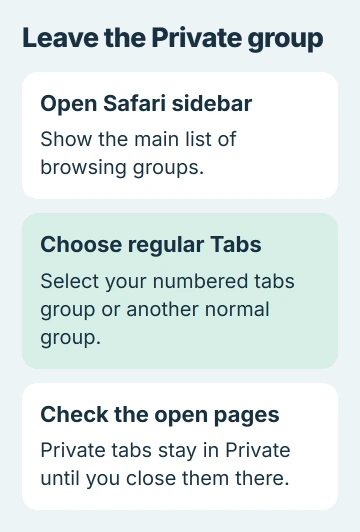
Apple says in its iPad browsing instructions to use the sidebar for this group change. Switching groups leaves the private websites open in their own group, so you can return to them later.
Check the selected group after switching. Private should no longer be selected, and new tabs in the regular group won't be private. The screen's color alone can be misleading, especially if you use dark appearance.
If your iPad has a different toolbar, try the tab overview next. You'll find the group switch in Safari, rather than in the iPad's general privacy settings.
Use the tab overview on an older layout
Tap Safari's Tabs button, shown as overlapping squares. In the tab overview, select the numbered group containing your normal tabs. Some older layouts offer Start Page instead.
The older iPad turn-off instructions describe these choices. A numbered group holds your ordinary open pages; choosing it moves Safari out of the private group without deleting those private tabs.
Open a regular page and check that the normal group is selected in the overview. If a page you expected is missing, check your other named groups before assuming Safari closed it.
Switching groups shows you a different set of pages; it doesn't move the pages from one group to another. If a website seems to disappear when you leave Private, it can still be open in that group.
If you're also switching modes on a phone, the iPhone Safari controls differ from the iPad's sidebar. Follow the steps for the device you're using.
Close private tabs when they should not remain available
Return to the Private group in Safari. If its pages are locked, unlock them using the method your iPad requests. Open the tab overview and close each tab you don't want to keep.
After closing those pages, switch back to your regular Tab Group. An empty Private group doesn't mean you're still browsing privately. What matters is which group you choose for your next page.
Closing Safari or locking your iPad doesn't close its pages. Private tabs can stay open behind their lock, ready for you to return. To clear those pages, close the tabs themselves.
To keep a private page, copy its web address before closing it, then open that address in a new tab in the regular group. The site may need your login again because regular tabs don't share the private tab's sign-in.
The new visit can appear in normal History. Switching modes won't add your earlier private visit to History. Save a bookmark if you want an easy way to return to the address.
Keep the private-tab lock separate from browsing mode
Safari's Require Face ID preference protects access to private pages. Depending on the iPad, the label can instead refer to Touch ID or a passcode.
On current iPadOS, find it under Settings > Apps > Safari. On versions with Safari listed directly in Settings, open Settings > Safari. Changing the lock preference doesn't select your normal Tab Group.
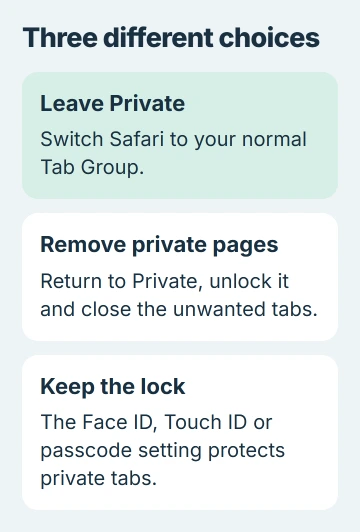
I'd leave that protection enabled on a shared iPad and switch groups to leave Private. Turning off the lock lets someone return to the private pages without unlocking them first.
If the pages are locked, follow the unlock prompt before closing them. If your passcode, Face ID or Touch ID won't work, ask support for help with that access problem before changing unrelated Safari settings.
Private Relay and Private Search Engine are separate settings too. Neither takes you out of the Private tab group. Changing them affects your privacy or search preferences while leaving the current page where it is.
Use family controls when the goal is a child's web access
Leaving Private on a child's iPad doesn't set a lasting browsing rule. To control which sites your child can open, use family web restrictions. Switching groups only changes which pages Safari is showing.
With the updated iPadOS 27 parental controls, open Settings > Family, select your child, then choose Apps & Websites > Restrictions > Filtering under Websites.
The current parental-control choices include Limit Adult Websites and Ask to Browse. Ask to Browse uses Approved Websites Only, so your child asks for access to other sites.
Check that the allowed websites include any school pages your child needs. The adult managing the iPad should keep its Screen Time passcode. Older software has different menus, so use the help for your iPadOS version.
These controls serve a broader purpose than leaving a private session on your own iPad. For a school-managed device, ask its administrator about an unavailable Private option before changing restrictions.
When Safari still returns to the wrong group
Check Settings > General > About for your iPadOS version. In Safari, note which group is selected and exactly what you tap before it returns to Private. Those details help support recreate the problem.
If regular tabs seem to be missing, try the Tab Group and profile checks before clearing Safari data. That page covers phone layouts, but checking for tabs in another group helps here too.
Contact Apple Support if Safari keeps failing to switch to a regular group. Don't start by erasing your iPad or clearing all website data to fix the group switch.
The Short Version
Use the sidebar to select your normal Safari group, or choose ordinary tabs in the older overview. Close unwanted private pages separately. The lock protects those pages; family restrictions control broader web access.
Checked November 5, 2026.

Isaac Smith is the founder and editor of PC Glance, a website that covers computers, laptops, and technology. He is a tech enthusiast and a computer geek who loves to share his insights and help his readers make smart choices when buying tech gadgets or laptops. He is always curious and updated about the latest tech trends.