
Unplugging a Wi-Fi router restarts it and keeps your settings. Holding its Reset button can erase the network name, passwords and internet setup, so use a normal restart first when you're trying to restore a dropped connection.
A factory reset makes sense when you're setting the router up from scratch or giving it to someone else. Before pressing that button, check the exact model and collect its setup details.
First choose the reset you actually need
A restart, sometimes called a reboot, turns the router off and on. A factory reset puts its settings back to the maker's defaults. They do different jobs, even if your app calls both a reset.
If the internet stopped working on every connected device, restart first. If only your laptop fails while phones work through the same router, check the laptop before erasing a working network.
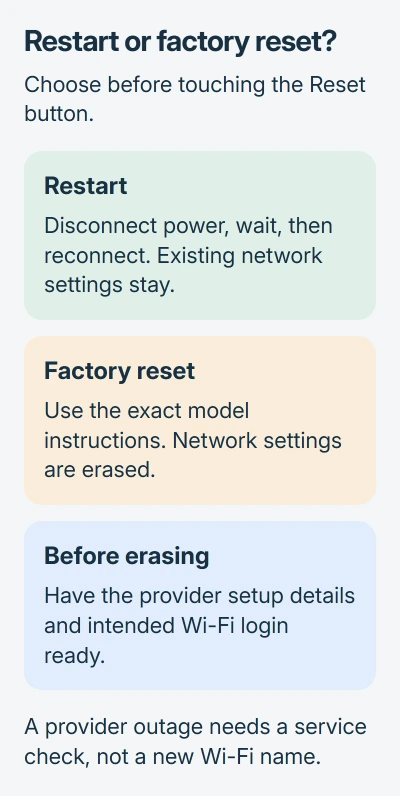
Resetting your Wi-Fi name won't fix an outage at your internet provider. Check for a reported outage and try another device before deciding to erase the router's settings.
If you've forgotten the settings login, try the router password-recovery options first. Recovering that password lets you change settings without erasing your network.
Restart the router while keeping the network settings
Finish calls, uploads or other work that needs the connection. Disconnect the router's power cable, wait 10 to 20 seconds, then reconnect it. Leave the recessed Reset button alone for this procedure.
The Nest and Google Wifi restart instructions use that wait time. Let the router finish starting before you test the connection; its lights need time to return to normal.
If you have a separate modem, check whether its lights show a connection to your provider. Follow your provider's restart order if the modem needs restarting too. A combined modem-router does both jobs in one device.
Reconnect a phone or laptop to the existing Wi-Fi name and open a new webpage. If it works, stop here. If Wi-Fi connects but internet service is still missing on every device, contact the provider before erasing its setup.
Prepare the details a factory reset will remove
Check the router label for its model and hardware version, then find its manual on the maker's support site. The button's location, how long to hold it and what the lights do can differ between models from the same company.
Keep your provider's setup instructions, internet username, password and other settings handy. If your internet service provider (ISP) supplied the router, ask whether it restores those settings automatically after a reset.
Write down the Wi-Fi name and password you want to use, plus any custom settings you need. These might include port forwarding, which directs incoming connections to a device, parental controls or a special connection mode.
If you're resetting because the current settings cause trouble, don't immediately restore their backup. Set up and test the basic internet connection first, then add the custom settings you still need. The reset erases those settings.
I'd use your model's app if it still works and has a clear factory-reset command. If it can't reach the router, follow the button instructions for that exact model.
Use the button sequence for your model
Use one of these procedures only if the maker's instructions list your model. Leave the router connected to power while it resets, and wait until it finishes before setting it up again.
NETGEAR models listed in the reset guide
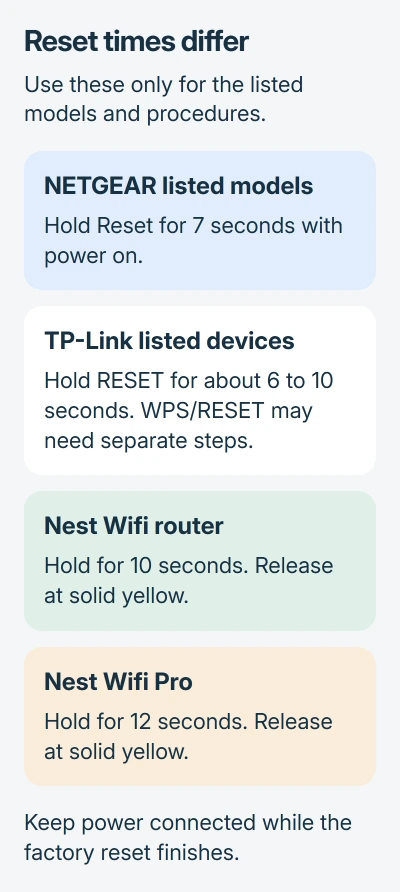
Check that the Power light is on. Find the Restore Factory Settings or Reset button on the rear. Use a paper clip to hold it for seven seconds, then release it and let the router reset.
The NETGEAR factory-reset procedure lists the models it covers. Afterward, follow your model's setup instructions to find its default login; routers don't all start with the same password.
TP-Link devices covered by its general reset instructions
With the device running, hold its RESET button for approximately six to ten seconds, then release it. Wait while the lights cycle and the device reboots.
The TP-Link reset page links separate steps for combined WPS/RESET buttons and other products. Follow those steps if they match your label or model. A short WPS press doesn't do the same job.
Nest Wifi and Nest Wifi Pro routers
On Nest Wifi Pro, hold the bottom reset button for 12 seconds. Release it when the yellow light becomes solid. The reset can take up to five minutes; the ready-for-setup sequence flashes white, then blue.
On a Nest Wifi router, hold the bottom button for ten seconds, releasing when yellow becomes solid. The reset can take up to ten minutes. A pulsing white light means it's ready for setup.
Google says these routers use different reset steps from Wifi points in its factory-reset instructions. Resetting with the button leaves app and cloud records in place; resetting the network in the app removes them.
Set up internet access before reconnecting everything
Follow the router's setup instructions to join its initial network or connect a computer by Ethernet. Create the admin login and get the internet working before connecting your other household devices.
The admin login protects settings; the Wi-Fi password connects devices. The router administration guide explains that distinction if the setup asks for a password and you aren't sure which one it means.
Set your chosen Wi-Fi name, password and a supported security mode. Test one device first: check that it joins Wi-Fi and opens a new webpage. Once both work, reconnect your printers, TVs and other equipment.
If the internet still doesn't work after setup, tell your ISP the model and connection status. If the ready light never appears, contact the router maker. Another reset won't replace a missing provider username or password.
The Short Version
Start with a restart for a dropped connection. Before factory-resetting, check the model and save its setup details. Follow its button sequence, wait for readiness, then restore internet and Wi-Fi before reconnecting devices.
Checked November 5, 2026.

Isaac Smith is the founder and editor of PC Glance, a website that covers computers, laptops, and technology. He is a tech enthusiast and a computer geek who loves to share his insights and help his readers make smart choices when buying tech gadgets or laptops. He is always curious and updated about the latest tech trends.