
Your iPhone shows full bars and nothing loads, which is the most infuriating version of a Wi-Fi problem there is. Let me get you to the two switches that cause most of it.
Full bars on the iPhone, and nothing loads. The Wi-Fi looks connected but no page opens and no message sends, and after iOS 26 that is the common story.
Or the phone keeps dropping to cellular every few minutes, while the iPad and the laptop sit on the exact same network perfectly happy.
So before you reset your router or call your internet provider, know this. The real fix on iOS 26 is usually two small privacy switches that the update quietly broke, not your network.
First, Prove It Is Your iPhone and Not the Network
Thirty seconds here saves you an hour of resetting a router that was never the problem.
Here's what to do:
- Grab another device on the same Wi-Fi (a laptop, an iPad, anything).
- If that device is online and happy, your network is fine and the bug is on the iPhone's side. That is the usual case.
- Only if everything on the network struggles should you bother power-cycling the router (unplug it, wait 30 seconds, plug it back in). Note that an iPad can fail this test unfairly, because iPadOS 26 broke Wi-Fi the same way.
If it really is just your iPhone, keep going. The next move fixes it for most people.
Turn Off Both Privacy Toggles, Then Forget and Rejoin
This is the big one, and it is two switches working together.
iOS gives your iPhone a random Wi-Fi address for privacy, and on iOS 26 that randomization started clashing with routers, so the router hands your phone a bad connection or blocks it outright.
The second switch, Limit IP Address Tracking, routes your Wi-Fi traffic through Apple's privacy relay, and it fights with your router's normal connection, especially on mesh systems like Eero or TP-Link Deco.
That second one is what explains the classic "full bars, no internet" symptom.
Private Wi-Fi Address is a real privacy feature, Apple rotates your address to reduce tracking, but iOS 26 broke how some routers handle it.
Flip both off and rejoin, and the handshake comes back.
Here's what to do:
- Go to Settings, then Wi-Fi.
- Tap the small ⓘ (info) icon next to your network's name.
- Find Private Wi-Fi Address and switch it off.
- On the same screen, find Limit IP Address Tracking and switch it off too.
- Tap Forget This Network, confirm, then reselect your network and type the password back in.
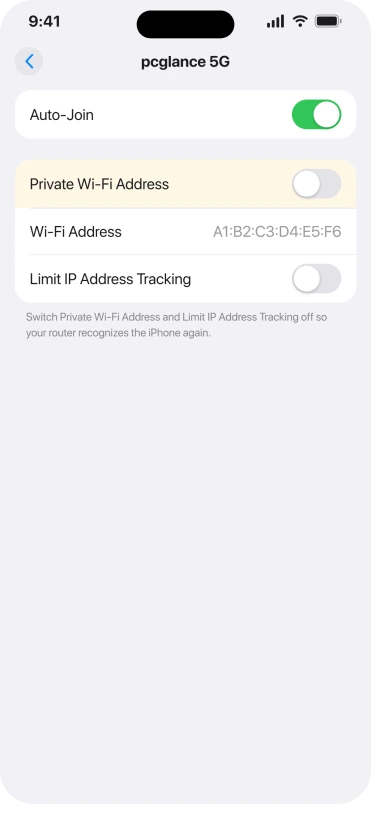
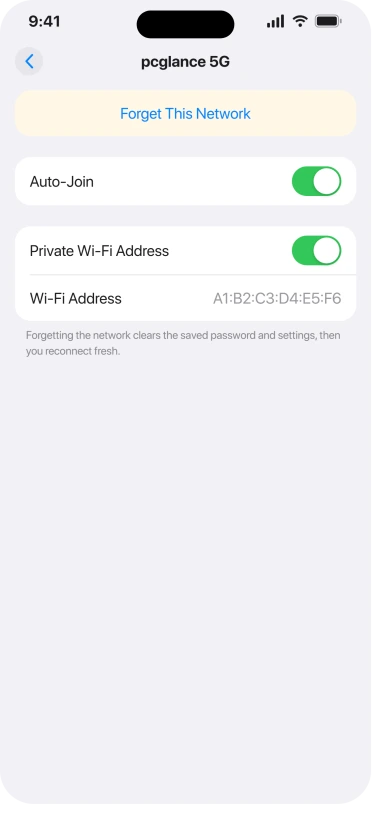
That combination is what people on iOS 26.4 keep reporting as the actual cure.
Forgetting and rejoining also wipes any saved settings that got scrambled during the update, so you build a clean connection. One MacRumors user said it plainly: "After rejoining it has been stable."
Important: Do this on your own home network without a second thought, and know your Wi-Fi password before you start, since you have to type it back in (it is usually printed on the bottom of your router).
On a public hotspot or a work or school network, these switches are a privacy feature, so think twice before turning them off on a network you do not control.
Reset Network Settings
When the toggles do not stick, this one usually does. It clears every network setting and rebuilds them from scratch.
In one Apple thread, a router restart and even the iOS 26.0.1 update both failed, and this was the step that finally worked. The user's reply: "This actually worked."
Here's what to do:
- Go to Settings, then General, then Transfer or Reset iPhone.
- Tap Reset, then Reset Network Settings.
- Enter your passcode and confirm. Your iPhone restarts.
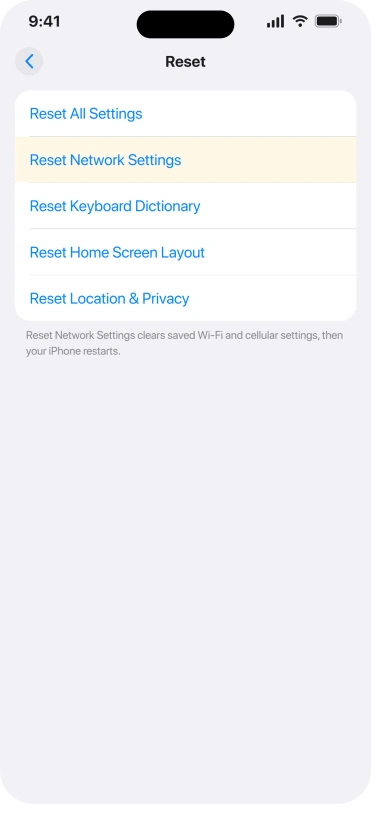
Important: This wipes all your saved Wi-Fi passwords, your VPN settings, and your cellular APN settings.
It does not touch your photos or apps, but you will have to rejoin your networks afterward, so have those passwords handy.
Give It a Manual IP for "Connected but No Internet"
If your phone connects but nothing loads, sometimes iOS 26 hands it an address that is not even on your network.
One Apple user fixed it by checking and finding their assigned IP was outside the home network's range, then setting it by hand.
Here's what to do:
- Go to Settings, Wi-Fi, tap the ⓘ next to your network.
- Tap Configure IP, then switch from Automatic to Manual.
- Enter a free address in your router's range (for most home routers something like 192.168.1.50), a Subnet Mask of 255.255.255.0, and your Router's address (often 192.168.1.1).
If you are not sure of those numbers, your router's app or label usually lists them. This one is a little techy, so skip it if the earlier steps already sorted you out.
Turn Off Wi-Fi Assist
This one hides in plain sight. Wi-Fi Assist quietly jumps your phone to cellular the moment Wi-Fi gets shaky.
So you think your Wi-Fi "dropped," when really iOS bailed to mobile data behind your back, and it can run up your data bill while you troubleshoot.
And if cellular has been flaky since iOS 26 too, that fallback fails as well.
Here's what to do:
- Go to Settings, then Cellular (or Mobile Data).
- Scroll all the way to the bottom.
- Switch Wi-Fi Assist off.
A user in the Apple forums flagged this as their fix, because it stopped the constant silent fallback that looked like dropping.
Remove Any VPN or Security Apps
If you have a VPN or a security app like a Norton or McAfee suite, it can break Wi-Fi on iOS 26 even when you think it is switched off.
One user only got their Wi-Fi back after fully deleting Norton 360, not just toggling the VPN off.
Here's what to do:
- Go to Settings, General, then VPN and Device Management, and remove any VPN profiles you do not need.
- If you have a security app, try fully deleting it, not just disabling it, then restart and test.
Update to iOS 26.5
Apple has been patching this in the background. A lot of people report Wi-Fi finally going solid on iOS 26.5 ("WiFi fixed perfectly in iOS 26.5").
Worth knowing: iOS 26.4 actually reintroduced the problem for some, so being on "the latest" is not automatically the cure, 26.5 is the build people call stable.
The build has its own iOS 26.5 problems too, just not usually Wi-Fi.
Here's what to do:
- Go to Settings, General, then Software Update, and install whatever is offered.
- If Wi-Fi is fully dead, cellular can sometimes carry the download, but only on an iPhone 12 or later connected to 5G with Allow More Data on 5G turned on, and your carrier can still defer it. What blocks an update over cellular data sets out Apple's four conditions. Corrected 19 August 2026: this line previously said cellular would simply work.
Test It on a Completely Different Network
If you have tried everything and your iPhone still will not behave, this last check tells you where the problem actually lives.
Take your phone somewhere with a different Wi-Fi, a friend's place or a coffee shop, and connect.
Here's what to do:
- Connect to a Wi-Fi network in a completely different location.
- If your iPhone works perfectly there but never at home, the problem is something specific to your own router's settings, not the phone.
- If it struggles everywhere too, the issue is on the phone, so a Reset Network Settings or the erase option below is your best bet.
This one small test stops you blaming the wrong thing. Plenty of people spend days fighting their iPhone when the real culprit was a setting on their router the whole time.
Still Not Working? The Last Resort
If you have genuinely been through everything above and nothing held, there is one final option.
- Back up and erase. Back up to iCloud first, then go to Settings, General, Transfer or Reset iPhone, Erase All Content and Settings, and set the phone up fresh. This wipes any deep software gunk the update left behind. It rarely comes to this, but it almost always works when it does.
For most people though, it never gets that far. On iOS 26 the fix was the two privacy toggles or a Reset Network Settings.
The Short Version
Your iPhone is not broken and your router is probably fine.
iOS 26 broke the way the phone handles two privacy settings, Private Wi-Fi Address and Limit IP Address Tracking, and flipping both off for your own network, then forgetting and rejoining, fixes it for most people.
If that does not hold, Reset Network Settings is the next reliable move.
And if your iPad works on the same Wi-Fi and your iPhone does not, that is your proof the problem is on the phone, so you know exactly where to look.
Where to Next
More iOS 26 help: This fix is part of our iOS 26 problems and fixes guide, a single place that rounds up every common iOS 26 issue.
Where the phone stays connected but nothing loads, that symptom splits into cases worth telling apart.
If something else on your iPhone is acting up after the update, start there.

Isaac Smith is the founder and editor of PC Glance, a website that covers computers, laptops, and technology. He is a tech enthusiast and a computer geek who loves to share his insights and help his readers make smart choices when buying tech gadgets or laptops. He is always curious and updated about the latest tech trends.