
For a 1440p monitor stuck at 1080p, select the right screen in Windows before changing drivers. If 2560 x 1440 isn't offered, test without a dock or adapter and check which resolutions the input supports.
Check whether Windows lists 1440p but isn't using it, or leaves it out entirely. That tells you whether to change a setting or check what the current connection supports.
1. Select the external screen and its native resolution
Open Settings > System > Display. Click Identify if several screens are shown, then select the numbered box for the affected monitor. Otherwise, a resolution change may apply to your laptop's built-in panel.
Look under Scale & layout > Display resolution. A standard widescreen QHD monitor normally uses 2560 x 1440. Check the monitor's exact model specification, since screen size alone doesn't tell you its native resolution.
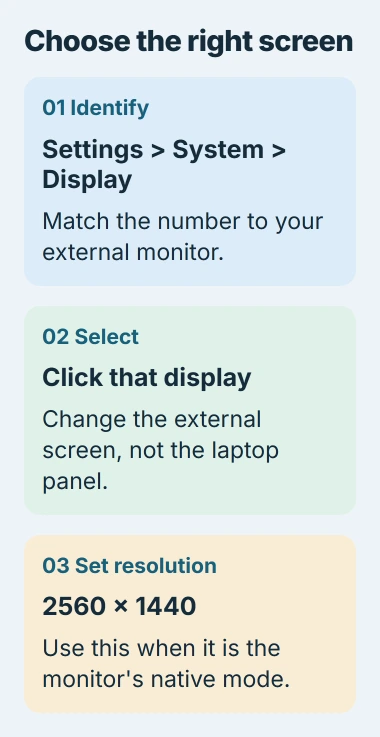
Choose that resolution when it's available, apply it, and confirm Keep changes after the picture returns. If the screen becomes unreadable, let Windows revert instead of confirming a setting you can't see.
Microsoft's own resolution instructions recommend the display's native choice for sharp text. Windows 10 uses the same System and Display starting point as Windows 11.
If 1440p works now, you're done. If it's missing, check the connections next. If it's selected but the monitor reports a different incoming signal, use the desktop and active-signal comparison.
2. Separate resolution from text size and screen duplication
The Scale control makes text and apps larger. It doesn't change a 2560 x 1440 panel into a 1920 x 1080 panel, so shrinking text won't bring back a missing resolution.
Check whether the display selector shows duplicated screens. Press Windows + P and choose Extend for a comparison. This gives the laptop and external monitor separate desktops rather than asking both to show the same picture.
Open Display settings again and select the external monitor. Check its resolution list after changing projection mode. If 1440p appears only in Extend, the duplicated arrangement was limiting the choices available together.
Keep Extend if it suits your work. If the same picture must appear on both screens, check the resolutions supported by each display rather than assuming both can use the external monitor's preferred mode.
3. Connect one monitor directly to the computer
I'd try a direct connection before reinstalling anything. Remove any dock, hub, KVM switch or converter between your computer and monitor. A KVM lets several computers share a monitor and other connected devices.
Use a compatible video cable to connect just this monitor to your computer. Select that input with the monitor's buttons, then check Display resolution again. Keep the same monitor so you're comparing connections.
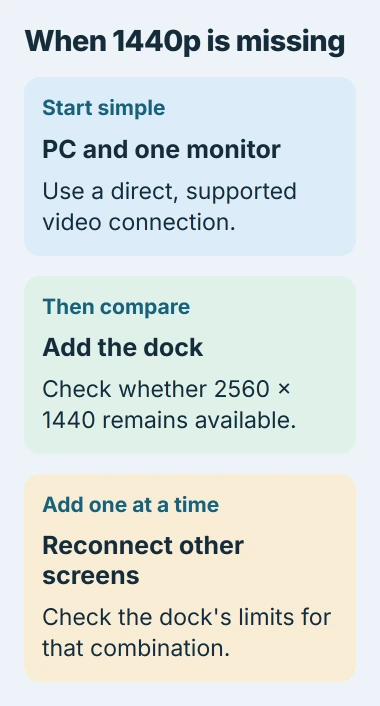
If the direct connection offers 1440p, the monitor can receive that mode from the computer. Reconnect the dock with just this screen attached. Add other screens separately and check the list after each change.
If 1440p disappears only when you add the dock or another screen, check that setup. Look in the dock maker's display-resolution table for your laptop connection and the number of monitors in use.
Don't buy a replacement dock from a single advertised maximum resolution. Its maximum for one screen may differ from its limits with several screens attached. The Windows HDMI controls help locate the relevant display readouts.
4. Check the input, cable and refresh-rate combination
Find the monitor model on its rear label or information menu. Read the manual's supported timing table for the input you're actually using. Different inputs on an older monitor can have different limits.
Check the computer's output specifications too. An HDMI socket's shape doesn't tell you every resolution and refresh rate your whole setup can handle. Adapters have their own limits.
If both devices support it, try a direct DisplayPort connection or another supported monitor input. Use a cable specified for the mode you want. A passive adapter won't add a video mode that either device lacks.
Next open Settings > System > Display > Advanced display and select the monitor. If you're using a very high refresh rate, compare a lower supported rate, then check whether 2560 x 1440 becomes available.
The refresh-rate choices depend on the display. An asterisk marks choices that require changing the current resolution. Confirm both settings afterward rather than judging only the smoothness of motion.
5. Check the graphics driver when the hardware path fits
If the monitor, input and direct cable support 1440p but Windows still offers only lower resolutions, check the graphics software. This is especially useful after a Windows reinstall or an unexpected resolution change.
In Windows 11, open Settings > Windows Update to install offered updates. For Windows 10, start with Settings > Update & Security. Complete any requested restart before checking the monitor again.
For a laptop, get the supported graphics driver for your exact model from its manufacturer. Some laptops use built-in graphics plus a separate chip, and the display socket can connect to either.
Avoid installing a monitor utility from an unrelated model to force a resolution. The external-display troubleshooting steps include checking connections and graphics drivers without creating unsupported display modes.
6. Compare another source before arranging service
Try this monitor on another computer that supports its native resolution, using a suitable direct connection. Then compare another suitable cable if the result remains limited. Record the input and refresh rate used in each test.
If 1440p works on another computer, give the computer or dock maker those results. If it's still limited with other computers and supported connections, ask the monitor maker to check the model and the modes in its information menu.
Support can then check a specific failure. If the normal supported mode is missing on several compatible computers and connections, a custom resolution isn't the next useful step.
The Short Version
Start by selecting the QHD screen and looking for 2560 x 1440. Compare Extend mode, a direct cable and a lower refresh rate. Check the input and dock specifications before updating drivers or arranging service.
Checked November 5, 2026.

Isaac Smith is the founder and editor of PC Glance, a website that covers computers, laptops, and technology. He is a tech enthusiast and a computer geek who loves to share his insights and help his readers make smart choices when buying tech gadgets or laptops. He is always curious and updated about the latest tech trends.