
Halfway through a call your friend cuts in: "Sorry, you sound really muffled, like you are in a tunnel." On your end everything sounds normal, so you have no idea what they mean.
That gap is the whole problem. When your AirPods microphone goes bad, you are the last person to notice, because you never hear your own outgoing audio.
The good news is that this is almost always a setting or a dirty mesh, not a broken AirPod. Work down the list and you will usually land the fix in the first two steps.
First, prove it is actually the mic
Before you change anything, confirm what kind of "muffled" this is. There are two completely different problems that sound the same when you describe them.
If the audio is dull in your own ears, that is a playback or fit issue, and AirPods cutting out on iOS 26 is the better guide.
This article is for the other kind: you sound bad to the people you call, while your side is fine.
The quickest way to know is to listen to yourself. Open Voice Memos, record yourself talking for ten seconds, and play it back.
If you sound muffled or far away in that recording, it is the microphone, and everything below applies.
Lock the mic to one ear
This is the single most common fix, and most people have never seen the setting.
By default your AirPods pick which earbud acts as the microphone on the fly. When that auto-switching lands on the wrong bud, one that is angled badly or has a blocked mesh, your voice goes muffled.
Open Settings, tap your AirPods name near the top of the screen, then tap Microphone. You will see three choices: Automatically Switch AirPods, Always Left AirPod, and Always Right AirPod.
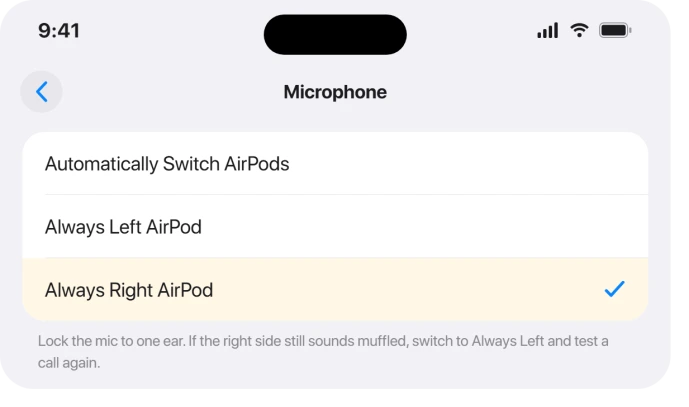
Set it to Always Right AirPod and test a call or a voice memo. If it is still bad, switch to Always Left AirPod and test again. One side is often clearly cleaner than the other.
Apple's own note on the locked options is worth knowing: the bud you pick "becomes the microphone, even if you remove it from your ear or put it in the case." So the side you choose keeps the mic job no matter what.
If you sound robotic, change the Mic Mode
A thin, robotic, processed voice is a different beast from a plain muffle, and it usually points at one feature: Voice Isolation.
Voice Isolation tries to strip background noise around your voice. In a quiet room it helps. In some setups it overprocesses you into a robot, and the caller hears it, not you.
You change this during the call, not in the main settings. While you are on the call, swipe down from the top-right corner to open Control Center, tap the [App] Controls tile, tap Mic Mode, and pick Standard.
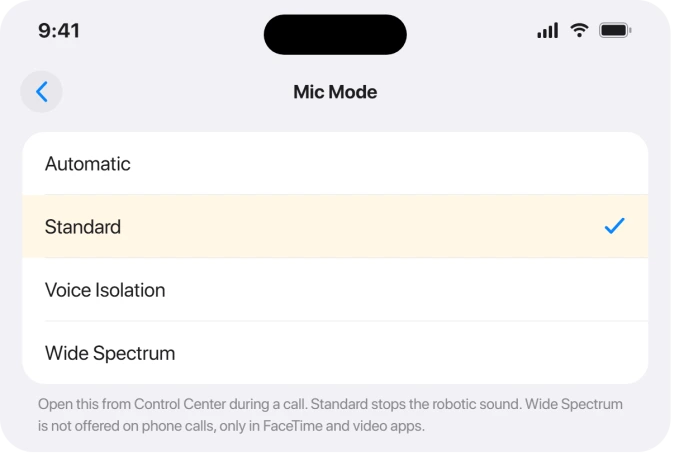
Standard uses plain voice processing with no aggressive filtering, and it is the usual cure for the robotic complaint. The setting sticks per app, so set it in the app where people say you sound off.
It cuts both ways, though. If your real problem is wind or a noisy room drowning you out, do the opposite and pick Voice Isolation.
And do not bother reaching for Wide Spectrum on a phone call, Apple does not offer it there, only in FaceTime and similar video apps.
Clean the microphone mesh
If one ear is muffled no matter what, gunk is the likely cause. The mic and speaker sit behind tiny mesh screens that clog with earwax, dust, and pocket lint.
Apple's cleaning guidance is specific. Clean the microphone and speaker meshes with a dry cotton swab, and lift out stuck debris with a clean, dry, soft-bristled brush.
Do not use isopropyl alcohol on the mesh, do not poke it with anything sharp, and keep liquid out of the openings.
If sweat or water got in after a workout, wipe with a cloth lightly dampened with fresh water and let them dry fully before the next call.
If only one bud cleans up and the other stays muffled, lock the mic to the good side using the setting above while you decide whether that bud needs service.
Music is perfect but calls sound bad? That is Bluetooth
This one confuses almost everyone. Your AirPods stream music in crisp, high quality, then the second a call starts your voice turns low-fi to the other side.
That is not a fault, it is how Bluetooth works. Streaming music uses a one-way, high-bandwidth mode.
The moment the microphone goes live, Bluetooth drops to a two-way call mode with far less bandwidth for your voice. Every Bluetooth headset on earth does this.
You cannot turn it off, but you can soften it. The mic setting and Mic Mode steps above help most.
To prove this is the cause, take one call on the iPhone's own mic with the AirPods out, and notice your voice is instantly clearer.
Check the app and the new iOS 26 mic picker
If you only sound bad in one app, like Teams, WhatsApp, or Zoom, the problem may be that app, not your AirPods.
Confirm the app is even allowed to use the mic at Settings > Privacy & Security > Microphone. Some apps also run their own noise suppression that fights with Voice Isolation, so check that app's audio settings too.
iOS 26 added a handy lever here. Control Center now has an audio input picker that lets you choose the right microphone for each app, so you can point a stubborn app at the AirPods or back at the iPhone.
Update, then confirm the firmware
If the settings all look right, get current. Update at Settings > General > Software Update, since Apple ships call and Bluetooth fixes in point releases.
Your AirPods carry their own firmware, and it only updates on its own.
To nudge it, put both in the case, close the lid, plug the case into power, and leave it near your iPhone, with Wi-Fi and Bluetooth on, for at least half an hour.
Apple actually pitched the iOS 26 era firmware as a call upgrade, saying voice on calls and FaceTime would "sound more natural." In fairness, plenty of users said they noticed no change, so treat the update as worth doing, not a guaranteed cure.
One related note.
If your call audio is not just muffled but cutting in and out or robotic in a way that started with a recent iOS 26 update, that is a separate, partly unsolved issue covered in AirPods cutting out on iOS 26.
Reset and re-pair
Still muffled after all that? Reset the connection before you assume hardware.
On each device, open Bluetooth, tap the Info (i) next to your AirPods, choose Forget This Device, then pair them again fresh.
To fully reset the AirPods, put them in the case, close the lid 30 seconds, then open it.
On AirPods Pro 2 and older, hold the setup button on the back about 15 seconds until the light flashes amber then white.
On AirPods 4 and AirPods Pro 3 there is no button, so instead double-tap the front of the case, watching the status light, until it flashes amber then white.
When the mic is simply dead
There is a point where this stops being a setting.
If your Voice Memos test is still muffled after cleaning, resetting, and updating, and it is the same on a second device, the microphone hardware is likely failing.
AirPods Pro and the newer models carry a warranty, so book a visit and let Apple run a mic check rather than fighting it with more toggles.
The Short Version
- Prove it is the mic first: record a Voice Memo and play it back. Muffled there means the mic, not your ears.
- The top fix: Settings > [AirPods name] > Microphone, set it to Always Right AirPod or Always Left AirPod instead of Automatically Switch.
- Sound robotic? During the call, Control Center > [App] Controls > Mic Mode > Standard. Pick Voice Isolation instead only if background noise is your problem.
- Clean the mesh with a dry cotton swab, never alcohol or anything sharp.
- Music fine but calls bad is normal Bluetooth behavior, not a fault. Check per-app mic permission and the new iOS 26 Control Center input picker for app-only problems.
- Update iOS and let the firmware catch up, then forget and re-pair. If Voice Memos is still muffled on a second device, the mic is failing, so get it serviced.
Where to Next
And if you cannot locate them at all, Precision Finding depends on the model and it fails quietly.
Where an orange dot appears while nothing is recording, that indicator has a precise meaning.
If it sounds the same without the AirPods in, the phone itself is worth checking. The openings, the permissions and Apple's own test.
- Audio cutting out or robotic, not just muffled: AirPods cutting out on iOS 26
- AirPods not following you between devices: AirPods not switching between iPhone and Mac
- More iOS 26 fixes: iOS 26 problems and fixes
- Back to the start: pcglance home
If the microphone does not work at all rather than sounding muffled, the AirPods microphone guide starts there.

Isaac Smith is the founder and editor of PC Glance, a website that covers computers, laptops, and technology. He is a tech enthusiast and a computer geek who loves to share his insights and help his readers make smart choices when buying tech gadgets or laptops. He is always curious and updated about the latest tech trends.