
"I only get the notification after I open the app." That is how this shows up after iOS 26: Mail stays silent, then dumps everything the moment you open it.
The fix depends almost entirely on the account. Gmail and most work addresses cannot push to Apple Mail at all, so for them the silence is normal and the answer is a faster fetch.
iCloud and Outlook can push, so when those go quiet it is a setting or a known bug.
First, is it Gmail or iCloud?
The account type is the biggest single factor, and it decides everything else.
Gmail, Yahoo, and most IMAP or work accounts cannot push to Apple Mail. Apple only pushes new mail instantly from iCloud, Microsoft Outlook and Exchange, and a few others like Fastmail.
For everything else, Mail checks on a schedule, so between checks there is genuinely no alert. That is the design, not a fault.
Give those accounts the fastest schedule. Go to Settings > Apps > Mail > Mail Accounts > Fetch New Data, tap the account, and set it to Every 15 Minutes.
That is the quickest Apple offers, so there is no truly instant option for Gmail in Apple Mail.
If you need Gmail to buzz the second a message lands, use the Gmail app instead, which runs its own push.
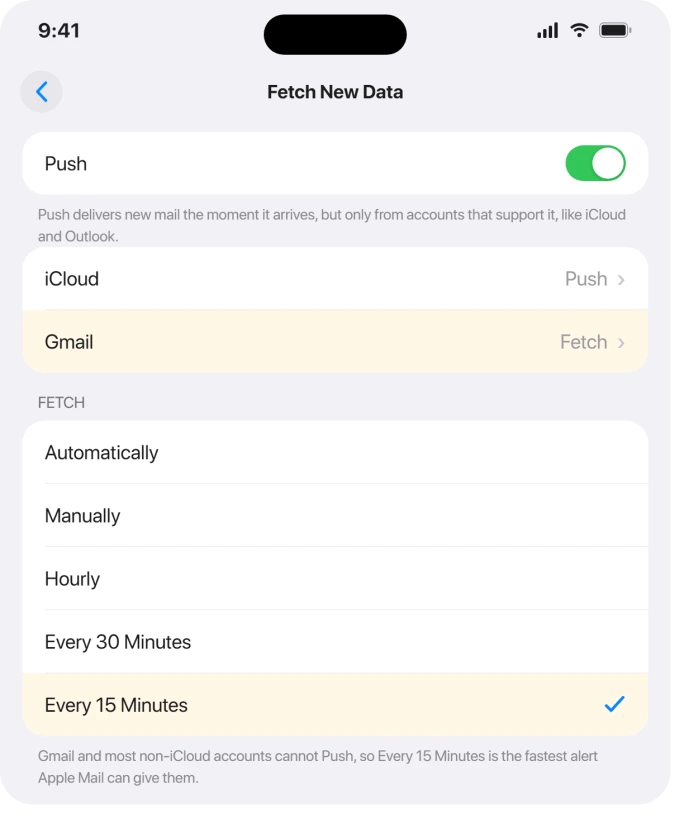
iCloud and Outlook do push. If one of those has gone silent, it is not the account, so it is a setting or a bug to rule out.
Turn on Alerts, not just Badges
Notifications can look switched on while only the badge is enabled, which puts a number on the icon but never shows a banner or makes a sound. That alone makes people think Mail is broken.
Open Settings > Notifications > Mail, turn on Allow Notifications, then confirm Lock Screen, Notification Center, and Banners are all on, along with Sounds.
A badge with no banner is silent by design, which Apple lays out in set email notifications on iPhone.
If your alerts do show but you can barely read them over the wallpaper, that is a separate iOS 26 issue covered in notifications too faint to read.
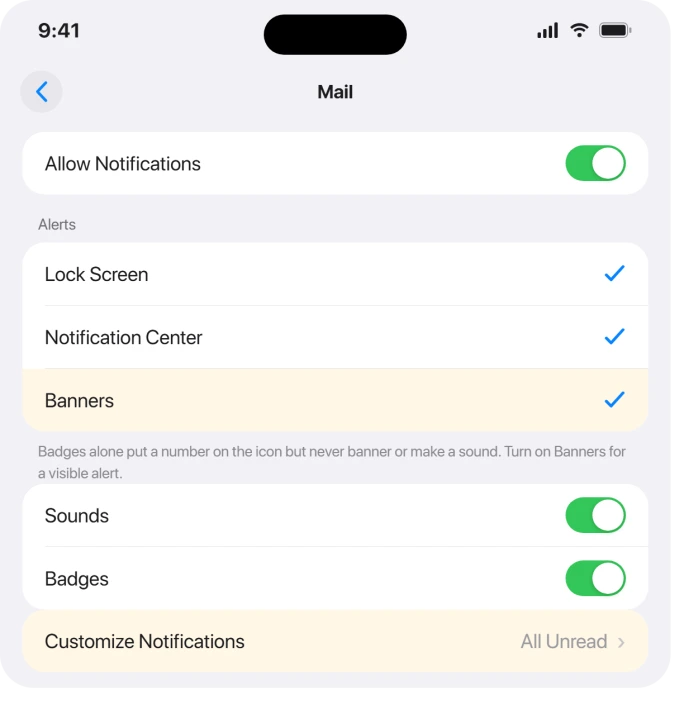
While you are there, tap Customize Notifications and, under Badge Count, choose All Unread Messages rather than Primary only, so the icon number counts every unread message and not just your Primary tab.
That matters because of how iOS 26 now sorts your mail.
iOS 26 sorts mail into Categories, and the badge follows Primary
iOS 26 splits your inbox into Primary, Transactions, Updates, and Promotions, and by default the red badge counts only Primary.
Newsletters, receipts, and shipping notices still arrive and still alert, but they land in another tab and do not add to the number on the icon, which can read as nothing new.
Two ways to line it back up. Set the badge to count everything, in Settings > Notifications > Mail > Customize Notifications > Badge Count > All Unread Messages.
Or drop the categories entirely: in the Mail app, tap the more button (the three dots) at the top of the inbox and choose List View, which puts every message back in one stream.
Apple explains the tabs in automatically categorize incoming emails in Mail.
If iCloud Mail shows no badge
Status: a real iOS bug leaves mail arriving in the background without updating the icon badge until you open the app. It dates to iOS 18, is still seen on iOS 26.1, and Apple has no confirmed fix.
This one is not a setting you got wrong. What reduces it: set the Badge Count to All Unread Messages, turn off any Focus (below), and switch to List View.
A restart clears the stuck badge for a while, though it tends to creep back until Apple patches it.
Rule out Focus and a VPN
A Focus or Do Not Disturb that does not list Mail as allowed will quietly hold every alert. Open Settings > Focus, tap the active one, open Allowed Notifications, and add Mail.
If your calls and texts also go quiet in certain modes, iPhone not ringing after iOS 26 walks through the same Focus traps.
iOS 26 also upset how some VPNs handle background traffic. If you run one, switch it off and test whether notifications return.
And confirm Settings > General > Background App Refresh is on, since Mail leans on it to check for new messages in the background.
If a third-party mail app went silent
Some people find the Gmail, Outlook, or Spark app stopped alerting right after the update, because it lost its notification permission in the upgrade.
Check Settings > Notifications > [the app] is allowed. If it looks on but still fails, delete the app and reinstall it, which makes iOS ask for notification permission again.
That single step fixed it for several people.
Why do I only get email notifications when I open the Mail app?
Because the account is fetching rather than pushing.
Apple Mail only pushes instantly from iCloud, Outlook and Exchange, and a few others, so a Gmail or IMAP account only checks on a schedule and shows nothing in between.
Set it to fetch Every 15 Minutes in Settings > Apps > Mail > Mail Accounts > Fetch New Data, or use that provider's own app for instant alerts.
Does Gmail support push notifications in the iPhone Mail app?
No. Gmail does not support push through Apple's Mail app, so the fastest you can get there is a 15-minute fetch.
For instant Gmail notifications, install the Gmail app, which has its own push and is unaffected by the Fetch schedule.
Why is my Mail badge count not updating?
That is a known iOS bug, present since iOS 18 and still around on iOS 26.1, where background mail does not refresh the icon badge until you open the app.
Setting notifications to All Unread Messages, turning off Focus, and using List View all help, and a restart clears it temporarily, but there is no full fix from Apple yet.
The Short Version
- The account decides it. Gmail, Yahoo, and most work mail cannot push in Apple Mail, so set them to fetch Every 15 Minutes (Settings > Apps > Mail > Mail Accounts > Fetch New Data) or use that provider's app.
- Turn on real Alerts, not just Badges: Settings > Notifications > Mail, enable Banners and Sounds.
- iOS 26 Categories count only Primary on the badge and tuck newsletters into other tabs. Set Badge Count to All Unread, or switch to List View (the three-dots menu).
- The badge not updating is a real, unfixed iOS bug. All Unread Messages, no Focus, List View, and a restart reduce it.
- Check Focus allows Mail, turn off a VPN to test, and reinstall a third-party mail app that lost its notification permission.
Where to Next
- Calls and texts silent too: iPhone not ringing after iOS 26
- Notifications you can see but not read: iOS 26 notifications too faint to read
- More iOS 26 fixes: iOS 26 problems and fixes
- Back to the start: pcglance home

Isaac Smith is the founder and editor of PC Glance, a website that covers computers, laptops, and technology. He is a tech enthusiast and a computer geek who loves to share his insights and help his readers make smart choices when buying tech gadgets or laptops. He is always curious and updated about the latest tech trends.