
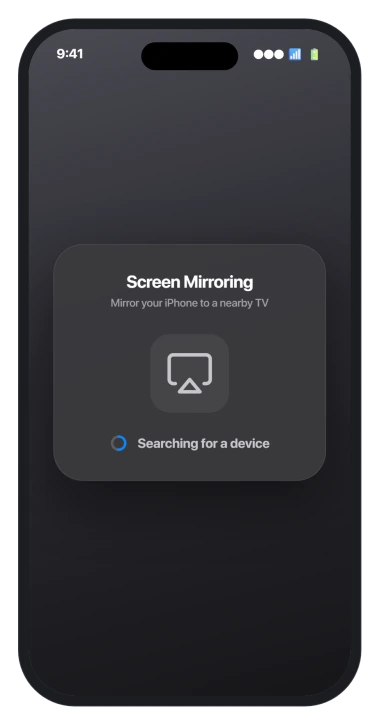
You open Screen Mirroring, and the Apple TV that has always been there simply is not. Frustrating, and iOS 26 changed more here than Apple let on.
iOS 26 rebuilt the machinery that finds receivers and sets up the connection, and it got more fragile.
Let me take you through what changed, because the old advice was written for the old machinery.
Start with the three-way restart
Before you change any settings, restart all three parts: the iPhone, the receiver, and the Wi-Fi router.
AirPlay leans on the router keeping track of which devices can see each other, and that list goes stale. A router reboot alone clears a surprising share of "the TV is just gone" cases.
While things come back up, confirm the obvious one. The iPhone and the receiver have to be on the same Wi-Fi, and both have to be powered on and awake.
If your Wi-Fi itself keeps dropping on iOS 26, fix that first, because AirPlay cannot ride a connection that is not steady.
Apple's own checklist is in If screen mirroring or streaming isn't working.
Put both devices on the same network, not the guest one
This is the single most common reason a receiver never appears. "Same Wi-Fi" has to mean the same network, not just the same house.
- Guest networks isolate on purpose. If your phone joined the Guest network and the TV is on the main one, they cannot see each other. Forget the guest network on your phone so it stops hopping onto it.
- Watch the band split. Some routers hand out 2.4GHz and 5GHz as if they were one network, but a few smart TVs, Samsung sets especially, only behave on 2.4GHz. If the TV sits on 2.4 and the phone on 5, discovery can fail. Put the TV on 2.4GHz, or join your phone to the matching band.
The router setting that quietly hides receivers
If both devices are genuinely on the same network and the receiver still will not appear, something on the path is blocking discovery.
- AP isolation. Many routers, and most mesh systems like Eero and Orbi, have a "client isolation" or "AP isolation" option that stops devices on the Wi-Fi from talking to each other. It blocks AirPlay completely. Sign in to the router, find it under the wireless or advanced settings, turn it off, and reboot the router once.
- A VPN or DNS blocker. AirPlay finds receivers with a quiet background broadcast. A VPN, a firewall, or a content or private-DNS blocker on your iPhone can swallow it, so nothing shows up. Turn the VPN and any DNS blocker off while you AirPlay. It is the same kind of block that can stop iCloud Private Relay from connecting.
Check who the receiver lets in
The receiver decides who is allowed to stream to it, and a strict setting will hide it from you.
On an Apple TV, open Settings, then AirPlay and Apple Home, which tvOS 26 renamed from AirPlay and HomeKit.
Make sure AirPlay is on, and set Allow Access to Anyone on the Same Network.
A Require Password setting can block that first connection while you sort things out.
Two more receiver quirks:
- Duplicate names. Two receivers both called "Apple TV" confuse discovery, and you end up with broken or doubled entries. Rename one of them to something unique.
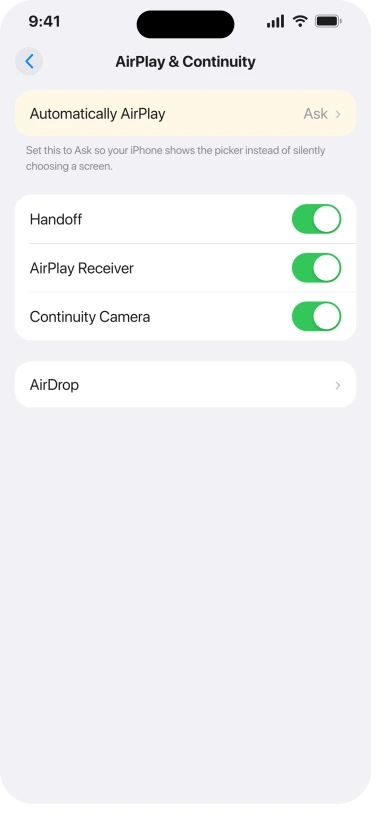
- Automatically AirPlay. On the iPhone, Settings, General, AirPlay and Continuity, set Automatically AirPlay to Ask. That stops the phone from silently grabbing the wrong screen and gives you the picker back.
Sound plays but the picture is frozen
This one is a genuine iOS 26 bug, not your network. You connect fine, the audio comes through the TV, but the video is a single frozen frame or a black screen.
It shows up most with high-end surround audio, like Dolby Atmos or 5.1 tracks, while a plain stereo file plays perfectly on the same setup.
Because it is tied to how the audio is handled, updating iOS alone often does not fix it, and it has survived through several 26 releases.
If you hit it inside a streaming app like Infuse, update that app first, since the app makers have shipped the real workarounds.
As a test, send the audio to a HomePod or speaker: if that works while video to the TV does not, your AirPlay is fine and the fault is in this specific video path.
The AirPlay passcode never appears
The other real iOS 26 bug is in pairing. You pick the receiver, it should show a four-digit code on the TV for you to type into the phone, and the code never comes, or you have to tap the receiver twice to get anywhere.
iOS 26.2 steadied this for most normal setups, so update to 26.2 or later first.
Apple has this one logged as a known issue in its developer notes, specifically for receivers set up as a Home Theater that require a password.
If you have an Apple TV set as a Home Theater and pairing keeps failing, turn that Home Theater configuration off and connect the plain way.
Status: iOS 26 reworked AirPlay discovery and pairing. 26.2 helped the passcode bug; the sound-only-no-picture case is codec-related and needs the receiver app updated, not iOS.
A different problem: mirroring your iPhone onto a Mac
If your error says "Timed Out Connecting" or "Could not connect to iPhone," you are not using AirPlay at all.
That is iPhone Mirroring, the feature that puts your iPhone screen on a Mac, and it is a separate system with its own rules.
It needs both devices on the same Apple Account with two-factor turned on, plus Bluetooth and Wi-Fi.
When it times out after updating to iOS 26 and macOS Tahoe, the full walkthrough is in iPhone Mirroring timed out on Mac, starting with signing out of iCloud on the Mac and back in.
It has nothing to do with your TV or your Apple TV.
What will not fix it
- Factory-resetting the Apple TV first. That is the last step, not the first. Check the network, access settings, and isolation before you wipe anything.
- Blaming the TV. Most AirPlay failures are the network between the devices, not the hardware. A receiver that streams audio but not video proves the TV is reachable.
- Buying an HDMI adapter to dodge a discovery problem. It does not fix why the receiver is missing.
- Leading with Reset Network Settings. It can work, but it wipes every saved Wi-Fi password, VPN, and Bluetooth pairing, so keep it for last.
- Just updating iOS for the frozen-picture case. That bug lives in the receiver app more than the OS, so update the app too.
Why can't my iPhone find AirPlay devices on iOS 26?
Almost always the network.
The receiver is on a different Wi-Fi network or band, a guest network or router isolation is blocking device-to-device traffic, or a VPN or DNS blocker on the phone is hiding the discovery broadcast.
Put both on the same main network, turn off isolation and any VPN, and restart all three devices.
Does restarting the router really help AirPlay?
Yes, more than almost anything else. AirPlay relies on the router keeping a live map of which devices can reach each other, and that map goes stale or gets crowded in a busy home.
A reboot rebuilds it, which is why a receiver that vanished often comes straight back after the router restarts.
Did iOS 26.2 fix AirPlay?
Partly. 26.2 steadied the passcode and pairing side for most normal setups, and it is worth updating to.
It did not fix the separate bug where video arrives as sound-only or a frozen image, which is tied to surround-sound audio and usually needs the receiver app updated rather than a new version of iOS.
The Short Version
- Most "AirPlay can't find devices" trouble is the network, not the TV. Restart the iPhone, the receiver, and the router first.
- Put both devices on the same main Wi-Fi, not a guest network, and mind the 2.4GHz versus 5GHz split with some smart TVs.
- Turn off router AP or client isolation, and switch off any VPN or DNS blocker while you AirPlay, since both hide receivers.
- On the receiver, set Allow Access to Anyone on the Same Network and rename duplicate "Apple TV" devices.
- Two real iOS 26 bugs: sound with a frozen picture (update the receiver app, not just iOS) and a missing passcode (update to 26.2 or later). "Timed Out Connecting" is iPhone Mirroring to a Mac, a different feature.
Where to Next
- Wireless CarPlay dropping the same way: Wireless CarPlay keeps disconnecting on iOS 26
- Mac side of the Wi-Fi trouble: MacBook Pro Wi-Fi dropping on macOS Tahoe
- The discovery broadcast blocked elsewhere: Safari can't connect to iCloud Private Relay

Isaac Smith is the founder and editor of PC Glance, a website that covers computers, laptops, and technology. He is a tech enthusiast and a computer geek who loves to share his insights and help his readers make smart choices when buying tech gadgets or laptops. He is always curious and updated about the latest tech trends.