
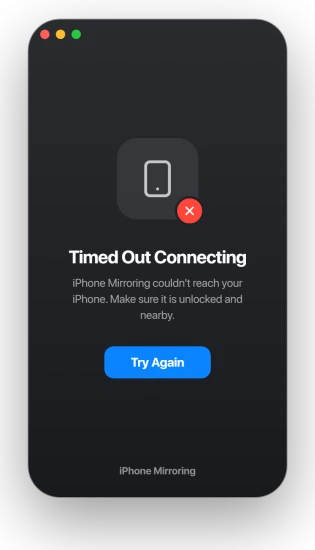
You go to use iPhone Mirroring and your Mac tells you it has timed out, or simply refuses. Behind that one window sits a short stack of conditions, and I will take you through them.
When Mirroring says Timed Out Connecting, one of them quietly is not.
Most of the time the feature is not broken.
It needs the same Apple Account with two-factor, Bluetooth and Wi-Fi on both devices, an iPhone that is locked and within reach, and a Mac new enough to run it.
Miss any one and the handshake never finishes.
Run the checklist first
Before any deeper fix, walk this list. A timeout is usually one item on it being off.
- Same Apple Account, two-factor on. The Mac and iPhone must be signed in to the same account, and two-factor authentication has to be on for both.
- Bluetooth and Wi-Fi on, both devices. It uses both. If either is off, or in Airplane Mode, it cannot connect.
- iPhone locked and nearby. Keep the iPhone within a few feet, locked, awake but not in use. Picking it up ends the session on purpose.
- A supported Mac. iPhone Mirroring needs an Apple silicon Mac or an Intel Mac with the T2 chip. Older Intel Macs cannot run it at all.
- Recent enough software. macOS 15 Sequoia or later on the Mac, iOS 18 or later on the iPhone, and the iPhone needs a passcode set.
- A supported region. iPhone Mirroring is not available in the EU, so if you are there, it will not appear.
Apple lists the full set in iPhone Mirroring: Use your iPhone from your Mac and the shared rules in Continuity features and requirements.
The fix that works most often: sign out of iCloud and back in
When the checklist is clean and it still times out, this is the one to try first, because it clears the most cases.
On the Mac, sign out of iCloud, restart, and sign back in. Then open iPhone Mirroring again. Several people had to repeat it, signing out on the iPhone too, before it took, so if one pass does not do it, run it twice.
If your MacBook's Wi-Fi keeps dropping on Tahoe, fix that alongside this, since a shaky connection times the handshake out on its own.
Turn off VPN, and match the Wi-Fi address
iPhone Mirroring rides your local network, and two settings can block that.
- VPN. A VPN on either device reroutes local traffic and the two devices stop seeing each other. Turn it off on the Mac and the iPhone while you connect.
- Private Wi-Fi Address. This one trips people up. The setting has to match on both devices. If your iPhone rotates its Wi-Fi address and your Mac does not, pairing fails instantly. Set both the same way, on the iPhone under Settings, Wi-Fi, the (i) button, and on the Mac under System Settings, Network, Wi-Fi, Details.
- Firewall. On the Mac, open System Settings, Network, Firewall, Firewall Options, and make sure Block All Incoming Connections is off. It blocks the connection outright.
If you just upgraded to a new iPhone
Switching to a new iPhone, an iPhone 17 especially, has its own trap: Mirroring keeps reaching for your old phone and will not add the new one.
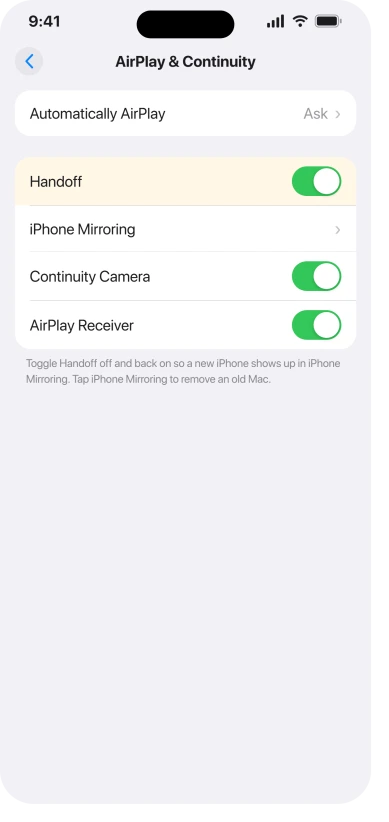
- Toggle Handoff. On the new iPhone, open Settings, General, AirPlay & Continuity, turn Handoff off, and turn it back on. The new phone usually appears as a choice right after. If it does not, restart the iPhone between turning it off and on.
- Remove the Mac from the old phone. If you still have the old iPhone, open the same AirPlay & Continuity screen, tap iPhone Mirroring, and delete the Mac from its list. That frees the Mac to pair with the new one.
- Pick the new phone on the Mac. Open System Settings, Desktop & Dock, and in the Widgets section use the iPhone menu to choose the new device. That menu only shows up when the Mac sees more than one eligible iPhone.
The deeper reset, when nothing sticks
If it still will not hold, reset the pairing itself. The safe way is built in. In the iPhone Mirroring app on the Mac, open its Settings from the menu bar and choose Revoke Access, then set it up from scratch.
For a heavier clean-out, quit the iPhone Mirroring app first, then in Finder hold Option, open the Go menu, choose Library, and delete the folder at Containers, com.apple.ScreenContinuity.
It only holds the mirroring pairing and settings, so you lose nothing else, and macOS rebuilds it when you reopen the app.
Even this has a ceiling, though: for the people hit hardest, it comes back after a while.
Status: the iPhone Mirroring timeout looks like an iOS 26 and Tahoe bug, still reported through 26.2 with no confirmed fix. Workarounds are the answer, not waiting for an update.
What will not fix it
- Waiting for the next update. 26.1 and 26.2 did not clear it for a lot of people, so treat updating as a maybe, not the fix.
- Blaming the hardware. A supported Mac and iPhone that meet the checklist are not the problem. This is a software handshake, not a broken device.
- Reaching for AirPlay instead. Sending your screen to a TV is a different feature. If that is what you actually want, AirPlay can't find devices is the one to read.
- Erasing the iPhone or Mac. This is a pairing glitch. Revoke Access and re-setup does the same job without the wipe.
Why does iPhone Mirroring keep timing out?
Usually a condition it needs is not met: different Apple Accounts, Bluetooth or Wi-Fi off, a VPN in the way, mismatched Private Wi-Fi Address settings, or a firewall blocking incoming connections.
When the checklist is clean, signing out of iCloud on the Mac and back in clears the most cases. Underneath, many people see it as an iOS 26 and Tahoe bug that no update has fully fixed.
How do I connect iPhone Mirroring to a new iPhone?
On the new iPhone, open Settings, General, AirPlay & Continuity and toggle Handoff off and on so the phone is offered.
On the Mac, open System Settings, Desktop & Dock, and pick the new iPhone from the menu in the Widgets section, which appears once the Mac sees more than one phone.
Removing the Mac from your old iPhone first helps it switch cleanly.
Is iPhone Mirroring the same as AirPlay?
No. iPhone Mirroring puts your iPhone screen on your Mac and lets you control the phone from there. AirPlay sends your screen or a video out to a TV or Apple TV.
They use different setups and throw different errors, so a Timed Out Connecting message is an iPhone Mirroring problem, not an AirPlay one.
The Short Version
- A Timed Out Connecting error is usually a requirement that slipped: same Apple Account with two-factor, Bluetooth and Wi-Fi on, a locked iPhone nearby, and an Apple silicon or T2 Mac.
- The highest-yield fix is signing out of iCloud on the Mac, restarting, and signing back in. Some people had to do it twice.
- Turn off any VPN, make the Private Wi-Fi Address setting match on both devices, and make sure the Mac firewall is not blocking all incoming connections.
- New iPhone that will not connect? Toggle Handoff off and on, remove the Mac from the old phone, and pick the new one under System Settings, Desktop & Dock.
- When nothing holds, Revoke Access in the Mac app and set it up again. It reads as an iOS 26 and Tahoe bug with no confirmed fix, so workarounds are the answer.
Where to Next
- Trying to reach a TV, not a Mac: AirPlay can't find devices on iOS 26
- The Wi-Fi under it keeps dropping: MacBook Pro Wi-Fi dropping on macOS Tahoe

Isaac Smith is the founder and editor of PC Glance, a website that covers computers, laptops, and technology. He is a tech enthusiast and a computer geek who loves to share his insights and help his readers make smart choices when buying tech gadgets or laptops. He is always curious and updated about the latest tech trends.