
You are reading a long page, you double-tap the top of the screen the way you always have to jump back up, and instead the whole app collapses into a small box floating in the middle of the iPad.
Nothing is broken. iPadOS 26 rebuilt multitasking, and that double-tap now does something new. You can put the window back in a second, and stop it happening at all.
Let me show you what you have actually triggered, and how to get out of it and stop it happening again.
First, get your window back
The shrunk app has controls at its top-left corner, three small dots or the red, yellow, and green traffic-light buttons.
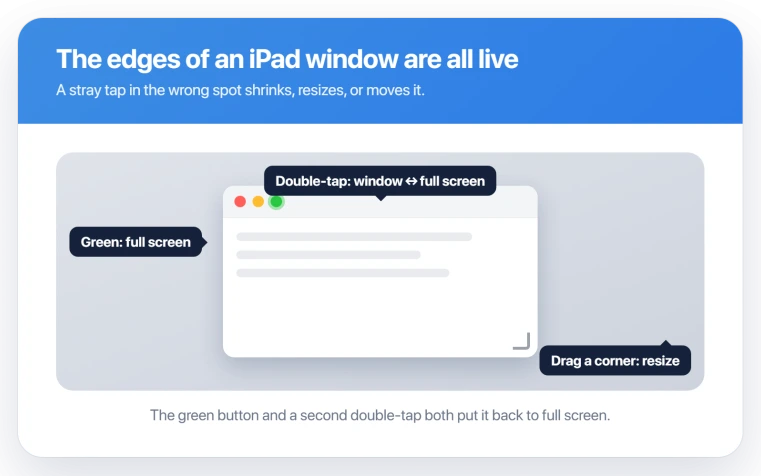
Tap that control to open it, then tap the green button, and the app fills the screen again. Or just double-tap the top of the window a second time to toggle it straight back to full screen.
Why it keeps happening: the top-tap changed
In iPadOS 26, double-tapping the top of a window switches it between a window and full screen.
On older iPads that same tap scrolled you to the top of a page, so your habit now shrinks the window instead. It is a new gesture, not a fault, and you are triggering it by accident.
The edges of a window are live too. Dragging any corner resizes it, with a handle sitting at the bottom-right, so a stray touch near a corner changes the size. The top bar drags the whole window.
Brush the screen in the wrong spot and it jumps.
How to jump to the top of a page again
Since the double-tap no longer scrolls up, tap the status bar instead, the strip with the clock at the very top of the screen. One deliberate tap takes you to the top of a page or list.
Keep it to a single tap, not a quick double-tap, or you will toggle the window instead. If the very top edge does not respond, tap just below it.
Make it stop for good: Full Screen Apps
If you never wanted floating windows, turn them off and the accidental shrinking stops with them.
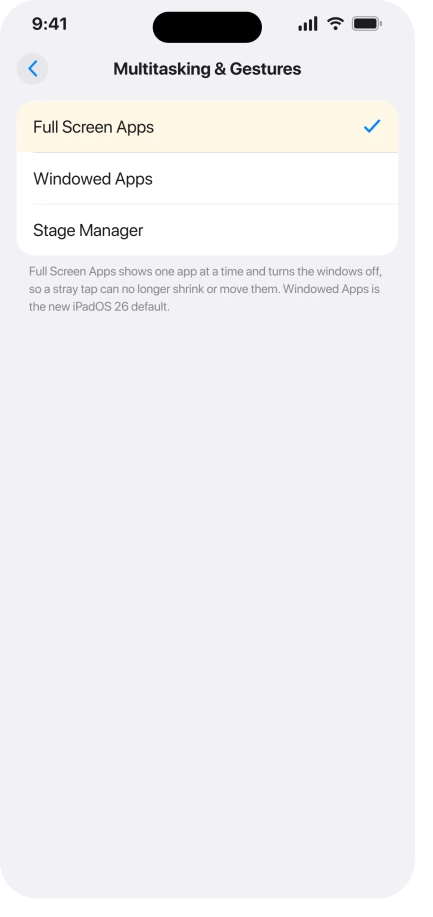
Open Settings, then Multitasking & Gestures, and choose Full Screen Apps. That is a top-level item in Settings, not buried under General.
It brings back one app at a time, the way older iPads worked, so a stray tap has no window to shrink.
Apple lays out the modes in Turn Windowed Apps on or off on your iPad.
Windowed Apps is the new default on every iPad that runs iPadOS 26, which is why this caught so many people at once.
If it is not just accidental taps
A few of these are not stray gestures.
- Resizing with the Apple Pencil stopped working. iPadOS 26 dropped Pencil and swipe resizing, so you now drag a corner or edge with a fingertip. Most iPad Pro M4 owners who say they "cannot resize" are reaching for the Pencil out of habit.
- Windows overlapping or snapping back. Some people on iPadOS 26.2 see genuine glitches where windows misbehave. Restart the iPad, or toggle Stage Manager off and on. Apple has not shipped a fix, so Full Screen Apps is the reliable calm. That faint line in a window's bottom-right corner is usually just the resize handle, not a bug.
Apple's own overview of the new layout is in Work with multiple windows at once on iPad.
Status: the shrinking is the new iPadOS 26 double-tap gesture, working as designed, not a bug. Use the green button to restore a window, and switch to Full Screen Apps to stop it entirely.
What will not fix it, and what is not this bug
- Assuming the iPad is broken. It is intended behavior, so no reset or repair is needed.
- Waiting for an update. The double-tap toggle is intended behavior Apple is not going to remove. The real off-switch is Full Screen Apps.
- Confusing it with apps not closing. If a swipe up will not close apps anymore, that is swipe up to close apps not working on iPadOS 26. In windowed mode you close a window with the red button.
- Confusing it with an external display. If your iPad only mirrors a monitor and will not extend, that is iPad won't extend to an external display, a separate issue.
Why does my iPad window keep shrinking to a small box?
Double-tapping the top of a window in iPadOS 26 toggles it between a window and full screen. That gesture used to scroll to the top of a page, so muscle memory now shrinks the window by accident.
Tap the green button in the window's top-left controls to restore it, and switch to Full Screen Apps under Settings, Multitasking & Gestures, if you want the old behavior back.
How do I make my iPad app full screen again?
Tap the controls at the top-left of the shrunk window, then tap the green button. It fills the screen again.
You can also double-tap the top of the window to toggle it back, or drag a corner to resize it by hand with your fingertip.
How do I turn off the new iPad windows?
Open Settings, tap Multitasking & Gestures, and choose Full Screen Apps. It is a top-level Settings item, not under General.
That restores one-app-at-a-time on any iPad running iPadOS 26 and stops windows from resizing or shrinking on a stray tap.
The Short Version
- The shrink is the new iPadOS 26 gesture: double-tapping the top of a window toggles it between a window and full screen, where it used to scroll to the top.
- Restore it fast by tapping the top-left controls and then the green button, or double-tap the top again.
- To scroll to the top of a page now, tap the clock in the status bar once, deliberately, not a quick double-tap.
- Corners resize and the top bar moves the window, so stray touches make it jump. Be deliberate, or turn windows off.
- The permanent off-switch is Settings, Multitasking & Gestures, Full Screen Apps, a top-level item, not under General.
Where to Next
- Apps won't close with a swipe: swipe up to close apps not working on iPadOS 26
- Monitor only mirrors, won't extend: iPad won't extend to an external display

Isaac Smith is the founder and editor of PC Glance, a website that covers computers, laptops, and technology. He is a tech enthusiast and a computer geek who loves to share his insights and help his readers make smart choices when buying tech gadgets or laptops. He is always curious and updated about the latest tech trends.