
When your iPad shows the same screen on an external monitor and gives you no way to make the monitor its own space, the problem is almost never a setting you missed.
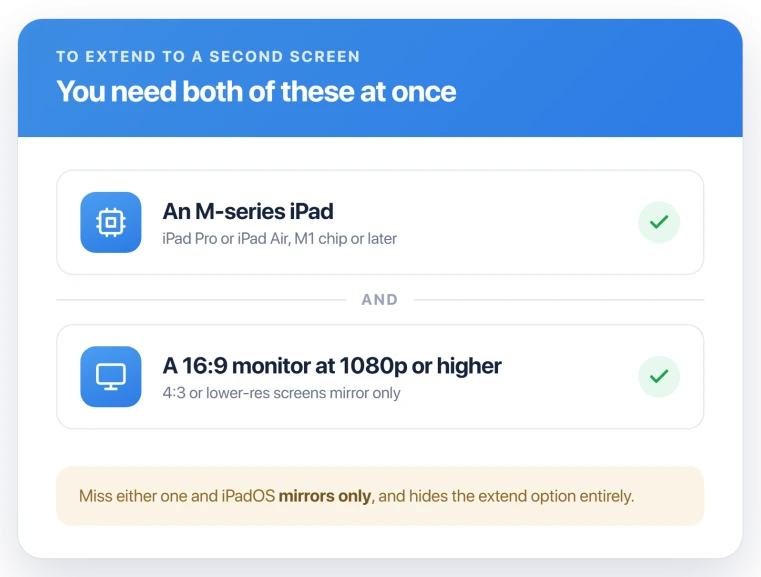
Extending, as opposed to mirroring, is gated behind two things at once: an iPad with an M-series chip, and a monitor that runs at 1080p or higher. Fall short on either and iPadOS hides the extend option completely.
So before you chase settings, check the two gates. One of them is almost always the reason.
First gate: your iPad's chip
Only iPads with an Apple M-series chip, M1 or later, can extend to a second screen. Every other iPad can only mirror, no matter what you do in Settings.
The model name will not tell you, so check the chip. These can extend: iPad Pro with M1 or later, and iPad Air with M1 or later, which means the iPad Air 5 and newer.
These mirror only: the base iPad, the iPad Air 4, and every iPad mini, including the newest one with the A17 Pro chip. A fast A-series chip does not change it, the extend feature is tied to the M-series display hardware.
To see which chip you have, open Settings, General, About, and read the model, then match it against that list.
Second gate: your monitor
Even on an M-series iPad, a weak monitor stops you cold. It has to be a 16:9 widescreen running at 1920 by 1080 or higher.
Hook up a 4:3 monitor, or one below 1080p, and iPadOS quietly drops to mirroring only.
The Arrangement and Mirror controls do not even appear, so it looks like your iPad cannot extend when it is really the monitor holding it back.
Apple does not spell this threshold out anywhere, but it holds in practice. If a monitor only mirrors, try it on a standard 1080p or higher 16:9 screen before you blame the iPad.
Turn off Mirror in the Arrangement
With an M-series iPad and a good monitor connected, the control finally shows up.
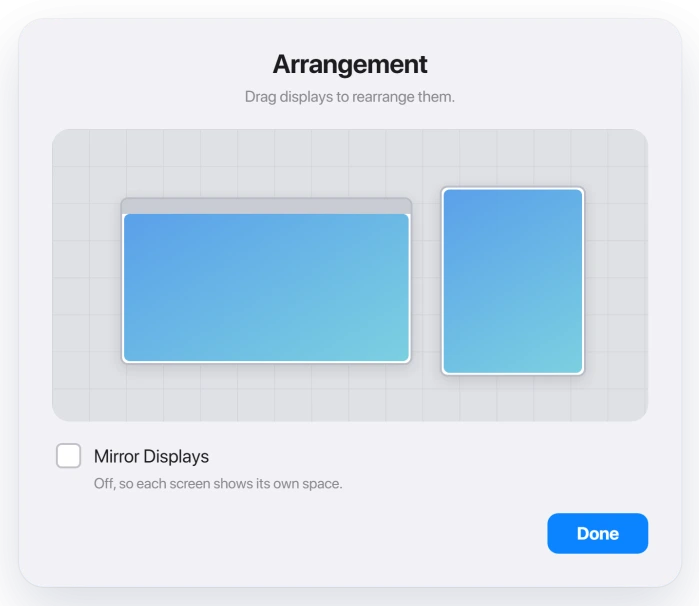
Open Settings, Display & Brightness. The external display appears next to Built-In Retina Display. Tap Arrangement, then turn off Mirror Displays.
Drag the two blue rectangles to match how your screens sit on the desk, and tap Set.
On iPadOS 26 you no longer need Stage Manager for this, since the new Windowed Apps mode extends too.
A Magic Keyboard or any mouse still makes the second screen far more usable, and Stage Manager's desktop needs a pointer to drive it.
Apple covers the modes in Turn Stage Manager on or off on your iPad.
Use a cable that carries video
A USB-C cable only sends video if it supports DisplayPort Alt Mode. A charge-only cable, or a thin USB-2 one, will power the iPad and do nothing else, or mirror at best.
Use a proper USB-C to HDMI or USB-C to DisplayPort cable, the cable that came with a USB-C monitor, or a dock that passes video through.
Apple lists what each iPad can drive in Charge and connect with the USB-C port on your iPad.
One trap: some A-series iPads can output 4K but still only mirror. A high resolution does not mean the iPad can extend, that is still the chip's job.
If Mirror will not stay off
On iPadOS 26.2.1, some people turn off Mirror Displays, tap Set, and the iPad re-mirrors the moment they close the settings. It is a known glitch, not something you are doing wrong.
There is no named fix yet, so work around it: restart the iPad with the monitor still plugged in, reconnect the cable, and toggle Stage Manager off and on.
Then update iPadOS whenever the next build lands, since Apple has not acknowledged this one.
Status: extending is M-series-only and needs a 16:9 1080p-or-higher monitor; iPadOS hides the option when either is missing. On 26.2.1 an unacknowledged glitch re-mirrors after you turn Mirror off.
What will not fix it, and what is not this bug
- Hunting for a hidden setting. If your iPad is an A-series model or your monitor is below 1080p, no toggle adds extend. The feature is not there to switch on.
- Your iPhone will not extend either. iPhones only mirror to a display, even the newest ones, so that is expected, not a fault. This is an iPad feature.
- A display that shows nothing at all is different. If the monitor is black with no signal, that is a cable or detection problem, not the mirror-versus-extend one covered here.
- This is not the Mac display bug. A Mac dropping an external screen after an update is external monitor not detected on macOS Tahoe, a separate issue.
Which iPads can extend to an external display?
iPad Pro with an M1 chip or later, and iPad Air with an M1 chip or later, which is the iPad Air 5 and newer. They can give an external monitor its own separate space.
The base iPad, the iPad Air 4, and all iPad mini models, including the A17 Pro, can only mirror. Check the chip in Settings, General, About, not the model name.
Why does my iPad only mirror and not extend?
Extending needs an M-series iPad and a 16:9 monitor at 1080p or higher, both at once. If either is missing, iPadOS offers mirroring only and hides the Arrangement controls, so there is no extend option to find.
On a setup that meets both, open Settings, Display & Brightness, Arrangement, and turn off Mirror Displays.
Does the iPad mini support an extended display?
No. Every iPad mini, including the latest with the A17 Pro chip, can only mirror to an external display.
It runs Stage Manager and windowed apps on its own screen, but it lacks the M-series display hardware that extend needs.
The Short Version
- An iPad that mirrors but will not extend is usually hitting a hardware limit, not a bug. Extending needs an M-series iPad and a 16:9 monitor at 1080p or higher, at the same time.
- Check the chip first, in Settings, General, About. iPad Pro and iPad Air with M1 or later extend. The base iPad, iPad Air 4, and every iPad mini only mirror.
- Check the monitor next. Below 1080p or a 4:3 shape, iPadOS hides the extend controls and mirrors only.
- With both in place, open Settings, Display & Brightness, Arrangement, and turn off Mirror Displays. You no longer need Stage Manager on iPadOS 26, and a mouse helps.
- Use a USB-C cable that carries video. On 26.2.1, a bug can make Mirror turn itself back on, so restart with the display connected and update when you can.
Where to Next
- Another iPadOS 26 change that trips people up: swipe up to close apps not working
- Files acting up on the same update: iPad Files app not working after iPadOS 26

Isaac Smith is the founder and editor of PC Glance, a website that covers computers, laptops, and technology. He is a tech enthusiast and a computer geek who loves to share his insights and help his readers make smart choices when buying tech gadgets or laptops. He is always curious and updated about the latest tech trends.