
You are driving with Apple Maps, the screen locks itself, and by the next turn the blue dot has stopped moving. Maps still shows you back where you were, and the turn you needed never gets announced.
On iOS 26, Apple Maps stops getting location updates the moment it is not the app on your screen. Lock the phone or open another app, and a few seconds later navigation freezes in the background.
The GPS is fine, and a few settings bring the tracking back.
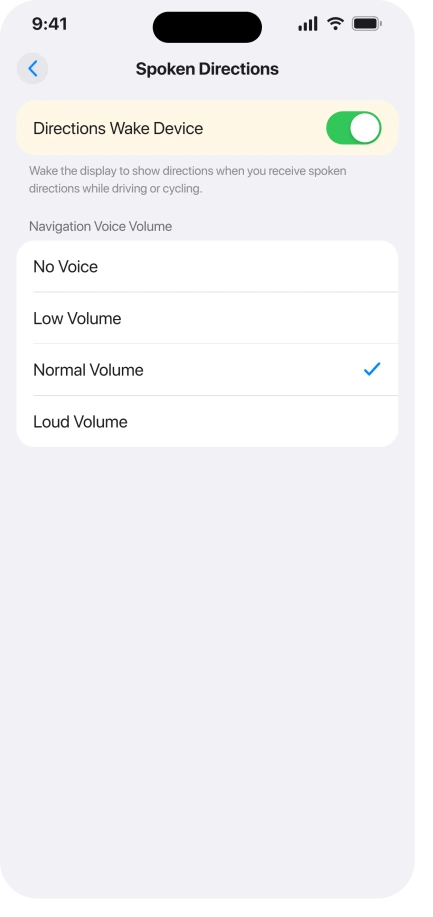
Turn on Directions Wake Device
Start here. This setting keeps navigation awake, and it is the one that most often fixes the freeze.
Open Settings, tap Apps, tap Maps, then Spoken Directions, and turn on Directions Wake Device.
It wakes the screen each time a spoken direction is coming, which keeps the navigation session alive instead of letting it stall while the phone is locked.
Apple documents the toggle in Change settings for spoken directions in Maps.
Turn off Low Power Mode
Low Power Mode makes this worse, though not by switching off GPS. It does not touch Location Services.
What it does is throttle background activity and force the screen to lock after about thirty seconds, and both of those starve navigation once the app is in the background.
Turn it off while you navigate. On an iPhone 15 or later, open Settings, Battery, Power Mode, and turn Low Power Mode off. On an iPhone 14 or earlier, it is Settings, Battery, Low Power Mode.
iOS 26 also added Adaptive Power in the same place, so leave that off during a drive too. Apple describes the modes in Use Low Power Mode.
If you lean on Low Power Mode to get through the day, what drains your iPhone battery on iOS 26 has better ways to stretch it.
Update iOS, and keep Google Maps as a backup
The later iOS 26 builds, 26.0.2 and 26.1, cleared this for a lot of people. Update in Settings, General, Software Update.
Apple never listed it as a fix and a few still see it after updating, so update first, then check these settings if it lingers.
If you are stuck mid-trip, Google Maps generally keeps updating in the background when Apple Maps will not, so it is a reliable fallback until Apple Maps behaves.
Check Maps has location permission
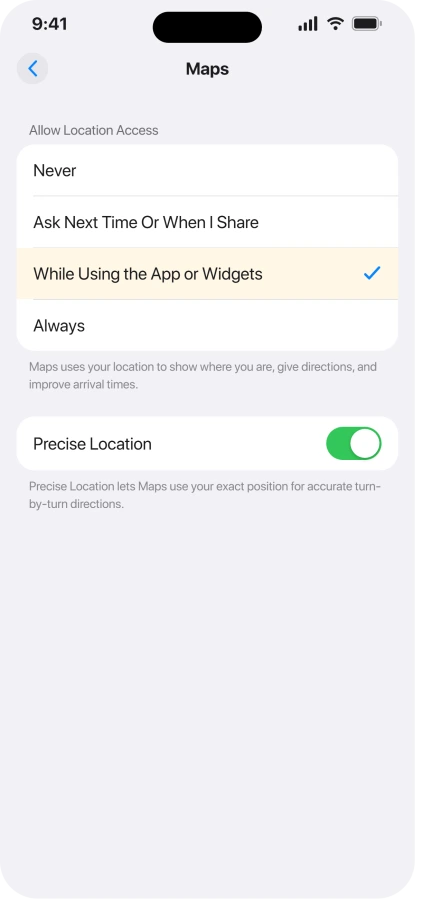
Rule this out while you are in Settings. Open Settings, Privacy & Security, Location Services, then Maps.
Set it to While Using the App or Widgets, and turn on Precise Location. You do not need Always.
Active navigation counts as using the app, so While Using is enough, and Precise Location is what gives turn-by-turn its accuracy.
Apple covers the options in Control the location information you share.
The rest of the checklist
If it still stalls, run down this list.
- Background App Refresh. Open Settings, General, Background App Refresh, and make sure Maps is on. It lets the app fetch new content while it is not in front. It does not keep it running.
- Force-restart the iPhone. A quick reset clears a stuck location session.
- Stop the screen locking mid-drive. Open Settings, Display & Brightness, Auto-Lock, and set it longer or to Never while you navigate. This does not fix the bug, it keeps the phone from triggering it, so switch it back after.
- Reinstall Maps, last. Delete Maps, restart, reinstall it from the App Store, and grant Location Services again. It forces a clean permission handshake. Your saved guides and favorites live in iCloud, so they come back. Any offline maps you downloaded do not, because they are stored on the device and do not sync, so download them again afterwards. Our guide to offline maps not working covers that.
Status: Apple never formally acknowledged this, but later iOS 26 builds (26.0.2, 26.1) cleared it for most. Directions Wake Device and turning off Low Power Mode are the settings that hold.
What will not fix it, and what is not this bug
- Blaming your GPS or your phone. Other map apps like Google Maps keep updating in the background, so your GPS and hardware are fine. This is an Apple Maps software bug on iOS 26.
- Setting Maps to Always. Active navigation only needs While Using the App. Always does not help here, and it gives away more location than you need.
- Waiting for an update alone. Later builds helped many people but not everyone, and Apple never acknowledged it, so pair updating with these settings.
- Reset Network Settings. That targets Wi-Fi and cellular trouble, not an app losing background updates, so it rarely does anything here.
- The CarPlay drop is a different problem. If Maps cuts out on your car screen, that is wireless CarPlay disconnecting, a separate issue.
Why does Apple Maps stop tracking when my iPhone locks?
On iOS 26, Maps stops receiving location updates once it is not the app on screen, so locking the phone or opening another app freezes the map a few seconds later.
Turning on Directions Wake Device and turning off Low Power Mode are the two settings that bring it back.
Does Low Power Mode turn off GPS?
No. Low Power Mode does not disable Location Services. It throttles background activity and locks the screen faster, and those are what break background navigation, which is why turning it off during a drive helps.
Do I need to set Maps location to Always?
No. While Using the App or Widgets is enough for turn-by-turn navigation, because active navigation counts as using the app. Turn on Precise Location so directions stay accurate, and leave the setting at While Using.
The Short Version
- On iOS 26, Apple Maps stops updating in the background the moment you lock the phone or switch apps, so the map freezes and directions go quiet. The GPS is fine.
- Best first fix: turn on Directions Wake Device, under Settings, Apps, Maps, Spoken Directions.
- Turn off Low Power Mode while navigating. It does not disable GPS, but it throttles background activity and locks the screen faster.
- Update to the latest iOS 26 build, which cleared it for many. If you are stuck mid-trip, Google Maps generally keeps updating in the background as a fallback.
- Set Maps location to While Using the App with Precise Location on. You do not need Always.
Where to Next
Where Maps runs but says nothing, seven things silence the spoken directions.
- Maps or audio cutting out on your car screen: Wireless CarPlay keeps disconnecting on iOS 26
- Location acting up in other apps: Location sharing not working on iOS 26

Isaac Smith is the founder and editor of PC Glance, a website that covers computers, laptops, and technology. He is a tech enthusiast and a computer geek who loves to share his insights and help his readers make smart choices when buying tech gadgets or laptops. He is always curious and updated about the latest tech trends.