
The Now Playing controls from your Apple TV are sitting on your iPhone Lock Screen and will not shift, and everybody else in the house has them too.
Let me clear it for you in about three seconds first, and then deal with stopping it coming back.
The quick way in is Control Center rather than anything buried in Settings.
Clear it now, in about three seconds
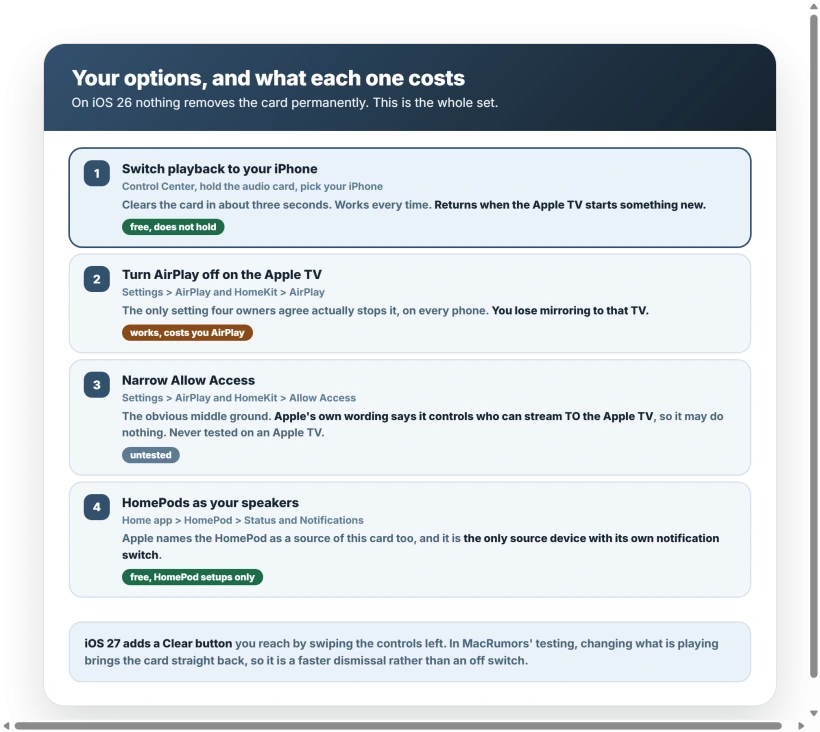
Open Control Center, press and hold the audio card, and pick your iPhone from the device list that appears.
Look for the card with the AirPlay triangle. Long-pressing the Lock Screen controls themselves will not offer a device list, which is why this goes through Control Center.
Your Apple TV will have the checkmark; tap your iPhone and the card goes at once. One owner: "That did it. Thank you. So annoying."
Check your iPhone is actually offered. For four owners in one thread it is not listed at all, closing this route, including the man who started it: the method "no longer works on iPhone 14 pro max".
One had HomePods as the Apple TV speakers, which is your cue to skip ahead.
It also does not hold.
A different owner watched it undo itself ten minutes after applying it: "Ironically it came back just now when I switched to another video on YouTube via my AppleTV." Another: "I can clear it from my lock screen but it always comes back." Use it to clear your screen, not to repair anything.
Who sees the card, and the part that is not settled
Apple documents it openly in the iPhone User Guide:
> "You can also control media playback on a remote device (such as your Apple TV 4K or HomePod) from your iPhone Lock Screen."
Apple names two source devices. Both produce the same card, and only one has a device-side off switch.
What surprises people is that it is not personal to you.
One owner, 70 upvotes behind him: "My phone displays what my kids are listening to in their room or what my wife is watching on TV while I'm working in my office." Another described three phones lighting up whoever started the show.
Owners also report it hijacking their volume buttons, so turning the phone up turns the TV up.
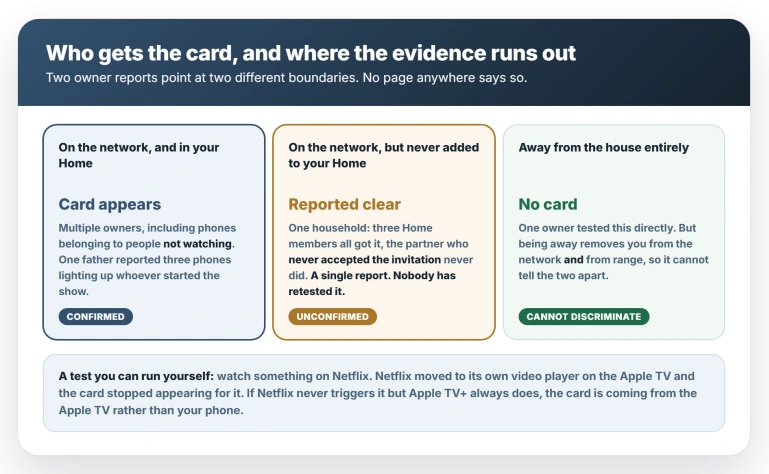
Where the boundary sits is genuinely unsettled, and no page anywhere says so. The common claim is that the network decides it, and one owner spells it out, that the card "shows up on everyones iPhone that is connected to same network".
That is an assertion rather than a test, and a phone genuinely off the network has never been checked.
Against it sits an accidental experiment. An owner and his two daughters, all in his Home, all got the card.
His partner, in the same house on the same network, never did, because the Home invitation never reached her.
His words: "I believe that this is something to do with home though, as my partner doesn't get the now playing controls on her phone." He had already turned off Handoff and AirPlay with no effect, and three replies later it was still unanswered.
So one report points at the network, one at Home membership, and neither has been retested. Treat the boundary as open.
One test you can run yourself. Watch something on Netflix. When Netflix moved to its own video player on the Apple TV, the card stopped appearing for it.
If Netflix never triggers it but Apple TV+ always does, the card is coming from the Apple TV rather than your phone.
Two iPhone switches that go unmentioned elsewhere
Neither is a fix, but both are free and first-hand.
Low Power Mode, at Settings, Battery. One owner was emphatic: "If I turn on low power mode on my iPhone, this goes away. Turn low power mode off, immediately comes back." Apple documents no link between Low Power Mode and Live Activities, so treat that as one owner's result rather than a mechanism.
What Apple does list is background app refresh being turned off, which is covered in our guide to Live Activities not showing.
It switches itself off above 80 percent battery, so it is temporary.
Bluetooth off, at Settings, Bluetooth. A second owner reports the card stopping this way, which fits how the Apple TV announces itself.
The setting that genuinely stops it
On the Apple TV, go to Settings, choose AirPlay and HomeKit, and turn AirPlay off.
Expect it to clear from every phone once playback next stops, not the instant you flip it. Three owners arrived here independently and none is happy about it.
The man whose thread carries 422 "Me too" votes wrote that it is the only thing that works, then added: "However, this is not a solution as it means I can't mirror anything to Apple TV." A third lost the ability to transfer music to his paired HomePods as well.
That is the trade. No card on anyone's phone, and no AirPlay to that TV until you switch it back.
If AirPlay is already unreliable for you, AirPlay not finding your devices is a different problem, and settle that first.
The narrower setting, and why it may not help
Under the same AirPlay and HomeKit menu sits Allow Access, offering Everyone, Anyone on the Same Network, Only People Sharing This Home, and Require Password.
It looks like the middle ground and it may do nothing.
Apple's tvOS guide defines every one of those options by who can stream content to your Apple TV.
Nothing on that page covers what the Apple TV sends out, so on Apple's own wording it should make no difference.
The one person who deliberately narrowed it was on a HomePod, and it failed for him. On an Apple TV it is untested. Try it, and the Require Password option beside it, offered once by an owner and never confirmed.
What iOS 27 changes, and why swiping never solved this
Swiping the card away is not new.
It has been possible since iOS 17, and an owner recorded at the time why it never counted as a fix: "Swipe to remove works, but it come right back the next time the Lock Screen shows." Another, blunter, a year later: "I know I can swipe it away but I DONT WANT IT TO POP UP IN THE FIRST PLACE."
iOS 27 makes the gesture tidier. A leftward swipe on the Lock Screen controls brings in a Clear button, which also strips the card from the Dynamic Island. It arrived in June and is still in the betas.
Be clear what it changes. Once cleared it stays cleared for that session, and MacRumors' complaint is the reverse of yours, that bringing the widget back is the hard part.
What it does not do is stop the card appearing next time the Apple TV starts something.
There is still no setting, it has not been confirmed against the Apple TV version of the card, and Apple has not documented it.
If your speakers are HomePods
Apple named the HomePod alongside the Apple TV in the quotation above, and this is the one source device with its own notification switch.
Several owners in the older threads had HomePods as the Apple TV speakers, and one dates his trouble to setting them up.
If that is you, open the Home app, touch and hold the HomePod tile, scroll down to its settings, then find Status and Notifications and turn off the notification for what is playing.
No equivalent toggle exists for the Apple TV.
If the pairing side misbehaves, a HomePod that will not act as an Apple TV speaker covers it.
If none of that suits you
That is the complete set, so choose your cost. Use AirPlay rarely? Turn it off on that one TV. Use it constantly? Clear the card from Control Center and accept that it returns.
Status: no Apple fix or setting since the first reports in October 2022. Six iOS 26 releases changed nothing. The only movement is a Clear button in the iOS 27 betas. Recheck when iOS 27 ships.
What does not help
- Automatically AirPlay set to Never, at Settings, General, AirPlay and Continuity, Automatically AirPlay on the iPhone. This is the fix on almost every page written about this problem, and the failures badly outnumber the successes. One owner had it set to Never all along: "Never is already set .still the same sorry but doesn't work." A July owner had already tried it before posting. An August owner was told to try it and came back with "Tried that. Still there." At least five more report it failing across 2024, including the author of the thread the advice comes from. Two say it worked, and neither retested.
- Turning off Live Activities for the TV app, at Settings, Apps, TV, Live Activities. It helps some people and not others, and Apple explains why: "Not all apps have a Live Activities setting." In the thread where it was recommended, another owner replied that he had it off already and the card still appeared.
- Turning off Handoff, at Settings, General, AirPlay and Continuity, Handoff. Not one owner reports this working. Two report doing it and seeing no change, one of them on iOS 26.3.1.
- Unpairing the iPhone as a remote, at Settings, Remotes and Devices on the Apple TV. One owner checked and his phone was not listed there at all. This is not the Remote app.
- Waiting for a fix. Reports go back to October 2022. Apple has never published a fix or a setting, and the only acknowledgment on record is one owner's account of a 2023 support call: escalated to level two, he was told "this is how it's designed, and iOS 17 will be fixing it." Ten iOS versions later it has not been.
Why is the Apple TV remote on my iPhone Lock Screen?
Because the Apple TV is playing something and your iPhone can reach it. Apple documents this as a feature, so nothing on your phone is broken.
What owners have not settled is which phones it reaches: the evidence points at both the network and your Home membership.
Why does the Apple TV remote show on my wife's phone?
Because the card is not tied to whoever started playback, and there is no per-person setting. One owner described three phones lighting up whoever pressed play.
Turning AirPlay off on the Apple TV is the only thing owners report stopping it across a household, though one household found a member never added to the Home did not get it.
Does iOS 27 fix this?
Partly. A swipe brings in a Clear button that clears the card and the Dynamic Island, and it stays gone for that session.
It does not stop the card appearing next time the Apple TV plays something, so it is a tidier dismissal rather than an off switch.
Swiping has been possible since iOS 17 for the same reason and never satisfied anyone. It is unconfirmed against the Apple TV card and undocumented by Apple.
The Short Version
- Control Center, hold the audio card, pick your iPhone. Clears it in about three seconds. If your iPhone is not in the list, this route is closed.
- It comes back when the Apple TV starts something new, for one owner within ten minutes.
- The only setting that stops it is AirPlay off on the Apple TV, in Settings, AirPlay and HomeKit. You lose mirroring to that TV.
- Other phones in the household get it too. Where the boundary sits is unsettled: one report points at the network, another at who is in your Home.
- If Netflix never triggers it but Apple TV+ always does, that is Netflix using its own player, and it confirms the card comes from the Apple TV.
- The fix most pages give you is Automatically AirPlay set to Never, and owners keep reporting it had already failed them.
- Live Activities off works for some apps only. Apple says not every app offers the setting.
- Allow Access looks like the middle ground and is untested on an Apple TV. Apple's wording says it should make no difference.
- iOS 27 adds a Clear button, a tidier dismissal and not an off switch. Swiping has been possible since iOS 17 and never satisfied anyone.
- Low Power Mode makes it go away while it is on, the only free iPhone switch anyone has confirmed.
Where to Next
Control Center, hold the audio card, pick your iPhone. Three seconds and it is gone.
Then decide whether you want it never to come back, because there is a setting for that and it costs you something worth knowing about.
If it reappears on somebody else's phone in the house rather than yours, tell me and I will point you at the right end of the fix.

Isaac Smith is the founder and editor of PC Glance, a website that covers computers, laptops, and technology. He is a tech enthusiast and a computer geek who loves to share his insights and help his readers make smart choices when buying tech gadgets or laptops. He is always curious and updated about the latest tech trends.