
Your iPhone will not turn on. You have had it on a charger for ten minutes, the screen is still black, and that is the point where most people give up on it.
Apple asks for a great deal longer than ten minutes, and I think that single fact rescues more phones than anything else on this page.
Plug it into a wall socket rather than a laptop, and then genuinely leave it alone.
Start with thirty minutes on a charger, untouched
A battery that has hit absolute zero shows nothing at all when you first plug it in. No logo, no battery icon, no backlight, and that silence is the single biggest reason people conclude the phone is finished.
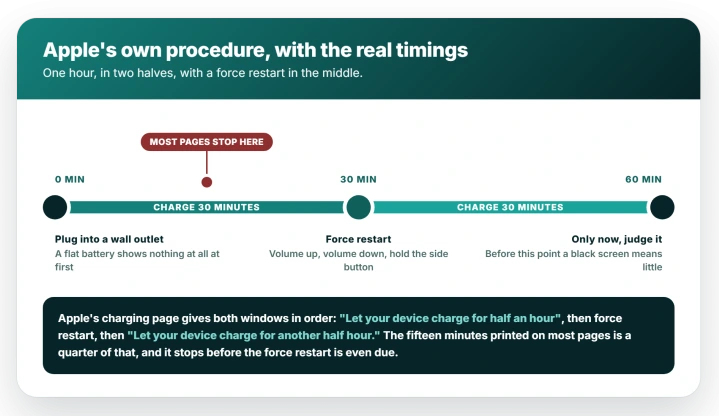
Apple's instruction, in If your iPhone or iPod touch won't charge, is "Let your device charge for half an hour", and only then does it move you on.
What to do:
- Plug into a wall outlet if you can. Apple also accepts a computer or a power accessory, but an outlet removes the most variables at once.
- Check the cable and adapter for damage, and press both ends home firmly.
- Clear any packed lint out of the port, gently and never with metal. Our iPhone not charging guide has the full method and the rest of the power chain.
- Then leave the phone alone for thirty minutes. Not five, not ten.
The force restart, and one sequence for every iPhone on iOS 26
Thirty minutes in, if the screen is still black or showing only a battery icon, force restart the phone. If it has booted normally you are done, and none of the rest applies to you.
Apple puts this step between the two charging windows, and spells out the trigger: force restart "If your device still won't power on or if the screen displays a battery icon."
On every iPhone that runs iOS 26:
- Press and quickly release volume up.
- Press and quickly release volume down.
- Press and hold the side button until the Apple logo appears.
Apple's If your iPhone won't turn on or the screen is black adds the detail people miss: holding the side button "might take longer than 10 seconds".
Keep going past the point where it feels like it has failed.
If you own an SE, ignore Apple's tab labels. Apple's won't-turn-on page splits into "iPhone with Face ID" and "iPhone with Home Button".
The Home Button tab covers only the iPhone 7 and 7 Plus and the 6s and earlier, none of which run iOS 26.
The SE (2nd generation) and SE (3rd generation) both have Home Buttons, both run iOS 26, and both use the volume sequence.
Apple says so on its charging page instead: "iPhone 8 or later and iPhone SE (2nd generation and later)". Pick the tab by your buttons and you get instructions for a phone you do not own.
A force restart erases nothing. It cuts power and boots the phone again, leaving your photos, messages and settings untouched.
If the restart lands on a picture of two iPhones instead, that recovery screen has its own fix.
Then give it the second half hour
If the force restart produced nothing, Apple's next line is "Let your device charge for another half hour." That is where the full hour comes from, and why the fifteen minutes printed elsewhere sends people to a repair counter early.
An empty battery icon on screen is a state, not a failure. Apple treats it as a reason to force restart and keep charging, not a verdict.
Check the temperature before you write the phone off
A cold iPhone can switch itself off and then refuse to take a charge, which produces every symptom of a dead one.
Apple documents both halves in If your iPhone or iPad gets too hot or too cold: cold "could cause your device to turn off", and separately, a device that "gets too cold, it might not charge or could stop charging".
The designed range is 0 to 35 C, or 32 to 95 F. A phone left overnight in a car, a garage, or a coat pocket in a cold snap sits outside it.
If that describes yours, bring it indoors and let it reach room temperature before you start the hour. An hour of charging in the cold proves nothing, which is how this gets misread as a hardware failure.
Heat does the same from the other direction, and our iPhone overheating guide covers that side.
If it comes up showing "Charging On Hold", that message is about temperature at either extreme, and charging resumes once the phone returns to a normal one.
The one question that sorts everything else
Once the hour is done, stop pressing buttons and answer one question: is the phone responding at all? These checks can tell you it is on:
- Call it from another phone and hold it. A ring or a vibration in your hand means it is powered and booted.
- Plug it into a computer. On a Mac open Finder and look under Locations in the sidebar; on Windows open the Apple Devices app and look in its sidebar. If the iPhone appears there, it is alive.
- Listen for the charge chime and feel for the haptic tap when you connect power.
- Send Play Sound from another device. Open the Find My app on another iPhone, iPad or Mac, tap Devices, pick the iPhone, then tap Play Sound. With no other Apple device, sign in at iCloud.com/find in any browser. Apple says the sound "starts after a short delay and gradually increases in volume", so give it a moment. Sound Pending means it queued the request instead, which proves nothing either way.
A pin on the Find My map is not one of these checks. A switched-off iPhone can still report a location through the Find My network, which Apple says works "for up to 24 hours after it's turned off, or up to 5 hours when it's in power reserve mode".
So a pin proves nothing about power, and after a night flat it is usually a stale last-known position rather than a live one.
Go by the sound, not the pin.
Each works in one direction only. A positive result proves the phone is on.
Silence proves nothing, because a phone out of signal, completely flat, or with a failed speaker fails every one of them while still being repairable. Treat a quiet phone as unknown, not dead.
One extra check applies only to the LCD models, which on iOS 26 means the standard iPhone 11, not the 11 Pro or Pro Max, plus the two SE models. Tilt the screen under a bright lamp.
A faint image means the phone is on and the fault is in the display's lighting rather than the battery. Every other supported iPhone is OLED and shows nothing either way.
If it responds but the screen stays dark
If any check came back positive and the display is still black, the power system is fine and the fault sits in the screen or its connector.
Apple carries both symptoms in one title, "If your iPhone won't turn on or the screen is black", and sends both down the same first steps.
Run the force restart once more, since that is where Apple points this case too. If the screen stays dark afterwards, more charging will not change it and more button sequences are wasted time.
Do not book a repair yet, though. Try the recovery mode reinstall further down first.
It is free, choosing Update leaves your data alone, and it is the only way to rule out software on a screen you cannot read. If that changes nothing, then it is a repair.
If you get an Apple logo and nothing more
A logo that appears and then hangs is a different fault from a phone that never lights up: it is powering on and failing during boot.
Apple names it exactly, listing "Your screen displays the Apple logo for several minutes with no progress bar" as a case for a recovery mode restore.
That case needs its own careful sequence, and our guide to an iPhone stuck during an update covers the safe way to force restart mid update and how to reinstall iOS from a computer without erasing anything.
When it is time for a computer
If the hour is done and the force restart did nothing, the last free step is a recovery mode reinstall. This is for both cases: a phone that never lights up, and one that responds while the screen stays dark.
- Update the computer first. Apple's literal first step is to make sure your Mac is up to date, or on a PC to get the latest version of the Apple Devices app or iTunes. An out-of-date one is a common reason a restore fails.
- Connect the iPhone with a USB cable and open Finder or the Apple Devices app, then wait for the Connect to Computer screen before starting the buttons.
- Press and quickly release volume up, then volume down, then hold the side button. Apple's wording is to keep holding it "until you see the Connect to computer screen", so do not let go at the Apple logo the way you would for a force restart.
- When the computer offers Update and Restore, choose Update.
Be careful reading Apple here, because its numbered step actually says to choose Restore.
The warning attached to that same step is what points you the other way: "Restore reinstalls iOS and erases all your data. If you haven't tried updating yet, try updating first." Update leaves your files in place, so try it first and keep Restore in reserve.
Full steps are in If you can't update or restore your iPhone.
One thing to expect partway through: Apple notes that if the software download "takes more than 15 minutes and your device exits the Connect to computer screen, let the download finish", then put the phone back into recovery mode and try again.
A phone dropping off that screen mid-download is not another failure.
Restore erases the phone completely. Treat it as the last option, and only once you have confirmed a backup exists in iCloud or on that computer.
If there is no backup and the phone holds anything you cannot lose, take it to Apple before you press Restore rather than after.
What does not help
- Giving up at fifteen minutes. Fifteen is the figure most pages print, and it is shorter than either half of Apple's own procedure.
- Holding the side button alone when the phone is frozen. Apple's instruction to "Press and hold the side button until the Apple logo appears" is how you turn on a phone that is actually off. A frozen phone ignores it, and you need the three button sequence instead.
- Swapping cables over and over. One known-good cable plus a different wall outlet settles it. Ten cables into the same dead socket settles nothing.
- Assuming a silent phone is a dead phone. Speakers fail, batteries sit flat, and neither means the phone cannot be recovered.
Status: not an iOS 26 bug and not tied to a version. Apple last revised its won't-turn-on page on 11 May 2026. Recheck if that page changes or a point release alters the boot sequence.
How long should I charge an iPhone that will not turn on?
An hour, split in two. Apple asks for thirty minutes on a charger, then a force restart, then another thirty minutes. A deeply drained battery shows nothing at all on screen for the first several minutes, so an early check tells you very little.
Does force restarting an iPhone delete anything?
No. A force restart cuts power and starts the phone again. Photos, messages, apps and settings are all untouched. The step that erases a phone is Restore from a computer, which is a separate choice you have to make deliberately.
Is my iPhone dead, or is the screen broken?
Try to prove it is on rather than trying to prove it is off. Call it and feel for a vibration, send Play Sound from Find My, or plug it into a computer and see whether Finder spots it. Any one of those coming back positive while the screen stays black points at the display, not the battery.
Why does my iPhone turn on only when plugged in?
That pattern usually means the battery is no longer holding a useful charge rather than that the phone has failed. Check Maximum Capacity once it boots, and note the row is named differently by model: on iPhone 14 or earlier it is Settings > Battery > Battery Health & Charging, and on iPhone 15 or later it is just Settings > Battery > Battery Health.
Treat a battery replacement as the likely repair.
The Short Version
- Plug into a wall outlet, check the cable and clear the port, then leave it for thirty minutes.
- Force restart: volume up, volume down, hold the side button past ten seconds. Same sequence on every iPhone running iOS 26, including both SE models.
- Charge for another thirty minutes. Apple's full instruction is an hour, not fifteen minutes.
- A cold phone can shut down and then refuse to charge, so warm it to room temperature before you start the hour.
- Then find out whether it is on: call it, send Play Sound from Find My, or plug it into a computer. A positive result proves it is running. Silence proves nothing, and a map pin proves nothing.
- Responding but black screen means a display fault, and that one is a repair.
- Logo that hangs, or nothing at all after the hour: recovery mode from a computer, and choose Update before Restore.
If it restarts rather than staying off: A phone that reboots on its own is a different fault, and our guide to an iPhone that keeps restarting separates a respring from a real restart.
Where to Next
Give it the full hour on a wall socket before you conclude anything. That one instruction is Apple's, and it is the difference between a phone people write off and a phone that comes back.
Clear the port properly and use a cable you have seen work on something else.
If the screen is lit and simply ignores you, that is a different starting point. The force restart order, and the test that separates frozen from broken.
If an hour on a known-good charger leaves you with nothing at all on screen, tell me what happens when you plug it into a computer, because that is the next thing I would want to know.
On an iPhone 16 Pro specifically, the iPhone 16 Pro page goes through that model's steps.

Isaac Smith is the founder and editor of PC Glance, a website that covers computers, laptops, and technology. He is a tech enthusiast and a computer geek who loves to share his insights and help his readers make smart choices when buying tech gadgets or laptops. He is always curious and updated about the latest tech trends.