
You downloaded an offline map before a trip. Now you have no signal, and the area you saved last month has gone from the list. That is a rotten moment to find out.
The download is probably not your problem. The way you save an area is the part that catches people out, and Apple states the wrong gesture on its own support page.
Let me show you the gesture that actually works.
Press and hold until a pin drops
That is the gesture, and it matters because Apple's own two pages disagree about it.
The offline maps guide says: "Touch and hold the map until a pin marker appears, then tap Download." The support article says to "tap an unmarked area to drop a pin", which does not drop a pin in iOS.
Follow the guide.
The other way in is through the account sheet: tap your picture or initials next to the search field, tap Offline Maps, tap the Add button, then type a location or tap Current Location.
Either route gives you a rectangle with handles. Drag them, and watch the size readout, because that number is your only check before you commit.
Neither page names a size limit, so the readout is what you have to go on. The advice on it is blunt: "To reduce the size of the map you download, select a smaller area."
Then you tap Download and nothing happens
No error, no progress bar, no explanation. Most attempts die right here, on one setting.
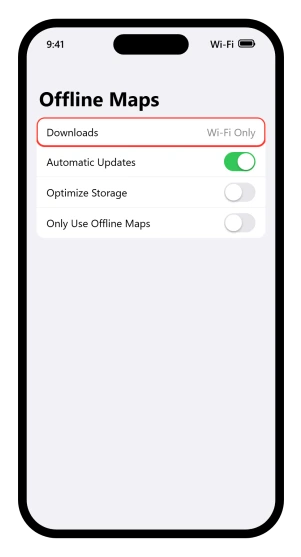
In the same Offline Maps sheet there is a Downloads setting with two values, and the instruction for changing it reads: "Download over cellular: Tap Wi-Fi Only, then tap to select Wi-Fi + Cellular."
Read what that assumes. It expects to find you on Wi-Fi Only.
So a phone away from Wi-Fi, which is exactly the phone belonging to someone at an airport who has just remembered they need a map, sits there doing nothing.
No page states that Wi-Fi Only is the default. Every instruction is written as though it is.
Two other things can quietly stop a download, and neither page names Maps, so rule them out rather than trust them. Low Power Mode turns off automatic downloads and background app refresh.
Low Data Mode does the same, and the iPhone guide puts it more strongly, saying it "pauses automatic updates and background tasks when iPhone isn't connected to Wi-Fi", which plausibly covers the automatic refresh of an area you already have.
Our guide to Background App Refresh on iOS 26 covers how much of that is documented and how much is folklore.
Where the area lives
Back to your picture or initials, then Offline Maps. Everything downloaded is listed there with its file size, and you can rename it, resize it or delete it.
One half of that is flat: "You can delete offline maps only in the Maps app." Downloading and renaming happen on that same screen.
This catches people because per-app settings moved into a row called Apps, so Maps has a Settings > Apps > Maps screen where Location and its Preferred Routes & Predicted Destinations setting live.
The offline controls are not on it.
If you have been hunting Settings, that is why you found nothing, and our guide to where app settings went explains the move and dates it to iOS 18.
One more thing that surprises people: "Offline maps do not sync across your devices." Downloading an area on an iPad does nothing for your iPhone, and deleting and reinstalling Maps takes your downloads with it.
It was there in March. In June the list is empty.
There is a documented reason, and it is a setting you may not remember meeting.
On the same screen sits Maps' own Optimize Storage. This is not the Optimize iPhone Storage setting inside iCloud Photos, which does something quite different with your pictures.
The description of this one: "Turn on Optimize Storage and any unused offline maps will be automatically deleted after a period of time."
That is the answer for an area that was there and is not now. The period is not published, and neither page says whether the setting arrives on or off.
Both only ever describe switching it on, which suggests off, so check rather than assume.
While you are there, note the one default stated in words on these two pages: "Automatic Updates is on by default." Saved areas quietly re-download as businesses and street names change, which matters on a metered plan if you have also switched Downloads to Wi-Fi + Cellular.
Full bars, a city center, and Maps behaving like a tunnel
The reverse problem has its own switch, on the same screen.
Only Use Offline Maps does what it says. Turning it on means choosing "to rely on your downloaded maps even when you have an internet connection".
Switch it on before a trip, forget it afterwards, and Maps acts as though you have no signal in a city with full coverage. The way back is one line: "Use online maps: Turn off Only Use Offline Maps."
If Maps stops tracking you mid-drive instead, that is a different fault and our guide to Apple Maps freezing when the iPhone locks is the closer match.
On the trip: what works, and what is never claimed
The list of what an offline map gives you is short.
The guide words it like this: "you can view information like hours and ratings on place cards, get turn-by-turn directions for driving, walking, cycling, or riding transit, and see your estimated time of arrival." The support article says the same thing in slightly different words.
Place cards, turn-by-turn in four modes, and an arrival time.
Now look at what is not on it.
Neither offline page claims general search. Neither uses the word in a sentence about working offline, and the hikes page says outright: "You need to be online to search for hikes." Also absent: traffic, Look Around, satellite and 3D views, sharing your arrival time, and live transit departures and fares.
Nobody says those fail. They are simply never claimed, which is a different thing, and reading the list as closed is our call rather than a documented limit. Plan on having that list and nothing more.
If a downloaded area renders as a plain grey rectangle, owners report it and no page explains it.
Check whether Only Use Offline Maps is on, and whether you are actually inside the rectangle you saved rather than just near it.
Saved hikes and custom routes download separately
Know this before you rely on one, because an area download does not cover it.
A route you build or save has its own switch, and the hikes page prints the same tip twice, with slightly different wording each time: "Make sure Download Route is turned on if you want to access the route and the surrounding map even when you don't have access to an internet connection."
Before you assume it is unavailable where you are going
Rule this out last, because it is the one thing you cannot fix.
The guide opens with a limit that is easy to skip: "Offline maps aren't available in all countries or regions." The support article is stricter: "An offline map for a specific region is not intended for use in all regions." So an area downloaded at home is not guaranteed to behave the same way abroad.
Apple points regional Maps questions at its feature availability website, linking straight into the Maps section. Twenty Maps features are listed there, from Look Around to speed cameras.
Offline Maps is not one of them. So that page will not answer it for you, and the practical check is to attempt the download.
Status: written against iOS 26.6. Apple's two offline maps pages disagree on how to drop a pin and on how many routes start a download. Where they differ, the iPhone guide is followed.
Why is my Apple Maps offline map not downloading?
Most often because Downloads is set to Wi-Fi Only and you are not on Wi-Fi. In Maps, tap your picture or initials, tap Offline Maps, then change Downloads to Wi-Fi + Cellular. Note that Automatic Updates is on by default, so saved areas will then refresh over cellular too.
Why did my downloaded Apple map disappear?
Because Maps' own Optimize Storage is on. Any unused offline maps are automatically deleted after a period of time when that setting is enabled, and the period is not published. Check it in Maps under your picture or initials, then Offline Maps.
Does Apple Maps search work offline?
Neither of Apple's offline pages claims it does. The documented list covers place cards, turn-by-turn directions for driving, walking, cycling and transit, and your arrival time. Search is on no list, and the hikes page says outright that you need to be online to search.
Where are offline maps in iPhone Settings?
They are not in Settings. The support article says you can delete offline maps only in the Maps app, and the downloading and renaming controls sit on that same screen, reached by tapping your picture or initials next to the search field.
The Short Version
- Touch and hold to drop the pin. Apple's support article says to tap, which does not work. The guide has it right.
- Downloads sits on Wi-Fi Only, which is why a download away from Wi-Fi never starts. No default is printed, but every instruction assumes that one.
- Everything lives in the Maps app, under your picture or initials, then Offline Maps. Nothing is in Settings.
- Maps has its own Optimize Storage, separate from the iCloud Photos setting of a similar name, and it deletes unused areas.
- Automatic Updates is on by default, in Apple's own words, so areas re-download quietly.
- Only Use Offline Maps left on makes Maps act offline in a city with full signal.
- Search is never claimed to work offline. The documented list is place cards, turn-by-turn and arrival time.
- A saved hike needs its own Download Route switch, and does not appear in your offline maps list.
- Offline maps do not sync, so reinstalling Maps or switching device loses them.
Where to Next
Touch and hold until the pin drops. That is the whole trick, and Apple's own support article describes it wrongly, which is why so many downloads never happen in the first place.
Check your saved areas before you leave rather than when you arrive somewhere with no signal.
If yours vanish from the list on their own, come back and tell me how long they had been saved, because Apple publishes no expiry and I would like to know.
And if saved maps are eating your storage instead, deleting offline maps frees the space, from inside Maps only.

Isaac Smith is the founder and editor of PC Glance, a website that covers computers, laptops, and technology. He is a tech enthusiast and a computer geek who loves to share his insights and help his readers make smart choices when buying tech gadgets or laptops. He is always curious and updated about the latest tech trends.