
Your photos are in the wrong order and pictures from years ago are sitting at the bottom of the library, next to the ones you took today. Nothing is broken and nothing is lost.
Your library is sorting by the date each photo was added, not the date it was taken, and every photo you own carries both.
It takes three taps to change, and I will show you where Apple has hidden the switch.
The setting, in three taps
The sorting page puts the choice plainly: "You can sort items in your photo library to appear by the date they were added or by the date they were taken."
Open Photos, tap the Sort and Filter button, and you get both options with Apple's own descriptions:
- Sort by Recently Added: "Photos and videos you added most recently appear at the bottom of the library."
- Sort by Date Captured: "Photos and videos are sorted by the date they were taken, instead of the date they were added to the library."
On that page the control is named only in the image description, which calls it the Sort and Filter button. The prose beside it prints a glyph instead.
The sort order is not in Settings. It lives in the Photos app, on that one button.
Settings > Apps > Photos does exist and holds other Photos controls, which is what sends people there first, and our guide to where app settings went explains why that screen is now the habit.
The sort order was never on it.
Neither page says whether this choice follows you to an iPad or a Mac, so if you use more than one, check it on each.
Why an old photo lands at today
Because every photo carries two dates, and they are not the same thing.
The date it was captured is stored with the file itself, written by whatever created it. The date it was added is when it reached your library.
Take a picture now and the two match, which is why the difference stays invisible for years.
Then a relative AirDrops you a photo from their old camera, or you import a card that has been in a drawer since last summer. The file already carries the date it was taken. The added date is today.
On a library sorted by Recently Added, that photo goes to the end, next to this morning's coffee.
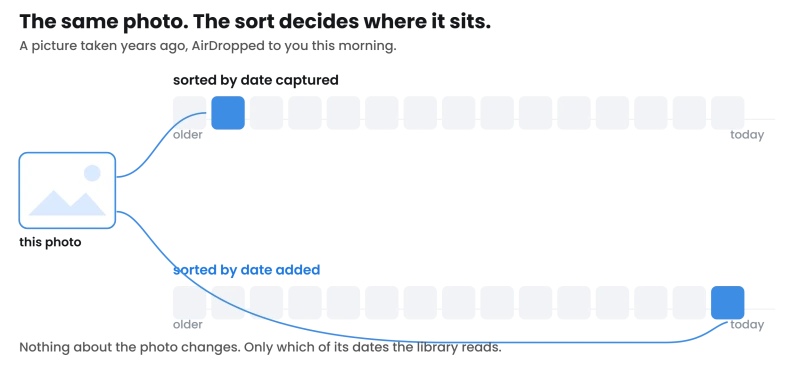
Apple treats arrival as its own event, which is what makes this work.
Its page on recently saved photos collects "all the photos and videos you've saved from other apps, like Messages, Safari, and Mail", adds that "Photos and videos that were sent to you using AirDrop also appear here", and sends you to Sort by Recently Added to find them.
There is even a Saved Today collection.
What Apple never spells out is the other half, that an imported photo keeps the capture date already in the file. That step is ours, and it is what the fix depends on.
Screenshots turning up among the photos
Screenshots arrive in your library on the day you take them.
Apple says so, and states it as a default: "By default, screenshots, photos and videos synced from your Mac, and photos and videos shared with you in the Messages app automatically appear in your photo library."
So a run of screenshots sitting in the middle of a holiday is not a sorting fault. Those images were added when you took them, and they are in the library because that is where they go unless told otherwise.
You can take them out of the view. Tap the same Sort and Filter button, tap View Options, then tap Screenshots, From My Mac, or Shared with You to hide each one.
Tapping the option again brings them back, and this changes the view rather than deleting anything.
When the photo's own date is wrong
Changing how the library sorts will not help a photo whose capture date is genuinely bad.
Scanned prints are the clearest case, because a scanner writes the day you scanned rather than the day the picture was taken, and downloads and cameras with the wrong clock do the same.
The photo information page says you "can also change certain stored data such as the date, time, and location". The route:
- Open the photo, then tap the More button.
- Tap Adjust Date & Time.
- Use the calendar and clock to update, then tap Adjust.
Note which button that is.
Apple uses two on the same page, and they do different jobs: the Info button opens the metadata panel, and the More button is the one that carries the date and location edits.
Both are named only in the page's image descriptions rather than in its prose, which is how the wrong one ends up in a lot of advice.
Two things make this more useful than it first looks.
You can do a batch. From the same page: "To change the date, time, or location of a batch of photos, tap Select, tap the thumbnails you want to change, then follow the steps already given." So a hundred scanned prints all stamped with the day you scanned them can be moved in one pass.
It is reversible. There is a documented way back: "To revert a photo or video to its original date, time, or location, tap the More button, tap Adjust Date & Time or Adjust Location, then tap Revert." The original is kept, so this is not a destructive edit.
If neither sort looks right
Check what you are actually looking at before assuming the library is wrong.
A filter may be on.
The same Sort and Filter button applies filters such as Videos, Favorites or Not in an Album, and the way back is one tap: "To remove the filters and return to the full library, tap All Items." A filtered library looks like a library with photos missing, which reads as disorder.
An album is a different thing again. Apple gives albums their own sorting page, separate from the library's, so an album that looks scrambled is a separate question rather than proof that your library setting is wrong.
And if the library is still filling rather than misordered, with the status showing items waiting to sync, that is a different problem and our guide to iCloud Photos stuck on Syncing Paused covers it.
Status: written against iOS 26.6. Apple documents both sort orders, the screenshots default, the batch date edit and Revert. It does not say what happens to a photo carrying no capture date.
Why are my iPhone photos not in chronological order?
Because the library is sorted by the date photos were added rather than the date they were taken. Open Photos, tap the Sort and Filter button, then choose Sort by Date Captured. An imported or AirDropped photo then sits at the date stored in the file rather than at today.
How do I change the date a photo was taken on iPhone?
Open the photo, tap the More button, then tap Adjust Date & Time. Use the calendar and clock to update and tap Adjust. You can select several photos first and change them all at once, and the original is kept, so you can tap Revert later.
Why are my screenshots mixed in with my photos?
Because Apple puts them there by default, along with anything synced from a Mac or shared with you in Messages. Tap the Sort and Filter button, tap View Options, then tap Screenshots to hide them from the library view. Tapping it again brings them back.
Where is the photo sort setting in iPhone Settings?
It is not in Settings. The sort order lives in the Photos app, on the Sort and Filter button at the top of the library. Settings, Apps, Photos exists and holds other Photos controls, which is why people look there, but the sort order has never been on that screen.
The Short Version
- Two dates exist for every photo, the date captured and the date added, and the library sorts by one of them.
- Sort by Date Captured is at the Sort and Filter button in Photos, and it moves imported or AirDropped photos off today.
- The sort order is not in Settings. It is on that button inside the Photos app.
- Screenshots, Mac syncs and Messages images appear by default, in Apple's own words, and View Options hides them.
- A photo's own date can be edited at the More button, then Adjust Date & Time, in batches, and reverted afterwards.
- A filter left on looks like disorder. Tap All Items to clear it.
- Albums have their own sorting page, so a scrambled album is a separate question.
The same photo twice rather than out of order: If a picture appears more than once rather than in the wrong place, that is a different collection entirely, and our guide to the Duplicates album sitting empty covers when the phone actually looks for them.
Photos that look wrong rather than misfiled: If the color is off rather than the order, our guide to photos that look washed out separates a Photographic Style from a display setting.
Where to Next
Two dates live on every photo you own, and your library is sorting by the wrong one for what you want. Three taps changes it and nothing gets moved or altered.
If you have just imported an old shoebox of scans, this is almost certainly your answer.
If your order is still odd after switching to date captured, tell me below what the dates on the offending photos say and we will work out what happened to them.

Isaac Smith is the founder and editor of PC Glance, a website that covers computers, laptops, and technology. He is a tech enthusiast and a computer geek who loves to share his insights and help his readers make smart choices when buying tech gadgets or laptops. He is always curious and updated about the latest tech trends.