
Autocorrect keeps changing words you spelled perfectly well, and by now you are probably typing around it. There is a reason it does this and it is not carelessness on your part.
Autocorrect no longer just fixes spelling. It predicts, and prediction is what rewrites a word that was already right.
There is a permanent fix for one stubborn word, and I will get you to it.
It started predicting in iOS 17
The iOS 17 newsroom post, published in June 2023 for a September release, filed this under "Improvements to Autocorrect and Dictation Deliver More Intelligent Input".
It describes "a comprehensive update with a transformer language model, a state-of-the-art on-device machine learning language model for word prediction".
Prediction is the word that matters. A spelling check asks whether what you typed exists. A prediction asks what you probably meant, given the words around it.
The second one is willing to change a word that was already right.
The same paragraph says "sentence-level autocorrections can fix more types of grammatical mistakes".
Apple does not call that part new, but grammar is not spelling, so at least some of what autocorrect edits was never a misspelling in the first place.
Apple describes both the dictionary and the prediction model, and never draws a line between them. Reading a correctly spelled word being changed as the consequence of the second is ours, not Apple's.
Protect one word without switching anything off
Apple's own guide has a heading for this. It is the question people ask, word for word: "Have a word or phrase you use and don't want it corrected?"
The answer, on the text replacements page, is a Text Replacement with the shortcut left empty.
- Go to Settings > General > Keyboard, then tap Text Replacement.
- Tap the Add button.
- Type the word into Phrase, and leave Shortcut blank.
- Save.
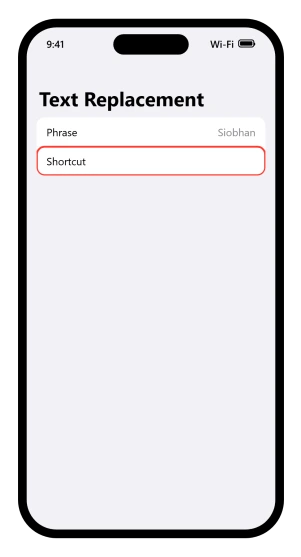
The word goes into your personal dictionary and autocorrect stops touching it. Names, surnames, place names, brand names, slang, anything it keeps mangling.
That blank field looks like a mistake, which is why it goes unused. It is on the same page as the familiar trick where you type "omw" and get "On my way!", sitting underneath it.
Tap the word it changed
The faster fix is a single tap, and it lives on the word itself.
When autocorrect changes something, it underlines it briefly. That underline is a button.
From the onscreen keyboard page: "misspelled words are automatically corrected and temporarily underlined so you know what's been changed; to revert to the spelling as you typed it, tap the underlined word, then tap the spelling you want to use."
Tap it, pick what you actually typed, carry on. No settings involved.
Two related gestures go with it. A word underlined in red is a suggestion rather than a completed correction, and tapping it offers replacements.
And if you accepted an inline prediction by mistake, tap the Delete key, then tap the word you were part way through typing.
The predictive text page carries a quiet learning rule: "If you reject the same suggestion a few times, iPhone stops suggesting it." One catch on where that sentence sits.
Apple prints it inside a paragraph about what happens once you have turned Predictive Text off, not as a general rule of normal typing, so treat it as documented for that case and untested for the rest.
The reset that deletes those protections
There is a documented way to wipe everything the keyboard has learned: Settings > General > Transfer or Reset iPhone > Reset > Reset Keyboard Dictionary.
Note the path first. Older advice sends you to Settings, General, Reset, which no longer exists as a route. Apple documents only the current one.
Now the cost, which the text replacements page states outright: "All custom words and shortcuts are deleted, and the keyboard dictionary returns to its default state."
Shortcuts includes every Text Replacement you have made, which includes the blank-shortcut protections from two sections ago. So the reset undoes them. If you use both, add your words back afterwards.
That said, if autocorrect is wrong about many words rather than one, the reset is the fix rather than the hazard, because a dictionary trained on months of typos keeps correcting toward them.
Our guide to keyboard lag on iOS 26 treats it as the routine cleanup it usually is.
Apple describes this two different ways
Apple's Auto-Correction support article explains the feature like this: "Auto-Correction uses your keyboard dictionary to spellcheck words as you type, automatically correcting misspelled words for you."
So there are two descriptions of one feature. The newsroom describes a machine learning model that predicts words. The most-read support page describes a dictionary that checks spelling.
Neither says the other mechanism went away, and the dictionary is plainly still there, because you can reset it.
What the support page does not do is prepare you for a correctly spelled word being changed. That is the gap, and it is why the fix people reach for is usually the wrong one.
A wrong guess does not have a switch that turns it off. It has the three answers this page already gave you.
What iOS 26 actually changed: one line
In the iOS 26 release notes, under iOS 26.4 from 24 March 2026, there is a single line: "Improved keyboard accuracy when typing quickly"
That is the whole disclosure.
Two other lines in the whole cycle mention a keyboard or typing, and neither is about correction: iOS 26.4 added 28 emoji to the emoji keyboard, and iOS 26.0 added typing indicators in Messages group chats.
Nothing anywhere about autocorrect, predictive text or spelling. The "What's new in iOS 26" page never mentions the keyboard, autocorrect, predictive text or spelling either.
So if your typing got noticeably better or worse around late March, that line is the only thing Apple has published about it.
The switches, and where they did not move
Everything sits on one screen. Settings, General, Keyboard, under the heading All Keyboards.
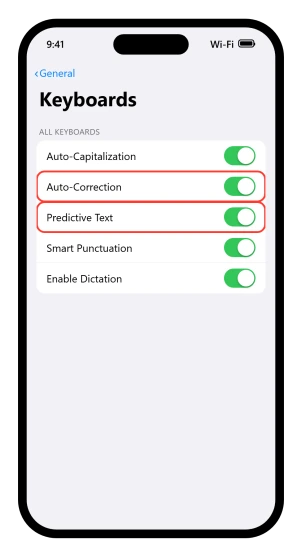
That matters because iOS 18 moved most per-app settings into a row called Apps, and people have learned to look there first. Keyboard settings did not go.
Our guide to where app settings went covers the move and what it did not touch.
Auto-Correction has its own switch on that same screen.
Turning it off stops the corrections and leaves the suggestion strip working, so you still get offers without anything being changed for you.
That is the answer if the problem is many words rather than one.
The switch beside it has two names in Apple's own pages.
The iOS 26 guide prints Predictive Text; the support article still hedges with "Predictive or Predictive Text".
Turning it off takes more with it than you might expect: "Turning off the Predictive Text setting turns off both predictive text and inline text predictions."
One default is stated outright: "By default, Auto-Correction is on."
Two things this page does not cover. Third-party keyboards like Gboard or SwiftKey do their own correction and none of these switches reach them.
And if it is misreading you when you speak rather than type, that is dictation, whose switch is on this same Keyboard screen.
Status: written against iOS 26.6. Apple's newsroom describes a prediction model; its main support page describes a dictionary spellcheck. Reading a changed word as the result of that gap is ours.
Why does my iPhone change words that are spelled correctly?
Because autocorrect predicts as well as checks spelling. Apple added a machine learning model for word prediction in iOS 17, so the keyboard now guesses what you meant from the surrounding words, and a guess can overwrite a word that was already right.
How do I undo an autocorrect on iPhone?
Tap the word it changed. Corrected words are underlined briefly, and tapping the underline offers the spelling you originally typed. If you accepted an inline prediction instead, tap the Delete key once, then tap the word you were part way through typing.
How do I stop autocorrect changing one specific word?
Add it as a Text Replacement with no shortcut. Go to Settings, General, Keyboard, then Text Replacement, tap the Add button, put the word in the Phrase field, leave the Shortcut field empty, then tap Save. Autocorrect then leaves that word alone for good.
Did iOS 26 change autocorrect?
Not in the release itself. The what's new page for iOS 26 never mentions the keyboard. The only keyboard line in the iOS 26 release notes is one sentence under iOS 26.4 from March 2026, reading "Improved keyboard accuracy when typing quickly", with no further detail.
The Short Version
- It predicts as well as spellchecks, which is why correct words get changed, and the prediction model arrived in iOS 17.
- Tap the underlined word to undo a correction and get back what you typed.
- A Text Replacement with a blank shortcut protects one word permanently without switching anything off.
- Reset Keyboard Dictionary deletes those protections too, because it clears shortcuts as well as words.
- Auto-Correction has its own switch if the problem is many words rather than one.
- The settings never moved to Settings > Apps. They are still Settings > General > Keyboard.
- Auto-Correction is on by default, which is the one default Apple states outright.
Where to Next
The thing to hold onto is that autocorrect is predicting, not just spellchecking, which is why perfectly good words get rewritten.
For one word you use constantly, teach it once with the text replacement trick and it stops for good.
If it keeps mangling a name, tell me the name in the comments. Names are the worst case and there is a specific fix for them.

Isaac Smith is the founder and editor of PC Glance, a website that covers computers, laptops, and technology. He is a tech enthusiast and a computer geek who loves to share his insights and help his readers make smart choices when buying tech gadgets or laptops. He is always curious and updated about the latest tech trends.