
The microphone key has gone from your keyboard, or it is sitting there and your words never land. Those are two different faults, and it helps a lot to know which one is yours.
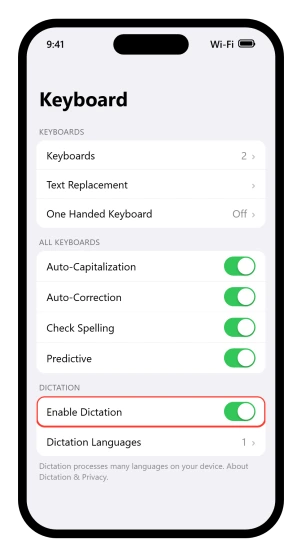
A single screen in Settings holds nearly everything that governs it.
Let me take you there first, and then we will split the two problems apart.
Enable Dictation, and the tap after it
Turn on Enable Dictation there. Apple's own step does not end with the switch: "If a prompt appears, tap Enable Dictation."
Apple does not say what happens if you dismiss that prompt, so tap it. Left undone, the switch can read as on while nothing works, and it is the most checkable thing on this page.
Our guide to making the iPhone keyboard bigger suggests dictation as a way to skip typing altogether and says it works straight away.
That is true once this prompt is dealt with, and misleading before.
If the button is not on the keyboard at all
Apple prints the control as a symbol rather than a word, so its own image text is where the name lives.
The glyph's alt text reads "the Dictate button", while the screenshot description calls it "the Dictation button" and places it "in the bottom-right corner of the screen".
Apple uses both names and the phone shows neither.
Check which keyboard you are typing on. Apple's step is to tap it "on the onscreen keyboard (or in any text field where it appears)", so it is a system control rather than something an app supplies.
Apple never says a keyboard you installed yourself lacks it, but switching back rules it out in seconds: touch and hold what Apple's image labels call the Emoji button or the Switch Keyboard key.
One case removes the button by design.
Pair a hardware keyboard and there is no onscreen keyboard to hold it, so Apple documents a different route: turn on Enable Dictation, choose a dictation shortcut on that same Keyboard screen, then press that shortcut key twice to start dictating.
Restrictions are the last thing to check in this half of the page, and Apple documents a switch carrying Dictation's name.
Go to Settings > Screen Time > Content & Privacy Restrictions > Intelligence & Siri, where Apple's parental controls article lists Siri & Dictation alongside Image Creation, Writing Tools and Math Results.
There is a second one on the same screen.
Under Content & Privacy Restrictions > Privacy, Apple describes Speech Recognition as preventing "apps from accessing Speech Recognition or Dictation".
Either will silence the feature while the switch under Keyboard still reads as on.
If a Screen Time passcode nobody remembers is guarding that, our guide to Screen Time limits that stop working has the way out, which is the Screen Time Passcode Recovery option on the same screen.
If no keyboard appears at all, that is a separate fault.
Our guide to an iPhone keyboard not showing up describes it as a symptom that travels, "missing in the kitchen and fine at the end of the garden", because a Magic Keyboard reconnects on its own from about 33 feet away.
Did the button appear a second time?
Everything in this section turns on one observation.
Apple's order is tap in the text field to place the insertion point, then tap the Dictate button, then wait. The same button then shows up again in a second place.
Apple's screenshot description puts it "below the insertion point in the text field", and its step says to begin speaking only once it "appears near the insertion point in the text field".
That reappearance is the thing to watch. If it never comes, dictation never started, and everything you said went nowhere.
Two documented things look like failure here and are not. Dictation "stops automatically when you stop speaking for 30 seconds", so a pause to think ends the session rather than breaking it.
And the keyboard does not vanish when dictation starts: "the keyboard stays open during Dictation so you can easily switch between voice and touch to enter text".
A keyboard still sitting there is not evidence that nothing happened.
When you are finished, tap the button again or say "Stop dictation".
To send your voice itself rather than turn speech into text, use Audio in Messages. Dictation produces written words.
One accessibility setting changes the way in rather than the feature.
With VoiceOver on, Apple documents starting and stopping dictation with "a two-finger double tap on the keyboard", so a single tap does nothing and the session never begins.
Check which microphone is listening
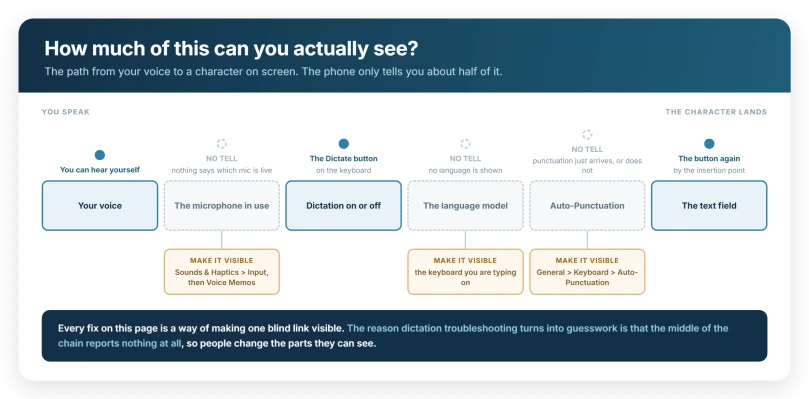
Apple documents a system input picker at Settings > Sounds & Haptics > Input, where a connected set of AirPods can be selected in place of the phone.
It describes that for camera apps rather than dictation, but it is the screen that decides which microphone is live, so open it first.
Then check Settings > Bluetooth for anything reading Connected and disconnect it before testing again. Apple ties none of this to dictation, so that join is ours rather than theirs.
Our guide to no sound on iPhone calls runs the same check from the other end of a call: "Turn Bluetooth off for a test call. A paired watch, car, or speaker can grab the audio silently."
Then test the microphone the way Apple tests it. Its own instruction for a suspect microphone is to open Voice Memos, record, and play it back, and you should hear your voice clearly.
A microphone that fails there too is a service appointment rather than a setting, and nothing here will move it.
If it starts fine and types the wrong thing
You said "meet me at four" and got "meet me at for". Dictation ran start to finish. Nothing earlier on this page applies.
Punctuation has two separate causes, and a switch is the one to check first.
Apple's note runs: "In supported languages, Dictation automatically inserts commas, periods, and question marks as you dictate. To turn off automatic punctuation, go to Settings > General > Keyboard, then turn off Auto-Punctuation." So look at Auto-Punctuation on that same Keyboard screen before concluding anything about your language.
If it is on and commas still never appear, the language is your answer and you say the punctuation aloud.
Some words are commands rather than text. Saying "select" or "delete" followed by a phrase edits what you already dictated, and "undo" or "redo" repeats or reverses a command.
A sentence containing those words in ordinary speech can rewrite itself in front of you, which reads as a transcription fault and is documented behavior.
Language is the other half.
Dictation follows your keyboard: "When you use a keyboard for another language, you can use Dictation in that language as well." Add the one you actually speak at Settings > General > Keyboard > Keyboards > Add New Keyboard, then switch to it before dictating.
There is a caution to read before assuming the phone is faulty: "Dictation may not be available in all languages or in all countries or regions, and features may vary." Apple points at its Feature Availability website rather than listing them, and that page settles it faster than any setting here.
If the wrong words are in the right language, the dictionary underneath may be the problem instead.
Our guide to iPhone keyboard lag and dropped letters calls Reset Keyboard Dictionary the most-repeated fix in the guides and threads it surveyed, because a dictionary trained on typos keeps correcting toward garbage.
One place it behaves differently on purpose
Dictation in a search box is not the same as dictation anywhere else, and the reason is printed on the same page: "When dictating in a search box, dictated text may be sent to the search provider in order to process the search."
So the same words can behave one way in Notes and another in a search field. One connection-related detail sits alongside it: "When using Dictation, cellular data charges may apply."
The on-device promise has a number behind it too. Apple's feature availability site lists dictation in 63 languages and marks 48 of those as processed on the device.
Outside those 48 the audio does go to Apple's servers, so a connection matters for some people.
None of it explains a missing button, which is why resetting network settings trades a working network for nothing.
Before you go back to typing
Two habits save the next round. Wait for the button to reappear by the insertion point before speaking, rather than starting as you tap.
And say "Stop dictation" when you finish, instead of letting the thirty seconds run out, so the session ends where you meant it to.
If Enable Dictation is on, the standard keyboard is in use, the microphone works in Voice Memos, and that second button still never appears, Apple publishes no troubleshooting page for dictation on iPhone.
It has one for the Mac, but the iPhone pages describe how the feature works rather than how it fails, so that is a support conversation rather than another switch.
Status: checked against Apple's iOS 26 dictation guide on 26.6. Everything here except the restrictions screen is documented behavior, and that screen is a place to look rather than a claim.
Why is dictation not working on my iPhone?
Start at Settings, General, Keyboard and check Enable Dictation. Apple's own instruction adds that if a prompt appears you tap Enable Dictation again, and dismissing that prompt leaves the switch reading as on while nothing works. If the button is missing entirely, a keyboard you installed yourself is the other likely cause.
Does iPhone dictation need an internet connection?
Apple says dictation requests are processed on your device in many languages and that no internet connection is required. It adds that cellular data charges may apply, and that text dictated into a search box may be sent to the search provider, so some traffic exists. A missing microphone button is not a network problem.
Why is the microphone missing from my iPhone keyboard?
Either Enable Dictation is off at Settings, General, Keyboard, or you are typing on a keyboard you installed yourself rather than the standard one. Touch and hold the Emoji button or the Switch Keyboard key to switch back and see whether it returns. Apple also documents a Siri and Dictation restriction under Screen Time, at Content and Privacy Restrictions, then Intelligence and Siri.
Why does iPhone dictation type the wrong words?
Check Auto-Punctuation at Settings, General, Keyboard if only the punctuation is missing, because Apple documents it as a switch you can turn off. Dictation also follows your keyboard language, and words like "select" and "delete" are editing commands rather than text, so speech containing them rewrites itself.
The Short Version
- Settings > General > Keyboard holds Enable Dictation, Auto-Punctuation and your keyboards. If it is typing rather than speech that keeps changing your words, that is autocorrect predicting rather than spellchecking. Almost every fix on this page lives on that one screen.
- Tap the prompt. If one appears when you turn Enable Dictation on, tap Enable Dictation again, or the switch lies to you.
- Watch for the Dictate button appearing a second time, below the insertion point. That is what shows dictation actually started.
- Dictation stops on its own after thirty seconds of silence, and you can end it by saying "Stop dictation".
- Punctuation missing? Check the Auto-Punctuation switch before blaming your language.
- "Select" and "delete" are commands, so saying them mid-sentence edits your text.
- Dictation follows your keyboard language. Add the one you speak.
- Processed on your device in many languages, with no internet connection required.
Where to Next
One screen in Settings holds nearly all of this, and getting to it is most of the battle.
Then separate the two faults properly. A missing key and a key that does nothing are not the same problem and they do not share a fix.
If dictation works in some apps and not others, tell me which ones, because that pattern usually has a specific and slightly annoying explanation.

Isaac Smith is the founder and editor of PC Glance, a website that covers computers, laptops, and technology. He is a tech enthusiast and a computer geek who loves to share his insights and help his readers make smart choices when buying tech gadgets or laptops. He is always curious and updated about the latest tech trends.