
You hold an app icon waiting for its menu and instead every icon on the screen starts wobbling. You did not hold it too briefly. You held it past the point.
That is a timing setting, and the genuinely irritating part is that Apple shows you no numbers anywhere on the screen.
Let me take you to the control, because it is nowhere near where most people go looking.
Fast, Slow, and no numbers anywhere
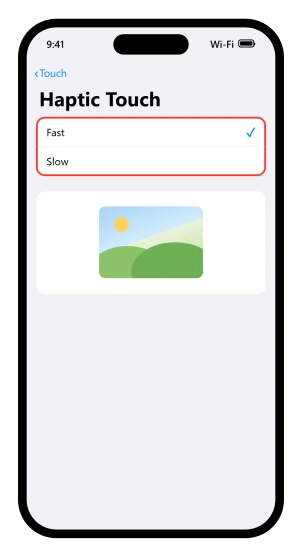
Apple's instruction is to "Choose the touch duration", then offers two: Fast or Slow.
Fast fires the menu sooner. Slow makes you hold longer before anything happens.
What Apple does not publish is what either one is in seconds. Some screens show a third option between the two.
Apple prints no name for it and states no default anywhere we could find, so our reading is that it is simply the setting untouched.
If yours shows one, treat it as your starting point, move one step toward Fast or Slow, and test it.
There is nothing to look up here and no correct value. It is a relative control, and the only way to set it is by feel.
Who should leave it alone
If you are on Slow deliberately, because your hand rests on the glass before it means to press, stay there. Fast will start opening menus you did not mean to open, and nothing else on this screen makes up for that.
The same goes for a phone shared with a child or an older relative who has settled into the current timing.
This is a comfort setting rather than a performance one, and there is no gain in moving it if nothing is going wrong.
The image at the foot of the screen is the calibration
Hold the image at the bottom of that screen and let go the moment you feel it respond. That is the whole test, and Apple gives it one line: "Test your new settings on the image at the bottom of the screen."
Apple never says what that image is or gives it a name. It is the only feedback the screen offers, and it saves you leaving Settings, trying an icon, and coming back.
Try it three or four times at one setting before switching. The gap between Fast and Slow is not published anywhere, so one attempt tells you very little.
Two timers, not one
The wobble is documented, on the quick actions page:
"If you touch and hold an app for too long before choosing a quick action, all of the apps begin to jiggle. Tap Done (on an iPhone with Face ID) or press the Home button (on other iPhone models), then try again."
So there are two timers running off one press. The first opens the menu. Keep holding and the second takes over and puts you into edit mode.
Wobbling icons are not a failed gesture, they are a gesture that ran past the first timer into the second.
The duration setting governs the first of those two. Set it to Fast and the menu arrives sooner, which should leave more room before the second one fires.
Apple publishes no seconds for either, so that is how the two appear to fit together rather than something Apple states.
The route, and the name you will never see
Apple prints the setting on one page, Adjust how iPhone responds to your touch: "Go to Settings > Accessibility > Touch, then tap Haptic Touch or 3D & Haptic Touch."
The longer name belongs to 3D Touch hardware, covered at the foot of this page, and no iPhone that can run iOS 26 appears to have it. In practice the row says Haptic Touch.
That page is filed under difficulty rather than preference.
It opens: "If you have difficulties with hand tremors, dexterity, or fine motor control, you can adjust how the iPhone touchscreen responds to tap, swipe, and touch-and-hold gestures."
Which is most of why the row goes unfound.
Apple's own index of mobility accessibility features lists Touch Accommodations, Vibration and Turn off vibration, and does not list Haptic Touch at all.
When the hold is being eaten before it starts
Touch Accommodations sits on the same screen and changes what counts as a touch in the first place. If holding an icon produces nothing whatsoever, check it before you blame the glass.
Our guide to apps that will not move on the Home Screen walks that setting for dragging; this is what it does to a menu.
The tell is visible. Apple: "Increasing the hold duration time beyond 0.3 seconds will cause a circular timer to display when you touch the screen. After the timer is finished, your touch will be recognized by your device as an intentional input."
A ring drawing itself when you touch the screen means Hold Duration is on.
Our reading is that it runs first and Haptic Touch never gets its turn, though Apple does not describe the two settings in relation to each other.
That 0.3 seconds is the one duration figure Apple publishes near this gesture, and it belongs to the other setting.
Apple also asks for these in a particular order, on its Touch Accommodations article: "It's recommended that you configure your preferences before you turn on Touch Accommodations since it changes how your device responds to touch." Set your values first, then switch it on, or you will be adjusting a screen that is already fighting you.
Screen Time can thin out what a long press offers as well, and our guide to Screen Time on iOS 26 covers where its restrictions actually bite.
If the menu opens fine and you feel nothing
That is the opposite fault, and the timing is not your problem.
Lower on the same screen is a plain Vibration switch.
Apple documents it on its own page, Turn off vibration on iPhone: "Turn off all vibrations: Go to Settings > Accessibility > Touch, then turn off Vibration." Then, immediately after: "Note: This setting turns off vibrations for earthquake, tsunami, and other emergency alerts."
Read that twice before you use it. A system-wide off switch with a safety cost sits on the same screen as a timing preference.
Apple describes the feedback using this exact gesture as its example: "Haptic feedback is the vibration you feel on your iPhone when you perform some actions, such as when you touch and hold any icon on the Home Screen." Our reading is that turning Vibration off takes that buzz with it, though Apple only ever says "all vibrations" and never names the touch-and-hold case.
The other control, at Settings, Sounds & Haptics, Haptics, is scoped by Apple to something narrower: "When Haptics is set to Never Play, you won't hear or feel vibrations for incoming calls and alerts." Calls and alerts, not gestures.
If both are on and a long press is still silent while everything else buzzes, the settings are not your problem.
Apple does cover this, in an unlikely place: a service document called iPhone Troubleshooting Display Issues, written for repair technicians.
It carries a section headed "Troubleshooting Multi-Touch or Haptic Touch issues", and lists exactly the symptoms people describe: responding slowly, not responding, erratic response, low sensitivity.
Its first two steps are free to try. "Remove any cases or screen protectors. Touch the screen with your finger pads, not your fingernails." Then "Clean the display with a soft, slightly damp, lint-free cloth."
After that the document turns into diagnostics and display replacement, which is a service matter rather than a setting.
If the phone has gone quiet everywhere rather than only on a long press, our guide to an iPhone that is not vibrating sorts out which switch did it.
If the row is missing on a work or school phone
Open Settings and look just under the search field.
A line naming a company or a school is the usual sign that the phone is supervised, which our guide to apps that will not move on the Home Screen covers in more detail.
We found no Apple page that connects device management to Haptic Touch either way, so a row that is missing on a managed phone is our guess at an administrator setting rather than something Apple documents.
Whoever set the phone up is the only route to finding out.
If that is your phone, the answer is a conversation with whoever manages it, and I would not spend any longer hunting through Settings.
3D Touch is not hiding, it is gone
Apple's iOS 26 page still offers a pressure control: on an iPhone with 3D Touch "you can also choose the pressure needed", listing Light, Medium and Firm.
No reader of that page can use it. The spec sheets are the record. The iPhone XS lists 3D Touch under Display.
The iPhone XR, from the same 2018 cycle, lists Haptic Touch. Every sheet since, up to the iPhone 17, lists Haptic Touch.
And iOS 26 does not reach back that far. Apple's compatibility list starts at iPhone 11, plus the second and third generation iPhone SE.
Put those together and no iPhone running iOS 26 has the pressure hardware. That conclusion is ours: Apple publishes the spec sheets and the compatibility list separately and never joins them.
If the screen is registering touches you never made, rather than missing the ones you did, that is the opposite fault and Apple names it separately. Our page on what Apple calls ghost touch covers those.
There was no announcement, no deprecation notice and no dated removal statement we could find, which is why Apple's own iOS 26 page still describes the control.
In use: pressing harder does nothing. Only holding longer does.
Status: two documented settings, no published timings, and an iOS 26 page still offering a pressure control that no iOS 26 iPhone can use. Correct at iOS 26.6.
Why does nothing happen when I press and hold?
Check Touch Accommodations on the same Accessibility, Touch screen. If Hold Duration is on and set past 0.3 seconds, a circular timer runs before your touch registers at all, and taps and swipes inside that window are ignored outright. Haptic Touch never gets its turn.
Why does my iPhone start shaking when I hold an app?
You held past the second timer. Apple documents this: hold an app too long before choosing a quick action and all the apps begin to jiggle. Tap Done, or press the Home button on a model that has one, then hold for a shorter beat. Apple publishes no seconds for either timer, but Fast opens the menu sooner, which should leave more room before the second one takes over.
Where is the Haptic Touch setting on iPhone?
Settings, Accessibility, Touch, Haptic Touch. It is not in Sounds & Haptics and not in Display & Brightness. Apple files it on a page about hand tremors and dexterity, and leaves it off its own index of mobility features, so browsing Settings rarely turns it up.
Why do I feel no buzz when I hold an icon?
Check the Vibration switch on the Accessibility, Touch screen first, then Settings, Sounds & Haptics, Haptics. If both are on and only the long press is silent, Apple's advice sits in a repair-technician document: take off any case or screen protector, use your finger pads rather than fingernails, and clean the display.
Does my iPhone have 3D Touch?
No. Apple's spec sheets show the iPhone XS as the last model listing 3D Touch, and every model from the iPhone XR onward listing Haptic Touch instead. iOS 26 only runs on iPhone 11 and later plus two iPhone SE generations, so no phone that can install it has the pressure hardware.
The Short Version
- The control is at Settings, Accessibility, Touch, Haptic Touch, and nowhere else.
- Apple names two choices, Fast and Slow, and publishes no durations in seconds for either.
- Test it on the image at the foot of that screen, several times, before switching.
- Wobbling icons mean the hold ran past a second timer, not that the gesture failed.
- A circular timer under your finger is Touch Accommodations, not Haptic Touch.
- The Vibration switch on that screen also turns off emergency alert vibration.
- If you are on Slow because you need it, leave it there.
- Pressing harder does nothing. No iPhone that runs iOS 26 has 3D Touch.
Another setting filed where nobody looks: A vision alert that runs on the Face ID camera lives under Screen Time, which our guide to Screen Distance covers.
Where to Next
The control lives at Settings, Accessibility, Touch, Haptic Touch, and nowhere else. Not Display, not the Home Screen settings, and not anything with the word gesture in it.
Try Fast before you try anything drastic, and give yourself a day with it.
If Fast still leaves you wobbling icons instead of a menu, tell me which iPhone you are on and I will see whether that model behaves differently.

Isaac Smith is the founder and editor of PC Glance, a website that covers computers, laptops, and technology. He is a tech enthusiast and a computer geek who loves to share his insights and help his readers make smart choices when buying tech gadgets or laptops. He is always curious and updated about the latest tech trends.