
Your photos look flat and washed out, and you cannot tell whether the pictures themselves are ruined or your screen is lying to you. That is the whole question, and you can answer it in a minute.
Send one of them to somebody else and ask how it looks on their phone.
Do not judge it on your own Mac, and I will explain why that particular test misleads so many people.
If it only looks flat once it leaves the phone
One trap sits inside that test. An iPhone photo is captured in HDR, and an HDR photo drawn on a screen that cannot show HDR looks flatter than it did in Photos.
Messaging apps and email recompress too, so the act of sending a photo can produce the very look you are testing for.
So compare like with like.
Ask the other person to open it in their own Photos app rather than judging it in a chat thread, and if the flat version is only ever the copy that was sent, nothing on your phone has been styled.
We found no display control for this documented in the iOS 26 iPhone User Guide, which has no Photos settings topic at all. That is not the same as saying no such setting exists.
It looks wrong on other people's screens too
Then something applied a look at the moment you took it, and the likeliest candidate is a Photographic Style you set once and forgot.
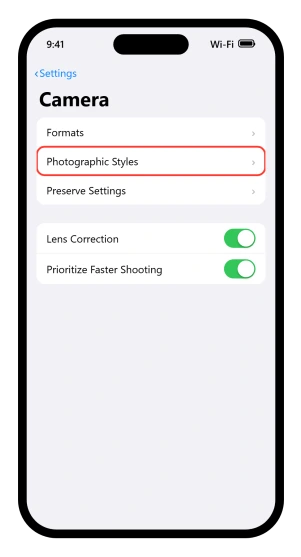
Check in two taps: Settings > Camera > Photographic Styles.
Whatever is selected there is what every photo you take is getting, and Apple's Photographic Styles page gives that same route for removing it.
It sticks around because iOS is built to make it stick.
On the Preserve Settings screen, one of the options is "Photographic Style: Save the last used Photographic Style (on supported models)." Apple states the default state of some options on that screen and says nothing about this one, so check rather than assume.
There is a second way it gets set that people forget entirely.
On iPhones with the Camera Control, the touch-sensitive button on the right edge, Styles is one of the settings you can slide to, and Apple is explicit about what happens next: "The setting is saved and appears the next time you lightly press the Camera Control."
So a style chosen there once stays chosen, and it never shows up as the thing you changed. Apple does not say the control can be worked by accident, so the point is that it persists rather than that a pocket set it.
Turning it off for future photos
Apple's whole instruction is two lines: "Go to the Settings app on your iPhone. Tap Camera, tap Photographic Styles, then select "Use Standard" or choose a different style."
Note the wording, because it changed. On iOS 18, on the page written for iPhone 16 models, the way back was Reset to Standard. On iOS 26 it is Use Standard, so there is no Reset row to hunt for.
Apple's iOS 26 page never states which style a phone ships with, so this page will not tell you either.
The older iOS 17 and iOS 18 pages both said the camera is set to Standard automatically, which is where the idea of a default comes from.
Undoing it on a photo you already took
iPhones split into two groups here, and which group yours is in decides whether there is an undo at all.
Apple keeps two separate lists. Photographic Styles runs from the iPhone SE third generation and the iPhone 13 family all the way forward.
Latest generation Photographic Styles is a much shorter list: iPhone 16, 16 Plus, 16 Pro, 16 Pro Max, 17, 17 Pro, 17 Pro Max and iPhone Air.
Apple publishes the two as separate pages and never puts them side by side.
Only the second list gets to change a style after the shutter.
Apple said so when it launched, in the iPhone 16 announcement: styles "can be rendered during live preview, applied after a photo is taken, or even reversed later".
Its current iOS 26 page is looser, saying only "on models that support Photographic Styles".
The lists are what this page follows, but your own Edit toolbar outranks them: open a photo, tap Edit, and see whether a Styles control is there.
The trap is the e models. iPhone 16e and iPhone 17e are on the first list and not the second, and Apple's tech specs draw the same line: the iPhone 16 sheet says "Latest-generation Photographic Styles" and the iPhone 16e sheet says plain "Photographic Styles".
So a phone bought in 2025 can sit on the old side of it.
There is a physical shortcut for working out which side you are on, and it is ours rather than Apple's: the models with the Camera Control on the right edge are exactly the models with the reversible kind.
Apple never connects those two lists, so treat it as a rule of thumb.
For the certain answer, go to Settings > General > About and read the Model Name row.
It prints the marketing name, so an iPhone 16e says iPhone 16e rather than iPhone 16, which is the distinction the lists turn on.
If you are on the reversible side, the route is: open the photo, tap Edit, tap Styles, then swipe through the styles or tap the styles chooser to drag tone and color and set the intensity. Tap Done.
If you are not, the style cannot be lifted back out. Revert to Original will not rescue you either, because reverting undoes edits and a style applied at capture was never an edit.
Apple does not say that in words; it follows from what Revert to Original is for.
On a phone that can change styles, reverting does the opposite of what you want, since changing the style there is an edit and reverting puts the old one back.
What you can still do is push back by hand. Open the photo, tap Edit, tap Adjust, then work on Warmth, Tint, Saturation, Brilliance and Exposure.
That counts as an edit, so Revert to Original undoes it if you overshoot, and a correction you like can be copied across a batch. Set Use Standard first so tomorrow's photos do not need any of it.
There is no Styles button in Photos at all
Two causes, and the second one catches people on brand new phones.
The first is the model split in the previous section.
The second is a file format requirement Apple prints as a Note rather than as a step: "On models that support latest generation Photographic Styles, Camera needs to capture photos with High Efficiency image capture to edit Photographic Styles later in Photos. To turn on High Efficiency, go to Settings > Camera > Formats, then tap High Efficiency."
So if you ever set Formats to Most Compatible, which switches the camera to JPEG, every photo taken since is stuck with whatever style it was shot with, even on an iPhone 17.
Apple documents the requirement and documents what Most Compatible does, and never joins them into a troubleshooting step.
The way out is the same either way: Settings > Camera > Formats, then tap High Efficiency. Photos taken from that point are editable. Photos already taken stay as they are.
One more thing about that toolbar, and it is narrower than it looks.
Apple says filter effects stay available on iPhone 16 models and later "if you haven't turned on Photographic Styles", so a Filters button is not proof of an older phone.
It only tells you no style is switched on right now.
It only looks wrong on your own screen
The settings that change how every photo looks, without touching a single file, sit two screens apart from each other.
True Tone sits on Settings > Display & Brightness, and Night Shift is a sub-screen of it.
Our guide to an iPhone screen that keeps dimming covers what each one does.
Night Shift runs on a schedule, which is why a warm cast seems to come and go.
Color Filters is the one that gets checked last, and Apple prints a warning next to it: "Color filters can change the look of images and videos." It lives at Settings > Accessibility > Display & Text Size > Color Filters, on Apple's display colors page, along with Reduce White Point, which tones down bright colors.
Our guide to hard-to-read notifications on iOS 26 covers the rest of that screen.
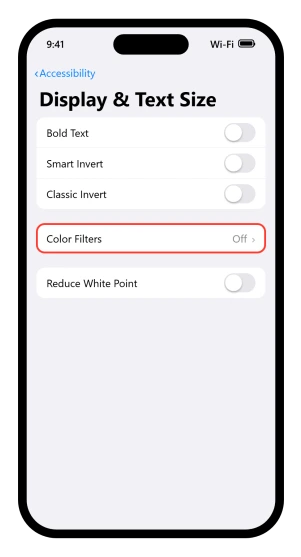
Test them the dull way. Switch each one off, one at a time, and look at the same photo after each.
One useful quirk while you do it: Apple says Night Shift "automatically removes inverted colors and color filter effects (except grayscale)".
So if a cast disappears after sunset and a warm tone replaces it, you have a Color Filter and Night Shift both running.
If that is your case, your photos are fine and I would stop worrying about the files entirely.
It is only some photos, and you edited them in a batch
Copying edits between photos does more than copy the sliders.
Apple, on that feature: "Photos automatically adjusts the white balance and exposure of the edited photos to create a better match and make the photos look even more similar."
So a batch that looks uniformly off is behaving exactly as documented. Revert to Original works here, because these genuinely are edits.
The things that are not styles at all
None of the following is a Photographic Style, and every one of them changes how a photo comes out.
Lens Correction adjusts front camera and Ultra Wide shots "for more natural-looking results" and is on by default.
Scene Detection, which Apple documents on iPhone 12 models, identifies what you are photographing and applies "a tailored look", also on by default. Both are switched at Settings > Camera.
Prioritize Faster Shooting is the surprising one, because Apple says outright that it "modifies how images are processed". It is on by default too.
If the photos are doubled up rather than discolored, that is a different collection entirely, and our guide to an empty Duplicates album covers it.
And if the photo is a Live Photo, the still you are looking at may not be the frame you thought you took, since the key photo can be moved.
And a Long Exposure effect applied to a Live Photo in Photos will make a picture look nothing like the moment it was taken.
Status: nothing on this page is a fault. Every look described is a setting doing its documented job, and Apple changed nothing about Photographic Styles between iOS 26.0 and iOS 26.6.
Why do my iPhone photos look washed out or oddly colored?
Send one to another device first. If it still looks wrong, a Photographic Style is the likeliest cause, and you can check at Settings, Camera, Photographic Styles. If it looks normal elsewhere, check Night Shift, True Tone and Color Filters instead.
How do I remove a Photographic Style from an iPhone photo?
For future photos, go to Settings, Camera, Photographic Styles and pick Use Standard. For a photo already taken, open it in Photos, tap Edit, then tap Styles. That second option only exists on iPhone 16, 17 and iPhone Air models, not on the 16e or 17e.
Why is there no Styles option when I edit a photo?
Either the iPhone is not on Apple's latest generation list, or the photo was captured in the wrong format. Apple requires High Efficiency image capture for styles to be editable afterwards, so a phone set to Most Compatible in Settings, Camera, Formats produces photos that cannot be changed.
Does Revert to Original remove a Photographic Style?
Not one applied when the photo was taken. Reverting undoes edits you made afterwards, and a capture-time style was never an edit. Apple does not state this directly, so it is our reading of what Revert to Original is for.
Are Photographic Styles just filters?
Apple says no, in two separate announcements. Filters add a color across a whole scene, while styles adjust specific colors and treat skin tones differently. In Apple's own screenshots of the Photos edit toolbar the two never appear together, though a Filters button only means no style is switched on right now.
The Short Version
- Test the file first. Open the photo somewhere else. Still wrong means the file, fine means your screen.
- Settings, Camera, Photographic Styles shows what every photo is getting.
- Use Standard turns it off for future photos. iOS 18 called that button Reset to Standard.
- The undo is on the latest-generation list only: iPhone 16, 16 Plus, 16 Pro, 16 Pro Max, 17, 17 Pro, 17 Pro Max and iPhone Air. The 16e and 17e are not, and Apple's iOS 26 page has stopped naming the boundary, so check your own Edit toolbar too.
- High Efficiency is required for a style to be editable later, so Most Compatible locks it in.
- Revert to Original does not look like a way out of a capture-time style, since reverting undoes edits and the style was never one. Apple does not state that, so it is our reading.
- Night Shift, True Tone and Color Filters change how photos look without touching them.
- Pasting edits across photos also changes white balance, on purpose.
Where to Next
Test the file before you touch a single setting. Open the photo somewhere else, on somebody else's phone if you can.
Still wrong means the file, and fine means your screen, and those two need completely different things from you.
Tell me which way yours went and I will point you at the right half of this page.

Isaac Smith is the founder and editor of PC Glance, a website that covers computers, laptops, and technology. He is a tech enthusiast and a computer geek who loves to share his insights and help his readers make smart choices when buying tech gadgets or laptops. He is always curious and updated about the latest tech trends.