
You are trying to delete a photo, the Trash button is greyed out, and tapping it harder is not helping. I know that reads like a broken app.
It is not. Photos is telling you that this particular picture is not yours to remove from this device, and which picture it is tells you why.
Work out which symptom is yours and the cause comes with it.
The Trash is grey, and the photos came off a computer
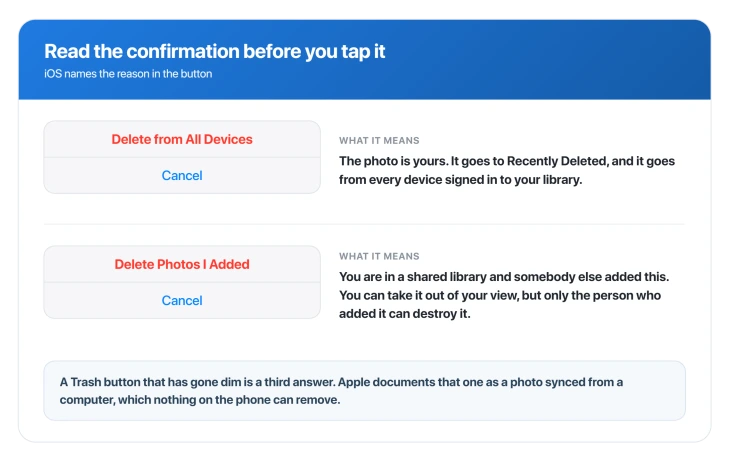
This is the one Apple documents as a hard block, and there is no fix on the phone at all.
Apple, on its delete photos page: "If you add photos to your iPhone or iPad by connecting your device to your computer, you can't delete them directly from your device in the Photos app. If the Trash button is gray when you try to delete a photo from your iPhone or iPad, you might need to stop syncing photos from your computer."
Note that Apple says the button goes grey. It does not say the button disappears.
The tell is where the photos live. Synced pictures sit in albums named after folders on the computer, and they will not respond to Select and Delete no matter how many times you try.
The way out is at the computer, not the phone.
Apple's route on a Mac is to connect the phone, click it in the Finder sidebar, open the Photos tab, and either choose "Selected albums" and deselect the ones you want gone, or deselect Sync Photos entirely and click Remove photos, then Apply.
Worth knowing before you go looking: Apple's own link from the delete page goes to a Finder page, which is Mac only.
Ours: if you synced from Windows the equivalent lives in the Apple Devices app or iTunes, and Apple does not carry you there from that link.
If the computer is gone, sold, dead, or somebody else's, Apple's own line is only that "if you don't want the synced photos on your iPhone, iPad, or iPod touch anymore, turn off syncing in the Finder and your device will remove them."
Ours: we found no documented route that avoids that computer, so short of erasing the phone and setting it up again there is nothing that clears them.
That is a real cost, worth weighing against simply leaving them alone.
The confirm button says "Delete Photos I Added"
This one is easy to miss and it is the clearest signal on the whole topic.
Apple documents the confirmation on a permanent delete, the one you do inside Recently Deleted, as "Tap Delete from All Devices or Delete Photos I Added to confirm."
Ours, not Apple's: Apple never says which of those two appears when. But Delete Photos I Added reads as the shared-library case, where an item somebody else added is not yours to destroy.
Apple sets out who can do what: "Anyone can delete, add, or edit items in the Shared Library. If someone else deletes a photo or video from the Shared Library, it no longer appears for you, either. Only the person who added the photo or video to the Shared Library can permanently delete or recover it from the Recently Deleted folder."
So you can remove it from your own view. You cannot destroy it, and it goes to the adder's Recently Deleted for thirty days.
It is somebody else's photo in a Shared Album
Different feature, similar shape, and the rule runs the other way for the owner.
Apple: "If you're the owner of a shared album, you can delete any photos, videos, or comments from anyone. Subscribers can delete anything that they personally added."
So an owner is not restricted at all. If you cannot remove something from a shared album, you are a subscriber and it is not yours.
Our page on shared albums not syncing covers the rest of that feature.
The album looks empty until you tap View Album
Recently Deleted and Hidden behave differently from every other album, and the order of taps matters.
Apple's iOS 26 guide: "The Recently Deleted and Hidden collections are locked by default. You can unlock these collections using Face ID, Touch ID, or your passcode."
The part that catches people is that the unlock prompt does not appear when you tap the row. It appears when you tap View Album. Until then the grid sits there blank and looks broken rather than locked.
That same blank-until-you-tap behaviour is why people conclude photos have gone missing when they have not.
If that is your worry rather than deleting, start by getting the photo count, because it separates a narrowed view from an empty library in three taps.
If you would rather it stopped asking, the switch is at Settings > Apps > Photos, where turning off Use Face ID unlocks both collections.

You are already inside Recently Deleted
Nothing here is going to delete, because these items are already deleted. What you want is to remove them permanently, which is a different control.
Go to Photos, then Collections > Utilities > Recently Deleted, tap View Album and authenticate, then Select, then the More button, then Delete or Delete All.
If you are trying to empty the album and nothing happens, our page on an iPhone that says storage is full explains why the space does not come back the moment you tap delete.
They delete, and then they come back
Check the Recovered collection before you assume something is wrong with the phone.
Apple documents it as the place strays turn up: "If the photos or videos you're looking for don't appear in the Recently Deleted collection, they may be in the Recovered collection."
Ours, rather than Apple's: if the phone is mid-sync when you delete, it is worth letting iCloud Photos settle before deciding the deletion failed.
Apple documents that deletions travel to your other devices, but we found nothing from Apple saying a deletion reverts while syncing, so treat that as reasoning.
It is not Screen Time, whatever you have read
Worth stating flatly, because it sends people on a long detour.
We read Apple's parental controls page end to end.
Content & Privacy Restrictions cover installing and deleting apps, allowed apps and features, store and web content, Game Center, and a Privacy group.
The two Photos entries in that Privacy group both govern whether other apps may reach your library.
There is no restriction anywhere in that list that stops you deleting a photo inside the Photos app.
The one genuine adjacency is Allowed Apps & Features, where Apple documents that switching an app off hides it rather than deleting it, using Mail as its example.
Ours: where Photos is switched off there you get no Photos app at all, which is a different thing from a dimmed Trash button.
Status: current as of iOS 26.6. Apple's delete-photos page was published in March 2026 and still describes the computer-synced block in the same words.
What does not work
- Turning off Screen Time. There is no photo-deletion restriction to turn off.
- Turning off iCloud Photos to force a delete. It is not a documented fix for any of these causes, and the prompts it offers include removing photos from the phone, which is a bad place to be guessing.
- Updating iOS. Nothing on Apple's pages ties any of these causes to a software version.
- Restarting. Useful in one narrow case further down, useless against every permission cause.
- Cleaner apps. On iOS 26 they can be the reason nothing deletes rather than the cure.
If nothing deletes inside a third-party cleaner app
Developers have reported that on iOS 26 a photo deletion requested by another app can stall, with the system confirmation never appearing, and that once it happens no further deletions succeed from that app until the phone is restarted.
Two things to be clear about.
This is reported by developers about apps that use Apple's photo library interface, not about the Photos app, and the same reports say deleting the same pictures in Photos works normally.
It has not been shown to be a live iOS 26.6 fault.
If you are stuck in a cleaner app, restart the phone and do the deletion in Photos.
Why is the delete button greyed out on my iPhone?
Because the photo was put on the phone from a computer. Apple states that photos added by connecting the device to a computer cannot be deleted on the device, and that a grey Trash button is the sign of it. The fix is at the computer, by stopping the sync.
Why do my deleted photos keep coming back?
Look in the Recovered collection first, which Apple documents as where photos turn up when they are not in Recently Deleted. After that the usual cause is a deletion that had not finished syncing across your devices when you checked.
Can Screen Time stop me deleting photos?
No. Apple's restriction list has nothing that blocks deleting a photo in Photos. Its two Photos entries control whether other apps can reach your library.
Why can I delete some photos in an album but not others?
That is the signature of a shared library or a shared album. You can remove your own contributions, and items somebody else added are not yours to destroy, only to hide from your own view.
The Short Version
- A grey Trash button is information. Apple documents it as the sign of a photo synced from a computer, and no action on the phone will remove it.
- The fix for that one is at the computer, and Apple's own link points at a Finder page even if you sync from Windows.
- If the confirmation reads "Delete Photos I Added", you are in an iCloud Shared Photo Library and somebody else added that item.
- In a shared album the owner can delete anyone's photos and a subscriber can only delete their own.
- Recently Deleted and Hidden are locked by default, and the unlock prompt appears when you tap View Album, not when you tap the row.
- Deleted photos that reappear are worth chasing in the Recovered collection before you blame the phone.
- Screen Time cannot block deleting a photo. There is no such restriction.
Where to Next
So read the button before you tap through it. Both of the confusing cases tell you what they are in the wording on screen, one in a Trash button gone dim and one in a confirmation offering to remove only what you added.
Neither is your phone failing, and neither is fixed by resetting anything.
If your grey Trash button does not match either case I have described, tell me in the comments what the confirmation says word for word and I will help you place it.

Isaac Smith is the founder and editor of PC Glance, a website that covers computers, laptops, and technology. He is a tech enthusiast and a computer geek who loves to share his insights and help his readers make smart choices when buying tech gadgets or laptops. He is always curious and updated about the latest tech trends.