
You open Photos and the library that had years of your life in it is empty, or close to it. That is a sickening moment, so let me get you to the one number that says whether anything is really gone.
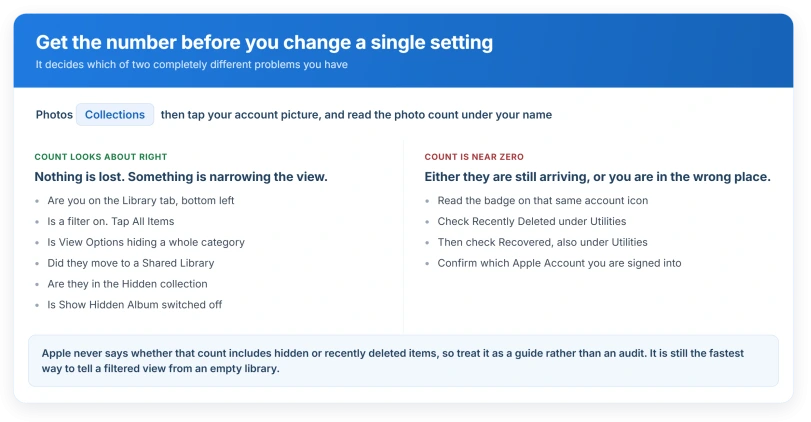
Open Photos, tap Collections, then tap your account picture at the top. Under your name is the photo count.
If it looks about right, your photos are on the phone and something is hiding them. If it is near zero, that is a different job.
Step one, the count, before you change anything
Apple's route, from its iCloud Photos syncing page: "Open the Photos app, go to Collections, then tap the profile button in the upper corner. Check your library status below your name and photo count."
That one screen carries two things at once: how many photos the phone thinks it has, and whether iCloud is still working through them.
If you are on an older iPhone the route differs, and Apple says so on the same page: on iOS 17 or earlier you go to the Library tab, tap All Photos and scroll to the bottom.
Ours, and worth being straight about: Apple never says whether that count includes hidden or recently deleted items, so treat it as a guide rather than an audit.
It is still the fastest way to tell a filtered view from an empty library.
If the count looks right, they are hidden rather than gone
Work down this list. It is ordered by how little effort each one costs.
You are on the wrong tab. Apple: "Make sure the Library tab is selected in the bottom-left corner." Collections and albums both show subsets.
A filter is on. Filters do not remove anything, they narrow what is drawn. Apple: "To remove the filters and return to the full library, tap All Items."
View Options is hiding a whole category. Screenshots, photos synced from a Mac and items shared with you in Messages can each be switched out of the library view as a group.
Apple: "Tap Screenshots, From My Mac, or Shared with You to hide these items in your library." The route runs through View Options, behind the sort control above the photo grid.
Apple names that control only in the alt text of an icon, so do not go hunting for a labelled button.
They went to a Shared Library. This is the strongest documented cause and the least known.
Apple: "When you move photos to your Shared Library, you no longer see them in your Personal Library." And on its Shared Library page: "When you contribute photos and videos to iCloud Shared Photo Library, they move out of your Personal Library and into the Shared Library." Nothing was deleted.
You are looking at one half of a split.
They are in the Hidden collection. Photos, Collections, swipe up to Utilities, tap Hidden, then View Album, then unlock with Face ID.
Apple: "Hidden photos are moved to the Hidden collection. You can't view them anywhere else."
Or the Hidden collection itself has been switched out of view. The switch is Settings, Apps, Photos, then Show Hidden Album.
A naming trap that stops people finding the setting
Apple uses three different words for the same thing, and this is why readers give up.
The iOS 26 user guide calls it the Hidden collection. Apple's support articles call it the Hidden album. The switch in Settings is called Show Hidden Album.
So if you are hunting Settings for the word "collection", there is nothing to find.
One more thing worth knowing before you go looking. Apple: "On an iPhone or iPad, the Hidden album is on and visible by default." Most advice tells you to switch that on.
For most people it is already on, so that step finds nothing.
And hiding travels. Apple: "If you use iCloud Photos, the photos that you hide on one device are hidden on your other devices too."
If the count is low, check these three in order
Is iCloud still working through them. That same account screen carries a badge.
Apple: "Partially filled blue circle around your account icon: Photos are actively uploading to iCloud." A grey outline means uploads are paused.
Apple's own advice on timing is blunt: "you may need to wait overnight for your device to finish syncing."
Recently Deleted. Photos, Collections, scroll to Utilities, tap Recently Deleted, then View Album and unlock.
Apple: "Deleted photos and videos are kept in the Recently Deleted collection for 30 days before being permanently removed from all devices."
Before you rely on those thirty days, read the next section, because there is an exception that removes them entirely.
Are you signed into the account you think you are. Apple: "For your photos and videos to stay up to date on all your devices, make sure that you sign in to iCloud with the same Apple Account on every device." Check at Settings, then your name.
The Recovered collection, and where Apple files it
A photo can be sitting on your iPhone and not be in your library at all.
Apple: "If a photo or video wasn't saved properly and couldn't be added to your library, you may find a copy of it in Recovered."
Route: Photos, Collections, scroll down to Utilities, then Recovered.
It is hard to stumble across because of where Apple documents it.
The instructions sit on a user guide page titled about receipts, QR codes and recently edited photos, which gives no sign that a rescue collection is on it.
Handle it carefully, because this collection has no safety net. Apple: "Important: When you delete a recovered photo or video, it's deleted permanently. You can't recover photos that you deleted from the Recovered collection in Utilities."
Before you delete anything, the thirty days may not apply to you
Apple: "If you exceed your iCloud storage limit, your device immediately removes any photos and videos you delete and they won't be available for recovery in your Recently Deleted album."
So a phone that is over its limit has no recovery window at all. That is exactly the phone whose owner is deleting things to make room.
Our page on storage full while iCloud has space covers which meter is which.
And once the window does pass, Apple is plain about it. Apple: "After that, it's deleted permanently and you can't get it back."
Status: iOS 26.6, checked 15 August 2026. Apple's missing-photos page covers five causes and none of them is filters, the Recovered collection or the Library tab.
What is not the cause
- Optimize iPhone Storage. This gets blamed constantly and Apple's wording rules it out. Apple: "all your full-resolution photos and videos are stored in iCloud in their original formats, with storage-saving versions kept on your iPhone." The small versions stay. Your library does not empty.
- Memories and featured photos being switched off. That changes what the app suggests to you, not what your library holds.
- A recent iOS update. Scattered reports exist and none has been confirmed by anybody else. There is no evidence of a version that removes photos, and we are not going to imply one.
If your photos are all present but in a strange order, that is a different question, and if the phone will not let you remove them, why the trash is greyed out covers that instead.
Where did my photos go on my iPhone?
Get the count first, at Photos, Collections, then your account picture. A normal count means they are on the phone and something is narrowing the view: the wrong tab, a filter, View Options, a Shared Library, or the Hidden collection. A count near zero means either iCloud has not finished, or you are signed into a different Apple Account than you expect.
Why can I see my photos on my iPad but not my iPhone?
The likeliest reasons are a different Apple Account on one device, or a filter or View Options setting that lives only on the phone. Hiding is not one of them, because Apple states that photos hidden on one device are hidden on your other devices too.
Can I get photos back after thirty days?
No. Apple says that once the Recently Deleted window passes, the photos are permanently gone and cannot be retrieved. And if your iCloud storage was full when you deleted them, there was no window at all. Before spending money on recovery software, check the Recovered collection under Utilities. It is free and it takes three taps.
The Short Version
- Three taps to the count: Photos, Collections, your account picture. That decides everything else.
- A normal count means hidden, not gone. Check the tab, filters, View Options, Shared Library, then Hidden.
- The Hidden album is visible by default, so switching that setting on usually finds nothing.
- Apple calls it three different names, which is why the setting is hard to find.
- The Recovered collection under Utilities holds photos that never made it into the library. Deleting from it is permanent.
- Over your iCloud storage limit there is no thirty day window at all.
- Optimize iPhone Storage does not empty your library. Apple says the smaller versions stay on the phone.
Where to Next
Get the count before you change anything. Three taps and you know whether this is a hidden library or an empty one, and those two need opposite things from you.
Nothing in this page asks you to delete or restore, and I would not let anybody talk you into either until you have that number.
If the count looks right but the grid is still empty, tell me what your Recently Deleted says and we can work from there.
And if a photo is there but you cannot copy the words in it, copying text from a screenshot walks through Live Text.

Isaac Smith is the founder and editor of PC Glance, a website that covers computers, laptops, and technology. He is a tech enthusiast and a computer geek who loves to share his insights and help his readers make smart choices when buying tech gadgets or laptops. He is always curious and updated about the latest tech trends.