
The phone is ringing in your hand right now, you are dragging at the slider, and nothing is happening while it rings itself out. I know how maddening that is, because I have watched a call ring out under my own thumb the same way.
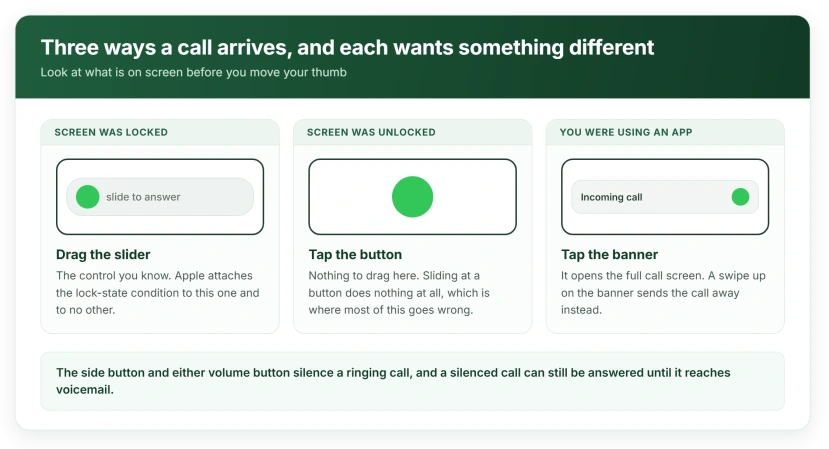
Your iPhone has two completely different ways of answering a call, and which one you get depends on whether the screen was locked.
If you have been trying to slide when there is nothing to slide, that is why. Work down these seven and stop at the one that matches your screen.
Fix 1: If you see a green button, tap it rather than sliding
Then your screen was already unlocked when the call came in, and there is nothing to drag.
Apple lists two ways to answer, one under the other. The first is simply to tap the answer button. The second carries a condition.
Apple, on answering calls: "If your iPhone is locked, drag the slider."
Two controls, and Apple never draws attention to the difference between them. A locked phone gives you the slider you know. An unlocked one gives you a plain green button.
So if the phone was in your hand, or you had just used it, you will get the button. Sliding at it does nothing at all.
The habit is the problem rather than the phone. You learn the slider first, because that is how nearly every call arrives.
Fix 2: If the call arrives as a bar at the top, tap the bar
This one catches people out even more, because there is no big screen to react to.
When you are already using an app, an incoming call can appear as a compact banner across the top rather than taking over the display.
Apple does not document that banner on its answering page at all, which is part of why it throws people.
Tap the banner to open the full call screen, then answer from there. This part is ours rather than Apple's wording.
Swiping at it from habit does not answer it, and a swipe up on the banner dismisses the call rather than taking it.
Fix 3: Take off a flip cover, because of the proximity sensor
This fix came from an owner rather than from Apple, and it is the one to try before touching any setting.
On Apple Community threads about an unresponsive answer slider, one poster reports removing a flip-style case and the problem clearing instantly, after already trying restores and every settings change they could find.
The mechanism makes sense once you know it. Your iPhone has a proximity sensor at the top that blanks the screen when something is near it, so you do not answer with your cheek.
A flap folded back against the top of the phone sits exactly where that sensor looks, so the screen goes dark or unresponsive during an incoming call, and only during an incoming call. That is why everything else on the phone seems fine.
Take the case off entirely and take a test call. Our page on an iPhone stuck on Call Ended has the ten-second hand test for that sensor if you want to check it properly.
This is user-reported rather than documented, but it is free, instant and reversible, which is why it sits this high.
Fix 4: If nothing on the screen responds, work through the touch causes
Now we are into touch rather than into which control you have.
Try dragging the slider from a slightly different spot along its length. A narrow dead band across the screen shows up during calls first, because the answer control sits in one fixed place and everything else you do moves around.
Take the screen protector off too. One lifting at an edge interferes exactly where your thumb lands on that slider.
Then dry your hands. Wet or greasy fingers are a genuine cause and Apple names them for buttons, which our page on an iPhone button that does not respond covers in full.
If the screen ignores you elsewhere too, that is a different fault, and our page on ghost touch and the six faults Apple names is the better read.
Fix 5: If it went quiet the moment you grabbed it, that was a button
This one is the phone doing exactly what it was told, and it is very easy to trigger by accident.
Apple: "Press the side button or either volume button when a call is coming in."
So snatching the phone out of a pocket and squeezing it is enough to stop the ringing. Worse, pressing the side button twice declines the call outright and sends it to voicemail.
The good news is in Apple's next line. Apple: "You can still answer a silenced call until it goes to voicemail."
A silenced call is still ringing at the other end. The screen still shows the control. Answer it and it connects normally.
Fix 6: If it rings once and stops, something else took the call
That is usually not the answering at all, it is something ending the call for you.
Check whether the call ever really reached you.
Our page on an iPhone that sends callers to voicemail covers the Focus settings and the unknown-caller filters that intercept a call before you get a fair chance at it.
An Apple Watch on your wrist answers calls too, and if it took the call, your iPhone stops ringing. That looks identical to a failure.
CarPlay and a connected car do the same thing, and so do AirPods with automatic answering switched on.
Fix 7: Set up Announce Calls so you never need the screen again
Voice answering is free to set up and it works when your hands are wet, full, or on a steering wheel.
Apple, on the same page: "You can have Siri announce incoming calls, which you can accept or decline using your voice."
Set it at Settings, tap Apps, tap Phone, then Announce Calls, and choose when you want it. Then you simply say yes when a call comes in.
It is the only route on this page that does not depend on getting a finger onto the right control in four seconds.
What does not work
- Pressing harder. The slider is not a pressure control, and there is nothing to push through.
- Reset Network Settings. Answering happens on the phone. This costs you every saved Wi-Fi password and changes nothing.
- Turning the phone off and on mid-ring. The call is gone by the time it boots.
- Deleting and reinstalling the Phone app. It cannot be removed, and the answer control is part of iOS rather than the app.
- Blaming the caller. Whether you can answer is entirely at your end.
Status: iOS 26.6, checked 17 August 2026. Apple lists two answer controls, a tap and a slider, and flags the lock-state condition on only one of them.
Why can I not slide to answer my iPhone?
Because the slider only appears when the screen is locked. If your iPhone was already unlocked, you get a green Answer button to tap instead, and there is nothing on screen to drag.
It is the commonest reason this feels broken when the phone is otherwise fine.
Why does my iPhone stop ringing when I pick it up?
Pressing the side button or either volume button silences an incoming call, which is easy to do while pulling a phone out of a pocket.
Pressing the side button twice declines it altogether. A silenced call can still be answered until it reaches voicemail.
How do I answer an iPhone call without touching it?
Turn on Announce Calls at Settings, Apps, Phone. Siri then reads out who is calling and you answer by voice. It works through AirPods and in the car, and it is the most reliable route if your hands are busy or the screen is being awkward.
The Short Version
- Locked screen gives you a slider. Unlocked screen gives you a button to tap. Two different controls.
- A call arriving while you are using an app appears as a banner, and you tap the banner rather than swipe it.
- Swiping up on that banner dismisses the call instead of answering it.
- The side button and volume buttons silence a ringing call, and two side presses decline it.
- A silenced call can still be answered right up until it goes to voicemail.
- A flip cover over the proximity sensor is a reported cause, and taking it off is instant and free.
- Announce Calls lets you answer by voice, which sidesteps the whole problem.
Where to Next
Four seconds of ringing is no time at all to work out which of three controls you have been given, and iOS quietly hands you a different one depending on what you were doing a moment earlier.
Look at what is on screen before you move your thumb. Slider, button, or banner. That one habit will save most of these calls.
If you get the right control and it still ignores you, tell me whether the rest of the screen responds normally during the call, because that splits a touch fault from everything else here.

Isaac Smith is the founder and editor of PC Glance, a website that covers computers, laptops, and technology. He is a tech enthusiast and a computer geek who loves to share his insights and help his readers make smart choices when buying tech gadgets or laptops. He is always curious and updated about the latest tech trends.