
You are connected to the hotel Wi-Fi, the tick is there beside the network name, and nothing will load. The sign-in page you were expecting never appeared, and you are standing in a lobby with your luggage feeling faintly stupid about it.
I know how annoying that is after a long day.
You are not doing it wrong. That sign-in page has to be triggered, and iOS does not always manage it on its own.
There is a documented way to summon it, and six more things to try if that does not do it. Work down them in order.
Fix 1: Ask for the login screen by name
This step is barely known and it is Apple's own instruction.
Apple, on captive Wi-Fi networks: "Tap the name of the network, then wait for a login screen to appear. Or tap the More Info button next to the network's name, then tap Join Network."
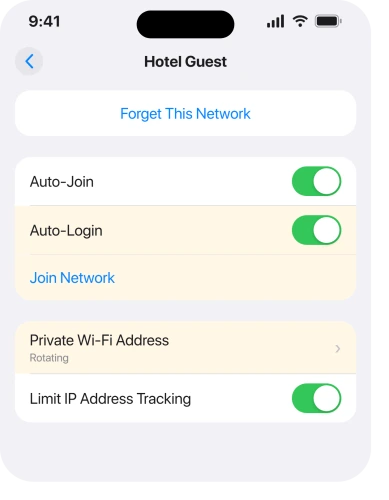
That second route is the one. Open Settings and tap Wi-Fi. Tap the small i beside the network you are already on. Then tap Join Network.
It asks the network for the welcome page directly, instead of waiting for iOS to notice one is needed.
In a hotel or a cafe, that is usually the whole job.
Fix 2: Never tap Cancel on that screen, whatever happens
Know this before you reach for it out of impatience.
Apple: "When you tap Cancel on the login screen, you disassociate the device from the captive Wi-Fi network."
Cancel does not close a stuck page. It throws you off the network. You start again from nothing.
If a page opens and looks broken, leave it alone. Reload it rather than cancelling out.
Fix 3: Turn off Auto-Login, if it appeared once and never again
One setting explains the pattern that nobody can account for.
Apple: "To see the Welcome screen the next time that you connect to the network, turn off Auto-Login."
Auto-Login signs you back in silently on a network you have used before, which is helpful right up until it is not. But when the network changes its terms, or your session expires, your sign-in page has nowhere left to appear.
Turn Auto-Login off in that same i screen. The welcome page comes back next time you join.
There is a matching setting for getting on at all. Apple: "Make sure that Auto-Join is on."
Between them, those two switches explain most of the it-worked-last-week reports I get asked about.
Fix 4: Turn off the two privacy settings, for this network only
This cause has grown steadily over the last few years, and it is the one that gets missed. Apple does not connect it to captive networks anywhere, so this part is ours.
Your iPhone hides its hardware address and routes some traffic privately. A hotel network that wants to identify your device before letting it through can choke on that.
In that same i screen, set Private Wi-Fi Address to Off. Turn off Limit IP Address Tracking while you are there.
Then turn off iCloud Private Relay if you use it. That one lives at Settings, your name, iCloud, Private Relay.
Do all three for that one network only, and put them back afterwards. Our page on the Wi-Fi Privacy Warning explains what you give up while they are off, and it takes two minutes to read.
Fix 5: Set DNS back to Automatic, which almost nobody checks
This one comes from owners rather than from Apple, and it is the cause I would look at next if fix 4 did nothing. Have you ever typed a DNS server into your iPhone by hand? A public one such as 8.8.8.8 or 1.1.1.1?
That setting sticks to the network you set it on and comes back each time you rejoin. Owners report it stopping the captive portal appearing, because the network cannot answer the name lookup the way it needs to in order to redirect you.
Check at Settings, Wi-Fi, the small i beside the network, then Configure DNS. If it says Manual, set it back to Automatic for this network.
User-reported rather than documented by Apple, but it is free, it takes ten seconds, and you can set it back afterwards. If you set that DNS years ago and forgot, this is very likely your answer.
The same logic applies to any DNS or content-filtering profile installed on the phone, which you can check at Settings, General, VPN & Device Management.
Fix 6: Force the page open with an ordinary web address
When the network is being stubborn, ask it for something it has no choice but to intercept.
Open Safari and type a plain address that does not use encryption. A network cannot quietly redirect a secure page. That is why loading your usual sites triggers nothing at all.
Apple's own test address works for this: go to captive.apple.com in Safari. It is the one I reach for first.
Use a fresh tab rather than a private one. And turn off any content blocker you have installed, since those can stop the redirect running.
Fix 7: Forget the network, then ask whether it needs your device registered
Two things left. Both are quick.
Forget the network and rejoin it. Tap the i, then Forget This Network, then join again from scratch so the whole handshake runs fresh.
Then ask whether the network needs your device registered rather than a password. Plenty of hotels and universities work that way. The front desk can add you in a moment.
If the connection drops the second you get on, that is a different fault, and our page on Wi-Fi that stops working after an update is the right read.
What does not work
- Restarting the phone. The page is triggered by joining the network, and restarting only makes you join again more slowly.
- Reset Network Settings. It clears every saved Wi-Fi password you own and does not make a welcome page appear.
- Turning Wi-Fi off and on. Give it ten seconds if you like, but it is the same join attempt that already failed.
- Waiting. Apple's instruction is to wait for the screen, and if it has not come in thirty seconds it is not coming.
- A VPN. It routes you past the very redirect that produces the login page, so it guarantees failure.
Status: iOS 26.6, checked 17 August 2026. Apple documents Join Network as the way to reach a login screen, and documents Auto-Login as the reason a welcome screen stops appearing.
Why is the Wi-Fi login page not showing on my iPhone?
Usually because nothing has asked for it. Tap the small i beside the network in Settings, Wi-Fi, then tap Join Network, which requests the page directly.
Private Wi-Fi Address, Limit IP Address Tracking and iCloud Private Relay can also stop the redirect reaching you.
How do I force a hotel Wi-Fi login page to open on iPhone?
Tap Join Network in the network's info screen first. If that does nothing, open Safari and load an unencrypted address such as captive.apple.com, since a network cannot redirect a secure page and your usual sites will simply fail.
Why did the Wi-Fi login page appear once and never again?
Auto-Login. Once it is on, your iPhone signs back in silently, so the welcome screen has no reason to appear. Turn Auto-Login off in the network's info screen and the page comes back the next time you connect.
The Short Version
- Tap the i beside the network, then tap Join Network. That is Apple's own route to the login page.
- Never tap Cancel on a login screen. Apple says it disconnects you from the network entirely.
- Auto-Login being on is why the welcome page stops appearing after the first time.
- Turn off Private Wi-Fi Address and Limit IP Address Tracking for that network, then put them back.
- iCloud Private Relay and any VPN both stop the redirect that produces the page.
- A DNS server you typed in by hand does the same, so set Configure DNS back to Automatic.
- Load captive.apple.com in Safari to force it open when nothing else does.
- Forget the network and rejoin as the last step, not the first.
Where to Next
Being connected and offline at the same time is a peculiarly modern annoyance, and the fix is a button hiding in a screen you open every week.
Tap the i. Tap Join Network. Do that first, every time, and most of these evenings get a great deal shorter.
If Join Network does nothing at all and captive.apple.com will not load either, tell me whether it is a hotel, an airport or a train, because those three fail in genuinely different ways.

Isaac Smith is the founder and editor of PC Glance, a website that covers computers, laptops, and technology. He is a tech enthusiast and a computer geek who loves to share his insights and help his readers make smart choices when buying tech gadgets or laptops. He is always curious and updated about the latest tech trends.