
You read back the message you just sent and every sentence starts small. i went to the shop. no worries. Your phone used to fix that by itself, and now it cannot be bothered, and you are sick of reaching for the shift key.
I can usually get this back for you.
Six things stop it, and they live in four different screens. Work down them in order. The first one catches the majority.
1. The switch itself, which turns off more easily than you think
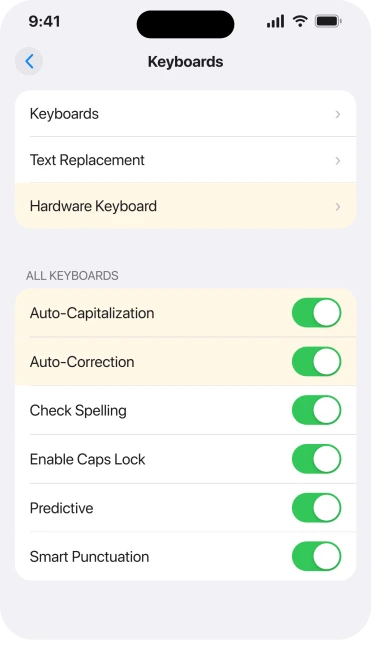
Go to Settings, then General, then Keyboard.
Auto-Capitalization is in that list, sitting near Auto-Correction. If it is off, that is your whole answer.
Read Apple's own description twice, because one clause in it does a lot of work:
"an app supporting this feature capitalizes proper nouns and the first words in sentences as you type."
Proper nouns and the first words in sentences. That is the entire job description, and it will matter again in a moment.
While you are on that screen, note that Auto-Correction is a separate switch doing a separate job. Apple, on Auto-Correction and predictive text: "By default, Auto-Correction is on."
2. The app you are typing in does not support it
This is the sentence people skim. It is also the answer if your phone capitalises fine in Messages and never in one particular app.
It is where you land if rung 1 was already done. One person opening a community thread on this put it bluntly: "Please No Canned Responses of how to set your keyboard to capitalize the first letter. That is automatically already on".
That is most of the people who go looking. Everything below is written for them.
Look at Apple's wording again. "An app supporting this feature" capitalises for you. Not every app. Apps that support it.
So the test is not a setting. Open Notes and type a full stop, a space and a letter. If Notes capitalises and your problem app does not, your phone is fine and the app is the one making the choice.
That happens most often in apps that draw their own text fields rather than using Apple's: some browsers, some cross-platform chat apps, and most password and code entry boxes, which switch it off deliberately.
There is nothing to fix on your side when that is the cause. Knowing which one you are in saves you an afternoon of toggling switches.
3. A third-party keyboard has taken over
Third-party keyboards bring their own rules and they ignore the switch in step 1 entirely.
Tap the globe key while typing. If it is there at all, you have more than one keyboard installed.
Switch back to the standard one and test the same sentence. If capitals return, the setting you need is inside that other keyboard's own settings, not in iOS.
Check what is installed at Settings, General, Keyboard, Keyboards. Removing one is Edit, then the minus, then Delete.
Two languages on one keyboard can also confuse it.
Apple: "Your keyboard automatically switches between the two languages you use most often."
Capitalisation rules are not the same in every language, so a keyboard that has quietly switched to another one may be behaving correctly for that language.
4. You are using a Magic Keyboard, which has its own second switch
Plenty of people give up at this point, having already checked the setting and found it on.
A physical keyboard does not use the switch from step 1. It has a separate one, in a separate screen, with the same name.
Apple: "Go to Settings > General > Keyboard > Hardware Keyboard", then "Turn Auto-Capitalization on or off".
Two identically named switches, two different keyboards. Turn the onscreen one on all you like and a Magic Keyboard will carry on typing lowercase.
That screen also holds a separate Auto-Correction and a separate "." Shortcut, which is the double-tap-space-for-a-full-stop trick. All three are per keyboard.
5. The standalone "i" is a different problem entirely
Read this one if your sentences capitalise correctly and it is only the word i that stays small.
Go back to what Apple says Auto-Capitalization handles: proper nouns and the first words in sentences. A lone i in the middle of a sentence is neither of those.
So it was never that switch. Turning Auto-Capitalization off and on will not touch it, which is exactly why people report doing that and getting nowhere.
The word i becoming I is Auto-Correction's job. Apple: "Auto-Correction uses your keyboard dictionary to spellcheck words as you type, automatically correcting misspelled words for you."
Your keyboard dictionary. Not a rule, a dictionary, and one that learns from you. Ever tapped the little x to reject the correction to I? Then you taught it that i is a word you meant.
Our page on autocorrect changing whole words covers what else that dictionary gets up to.
Two fixes, and the second is the stronger one. Turn Auto-Correction off and on at Settings, General, Keyboard.
If nothing changes, add a text replacement: Settings, General, Keyboard, Text Replacement, the plus, phrase I, shortcut i.
That text replacement is a workaround rather than a repair, and it will fire in places you did not intend.
Apple Support has recommended this shape of fix before, during the iOS 11 capital-I bug, but it substitutes rather than correcting.
And I have to tell you that the usual advice has a poor record here. On a community thread about exactly this letter, one person worked through a force restart, toggling Auto-Capitalization off and on, and a full Keyboard Dictionary reset.
All of that on the current iOS of the day.
Their replies were "Tried all your recommendarions, but still no luck" and "Did that. Didn't work for me."
Nobody on that thread reported anything working, and the text replacement is the only thing on this page that sidesteps the mechanism rather than asking it to behave.
6. The keyboard has learned the wrong things and needs clearing
Last, and only when nothing else has moved, because it is the one step you cannot undo.
Apple: "All custom words and shortcuts are deleted, and the keyboard dictionary returns to its default state."
That is Reset Keyboard Dictionary, at Settings, General, Transfer or Reset iPhone, Reset. It clears every word your phone learned from you, including the ones you were glad it had learned.
Do it only after steps 1 to 5, and expect a fortnight of the keyboard being slightly worse at your name before it settles again.
Set your expectations before you press it. It is the right tool when your keyboard has learned a wrong word from you, and that is a real cause.
But on the community thread about the lowercase i, the person who ran this reset reported it changing nothing, so do not treat it as the answer that must work because it is the last one.
If the keyboard is dropping letters or lagging as well as ignoring capitals, that is a separate fault with its own causes, and I would clear it first.
What does not help
None of these will help you, and I would rather save you the time than watch you work through them.
- Restarting. It changes no setting, and every one of these six survives a reboot.
- Turning Auto-Capitalization off and on. The advice everybody gives, and a poster who ran it on a community thread came back with "Did that. Didn't work for me." It does nothing for the lowercase i, which is not that switch.
- Reset All Settings. It wipes Wi-Fi passwords and permissions across the whole phone, when Reset Keyboard Dictionary is the targeted version.
- Updating iOS. Do it anyway. None of these six causes is a bug waiting on a patch.
- Deleting and reinstalling the app. An app that does not support Auto-Capitalization will not support it after a reinstall either.
Status: iOS 26.6, checked 17 August 2026. Apple documents Auto-Capitalization as covering proper nouns and sentence openings in supporting apps, with a separate switch for hardware keyboards.
Why is my iPhone not capitalizing the first letter of sentences?
Check Settings, General, Keyboard and confirm Auto-Capitalization is on.
If it is, the app is likely the cause, because Apple states the feature works in "an app supporting this feature" rather than in all of them. Test the same sentence in Notes to tell the two apart.
Why does my iPhone not capitalize the letter i any more?
Because that is Auto-Correction, not Auto-Capitalization. Apple defines Auto-Capitalization as handling proper nouns and the first words in sentences, and a standalone i is neither.
Turn Auto-Correction off and on, and add a text replacement of I for i if it persists.
Why does my Magic Keyboard not capitalize on iPhone?
A hardware keyboard uses its own settings.
Apple's route is Settings, General, Keyboard, Hardware Keyboard, and Auto-Capitalization there is a completely separate switch from the onscreen keyboard's one, even though both carry the same name.
The Short Version
- Settings, General, Keyboard, then Auto-Capitalization. Check it first.
- Apple's wording says it works in "an app supporting this feature", so some apps simply opt out.
- Test in Notes. If Notes capitalises and your app does not, the app is the cause.
- A third-party keyboard ignores the iOS switch and uses its own.
- A Magic Keyboard has a second Auto-Capitalization under Settings, General, Keyboard, Hardware Keyboard.
- The lowercase i is Auto-Correction and your keyboard dictionary, never Auto-Capitalization.
- Reset Keyboard Dictionary is the last resort, and it deletes every word your phone learned from you.
Where to Next
Most of this comes down to one thing: capitalisation is not a single feature.
There is one switch for the onscreen keyboard, another for a hardware one, a dictionary behind the letter i, and an opt-out that belongs to whatever app you happen to be typing in.
Test in Notes before you change anything. It tells you in five seconds which half of the problem you are in.
If Notes capitalises perfectly and one particular app never does, tell me which app it is, because a few of them are known for switching it off and it saves you chasing settings that were never involved.

Isaac Smith is the founder and editor of PC Glance, a website that covers computers, laptops, and technology. He is a tech enthusiast and a computer geek who loves to share his insights and help his readers make smart choices when buying tech gadgets or laptops. He is always curious and updated about the latest tech trends.