
There is a red exclamation mark at the bottom of your Calendar app and the words Unable to Update Calendars sitting under it. Nothing new has appeared for days.
I know how unsettling that is when you run your week out of that app, and I want to get it syncing again for you.
I have put the cheap checks first. The one at number two explains a calendar that seems to refuse all day and then quietly catches up overnight.
1. Pull down to refresh, and give it longer than feels reasonable
Open Calendar, tap Calendars at the bottom, then drag the list down and let go.
A spinner appears at the top. Leave it. On a busy account it can take twenty or thirty seconds to finish, and tapping away kills it.
The red exclamation mark clears itself once one account completes. If it clears and comes straight back, something real is wrong and the six rungs below are where to look.
2. Your Fetch schedule may be waiting for a charger
This is the one I would check first if you only had a minute. Apple documents it, and almost nobody mentions it.
Apple, in Change your Calendar settings on iPhone: "If you add an account that doesn't support Push notifications, you can set a Fetch schedule for updating your calendar from the account."
Then the sentence that matters: "If you choose Automatically, new data is downloaded when your iPhone is charging and connected to Wi-Fi."
Read that again. Automatically does not mean often. It means on a charger, on Wi-Fi.
So a phone that spends the day in your pocket on cellular sits there refusing to update. Then it fills in overnight while you sleep.
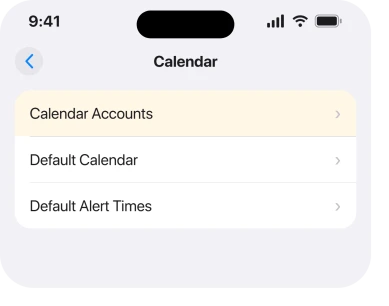
Go to Settings, tap Apps, tap Calendar, tap Calendar Accounts, then tap Fetch New Data. Under Fetch, pick Every 15 Minutes or Every 30 Minutes instead.
Two things worth knowing before you do. A shorter schedule uses more battery, and it only applies to accounts that cannot push in the first place.
Your Mail account has its own separate copy of this same setting, which is why your iPhone can switch email fetch off by itself without touching Calendar at all.
3. Switch Calendars off for the account, then back on
Owners report this more often than anything else here, and it costs you nothing.
Go to Settings, Apps, Calendar, Calendar Accounts, then tap the account that is failing. Turn Calendars off. Wait about ten seconds. Turn it back on.
Your events do not live on the phone, so switching this off deletes nothing. The calendar vanishes from the app while the switch is off, then comes back when the account resyncs.
One owner on an Apple Community thread about this exact error worked through the Fetch screen and then this toggle, and reported back: "I solved this even for Outlook." The account type they were on is the one that fails most often.
4. Untick every calendar, tick them again, then refresh
Narrower, and it targets your display list rather than the account itself.
In Calendar, tap Calendars. Tap Hide All Calendars. Wait a few seconds, then tap Show All Calendars. Now pull down to refresh.
A second owner on the same thread ran the toggle above and still had the error, added this step, and wrote: "Then finally it worked."
Apple does not explain why the two together do something neither does alone, and I am not going to invent a mechanism for you. It is cheap and it is reversible, which is why it is this high.
5. One dead subscription can flag the whole app
This is the rung people miss, because the error names calendars in general and the cause is usually one.
A subscribed calendar is a read-only feed from a web address. Holiday calendars, sports fixtures, a school timetable, an .ics link somebody sent you three years ago.
When that address stops answering, the app raises the same red mark it raises for a broken account.
Go to Settings, Apps, Calendar, Calendar Accounts, then look for Subscribed Calendars. Open it and read the list.
Delete anything you do not recognise or no longer need, then refresh. If the error goes, that was it.
Deleting a subscription removes its events from your phone, and they were never yours to begin with. Anything you created yourself lives in a real account and is not in this list.
6. The account may simply be signed out
Password changes are the usual trigger, and work accounts are the usual victim.
Go to Settings, Apps, Calendar, Calendar Accounts and open the failing account. If it shows a sign-in prompt, a re-enter password banner, or a red badge of its own, the calendar is not broken. The credential is.
Google and Microsoft accounts expire their tokens on their own schedule too, and a security change at work can invalidate yours without telling you.
If it is an Outlook or Exchange account and it keeps asking, that is a known pattern with its own causes, and our page on an iPhone that keeps asking for your Outlook password covers what is actually happening.
7. Remove the account and add it back
Last, because it is the most disruptive and because everything above is quicker.
Go to Settings, Apps, Calendar, Calendar Accounts, tap the account, then Delete Account. Add it again with Add Account and sign in.
Before you do it, understand what you are removing. Deleting an account removes its Calendar, Contacts, Mail and Notes from the phone in one action, depending on what that account carries. It does not delete anything from the server.
And check one thing first. If any event was created On My iPhone rather than in the account, it exists nowhere else. Apple's route to check is Settings, Apps, Calendar, Default Calendar, which tells you where new events have been going.
Status: iOS 26.6.1, checked 19 August 2026. The Fetch schedule wording is from Apple's current iOS 26 page. Both owner-confirmed fixes predate iOS 26 and the body says so.
Why does my iPhone say unable to update calendars?
It means at least one of your calendar accounts or subscriptions failed to reach its server. The usual reasons are a Fetch schedule that only runs on a charger, an account whose password has changed, or a subscribed calendar whose web address no longer answers.
Where is Fetch New Data on iOS 26?
Settings, then Apps, then Calendar, then Calendar Accounts, then Fetch New Data. Settings, Apps, Mail, Mail Accounts reaches the same screen, and the Fetch schedule is one shared setting, so changing it in either place changes both.
Will deleting a subscribed calendar delete my own events?
No. A subscription only holds events published by whoever runs the feed. Anything you typed in yourself sits in iCloud, Google, Exchange or on the phone, and none of those appear under Subscribed Calendars.
Does Unable to Update Calendars mean I have lost events?
Not by itself. The message is about fetching, not about deleting anything of yours. If events have actually gone missing, that is a separate problem and counting them first is the way to tell the two apart.
The Short Version
- Pull to refresh first and let the spinner finish before you conclude anything.
- Fetch set to Automatically means charging and on Wi-Fi, in Apple's own words.
- Switch the account's Calendars toggle off and on. That is the most reported owner fix.
- Hiding and reshowing all calendars, then refreshing, is what finished it for one owner.
- One dead subscribed calendar raises the error for your whole app.
- A changed password shows up as a sync failure, not as a prompt on your screen.
- Removing the account works and takes Mail and Contacts with it, so it goes last.
Where to Next
Seven different faults produce one identical red mark, and the app never tells you which account failed. That is the whole reason this drags on for people.
So work down rather than across. Two minutes on the Fetch screen and the account toggle will settle most of it for you, and the subscription list catches a good share of the rest.
If yours turned out to be a subscribed calendar, I would genuinely like to know which feed it was, because a dead sports or school calendar that trips this for a lot of people is worth naming on this page. Leave it in a comment.
Where you are on a beta and want off it rather than stuck updating, going back has a window and a method.
And if accepting an invitation reports that the response cannot be sent, that has seven fixes.
Calendar has other faults that look like this one and are not. If your events are there but you cannot find them by searching, Calendar search not working is the page you want.

Isaac Smith is the founder and editor of PC Glance, a website that covers computers, laptops, and technology. He is a tech enthusiast and a computer geek who loves to share his insights and help his readers make smart choices when buying tech gadgets or laptops. He is always curious and updated about the latest tech trends.