
You have gone to switch Stolen Device Protection off and your iPhone has told you to wait an hour. Standing in a shop about to trade the phone in is the worst possible moment to find that out, and I am sorry.
I can tell you exactly why it does this and how to avoid the wait.
The short answer: the delay is about where you are, not about what you did.
1. Go home, and the delay usually disappears
Try this before anything else. It is the whole mechanism in one move.
Apple states the rule directly on its Stolen Device Protection page: "If you try to turn off Stolen Device Protection when you're not in a familiar location, a security delay starts before you can turn it off."
So the hour is not a punishment for turning the feature off. It is what happens when you do it somewhere the phone does not recognize.
Go home, or to your workplace. Try again. Apple: "When your iPhone is in a familiar location, these additional steps are not required, and you can use your iPhone passcode like usual."
Familiar locations, in Apple's words, "typically include your home, work, and certain other locations where you regularly use your phone".
If the phone will not accept your passcode at all rather than making you wait, that is a different problem, and an iPhone that will not let you turn the passcode off covers the neighbouring case.
2. Check the setting is not on Always
Second. This is the answer for people who are at home and still being made to wait.
There is a switch inside Stolen Device Protection that removes the location exemption. Completely.
Apple's route: "Go to Settings, tap Face ID (or Touch ID) & Passcode. Then tap Stolen Device Protection and choose 'Always' under Require Security Delay."
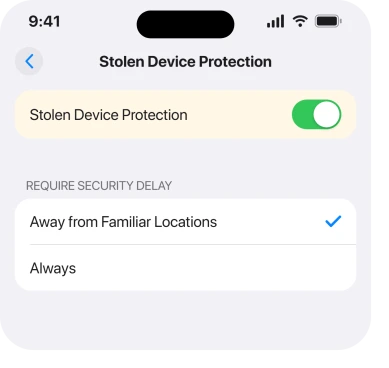
Set to Always, Apple says, "updates to certain security settings always require a delay and actions that require biometric authentication always require Face ID or Touch ID (with no passcode alternative), even if you're in a familiar location like home or work".
Switch it back to Away from Familiar Locations first. Then turn the whole feature off from home. Two steps, no hour.
3. A new phone does not know where home is yet
Narrower. It explains the case that confuses people most.
Set this phone up recently and it has no history of you. So your kitchen is not a familiar location as far as it is concerned. It will ask for the delay while you stand in it.
Apple documents exactly this for a restored or transferred phone: your settings including Stolen Device Protection are restored, and "there may be a delay before your device recognizes familiar locations".
So on a phone that is days old, expect the wait and plan around it. You cannot teach it faster than using it normally, where you normally are.
4. Start the delay rather than fighting it
More practical than clever. Do this when you genuinely cannot get home.
Tap Start Security Delay and get on with your day. After an hour the phone tells you it is ready. You confirm with Face ID or Touch ID.
The hour is worth understanding rather than resenting.
Apple: "In the event that your iPhone is stolen, the security delay is designed to prevent a thief from performing critical operations so that you can mark your device as lost and make sure your Apple Account is secure."
That same hour protects you from somebody who has your phone and your passcode. It is doing its job.
5. Find My is locked while this is on
Specific. It catches people preparing a phone for sale in the wrong order.
Apple: "You also need to have Find My turned on, and you can't turn it off while Stolen Device Protection is enabled."
So if you are trying to switch Find My off and the phone refuses, this is why. The order matters. Stolen Device Protection off first, from a familiar location, then Find My.
Apple's own instruction for anyone moving a phone on is blunt: "You should turn off Stolen Device Protection before you sell, give away, or trade in your iPhone."
Do it at home, the day before. Not at the counter.
6. What it changes while it is on, and what it does not
Last, because knowing it often removes the reason you wanted the feature off.
Apple describes two separate requirements.
The first: "Some actions such as accessing stored passwords and credit cards require a biometric authentication with Face ID or Touch ID".
Apple adds in the same sentence that there is no passcode alternative or fallback for those, so your face or fingerprint is the only way in.
The second: "Some security actions such as changing your Apple Account password also require you to wait an hour and then perform an additional Face ID or Touch ID authentication."
Two things follow that people do not expect.
Face ID that is not working leaves those actions with no route at all while you are away from home. So an iPhone whose Face ID has stopped becomes the problem to solve first.
And Apple: "You can't update these security settings on the web at account.apple.com", so there is no browser workaround.
One requirement is worth checking if the feature will not turn on rather than off. Apple: to use it you must have two-factor authentication plus "a device passcode; Face ID or Touch ID; and Significant Locations (Location Services)".
Turn Significant Locations off and the feature loses the thing it uses to know where you are.
What does not help
- Restarting the phone. The delay is a timer, not a stuck screen.
- Turning Location Services off. It removes the phone's ability to recognize home. That makes the delay more likely, not less.
- Trying it from a browser. Apple states these settings cannot be updated at account.apple.com.
- Erasing the phone to skip it. You cannot get to that either without clearing the requirement first, and it is a very expensive way to save an hour.
Status: iOS 26.6.1, checked 19 August 2026. Every rung on this page is documented by Apple. The feature has worked this way since iOS 17.3 and none of it is a fault.
Why does my iPhone say I have to wait an hour to turn off Stolen Device Protection?
Because you are somewhere the phone does not treat as familiar. Apple states that turning it off away from a familiar location starts a security delay. From home or work the same action usually needs only your passcode.
How do I turn off Stolen Device Protection without the delay?
Do it from a familiar location, and first check that Require Security Delay is set to Away from Familiar Locations rather than Always. Set to Always, the delay applies at home too.
Why is my new iPhone asking for the delay at home?
Because it has not learned your familiar locations yet. Apple notes that after a restore or a transfer there may be a delay before the device recognizes them, so a phone that is days old will ask for the wait wherever you are.
Do I need to turn it off before selling my iPhone?
Yes. Apple says to turn Stolen Device Protection off before you sell, give away or trade in your iPhone, and you cannot turn Find My off while it is enabled. Do both at home, the day before.
The Short Version
- The hour is triggered by location, not by the action itself.
- From home or work, turning it off usually needs only your passcode.
- Check Require Security Delay is not set to Always, which removes the location exemption.
- A newly set up phone has not learned your familiar locations and will ask anyway.
- Find My cannot be turned off while Stolen Device Protection is on.
- Turn it off before you sell or trade the phone in, at home, in advance.
Where to Next
If there is one thing worth carrying away, it is the order of operations before you sell a phone. Stolen Device Protection off first, from home, then Find My, then erase.
Doing it in the wrong order at a trade-in counter is how people lose an afternoon.
One prerequisite catches people out before any of this can be set. An iPhone saying a passcode was never set blocks several security features at once.
Stolen Device Protection is one of several tools people reach for when they want a duress code. The iPhone has no duress password, but it has these.
If your phone is demanding the delay at home on a device you have had for months, with Require Security Delay set correctly, tell me. That would not match anything Apple documents and it is worth looking at properly.

Isaac Smith is the founder and editor of PC Glance, a website that covers computers, laptops, and technology. He is a tech enthusiast and a computer geek who loves to share his insights and help his readers make smart choices when buying tech gadgets or laptops. He is always curious and updated about the latest tech trends.