
You have found the Talk to Siri row. You can see it sitting there, and it will not respond to a tap. A setting you can read but cannot touch is a special kind of annoying, and I get why it looks broken.
Let me explain what is holding it, because on almost every phone it is one restriction rather than a fault.
This page is about that single control: what it is called on your iPhone, what greys it out, and what it costs you either way.
First, the row has two names, and that matters
Before anything else, make sure you are looking at the right screen, because Apple gives this control two names depending on the phone.
Apple writes the route with both in brackets: "Tap Siri (or Apple Intelligence & Siri), then do any of the following:"
Then the control itself, same style: "Tap Talk to Siri (or Talk & Type to Siri), then tap Off."
So on an iPhone that runs Apple Intelligence the row reads Talk & Type to Siri, and on one that does not it reads Talk to Siri. Older instructions name only one.
That sends half their readers hunting for a row their phone was never going to show.
Clear that up first. A row you cannot find and a row you cannot tap are different problems.
What actually greys it out: a Screen Time restriction
This is the cause behind almost every report. Siri itself is not involved.
Screen Time can switch Siri off at a level above Settings. When it does, the row stays visible and stops accepting taps, which is exactly what you are looking at.
The route is Settings, Screen Time, Content & Privacy Restrictions.
Apple names the section on its parental controls page as "Restrict Intelligence & Siri features", and gives the step as "Tap Intelligence & Siri, then choose your settings." Inside it, the item you want is Siri & Dictation.
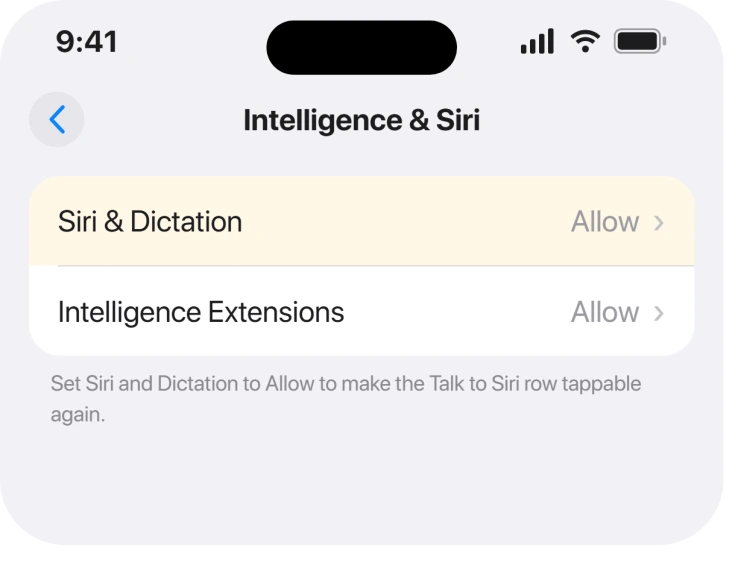
Set that to Allow and the greyed row comes back to life.
Owners report this as the fix, and more than one person confirmed it.
On an Apple Community thread from somebody whose Siri went dead after an update, the top-ranking reply walked through exactly that path and said it had fixed their own phone.
Another member came back afterwards to say it had worked for them too.
Why the name of that section trips people up
Worth a moment, because current instructions go stale exactly here.
That section used to be reached through Allowed Apps, and a great deal of advice still says so. The current wording is Intelligence & Siri, sitting alongside a separate entry for Intelligence Extensions.
So if you opened Content & Privacy Restrictions, hunted for Allowed Apps and found nothing useful, the screen was right and the map was wrong. Look for Intelligence & Siri instead.
If Screen Time is not even on
Narrower, and it lands on people who set none of this up themselves.
A work or school phone can carry a management profile. It applies the same restriction while Screen Time looks switched off entirely. A child account in a Family Sharing group does the same, with the organizer holding the switch.
Check Settings, General, then VPN & Device Management. A profile listed there can hold Siri off, and no amount of tapping in Settings will move it.
The same profile can lock other things you never chose, and an iPhone that keeps asking to sign in to your Apple Account is a common partner to it.
If somebody else manages the phone, the setting has to change at their end. Nothing local will move it. Saying so beats inventing a workaround.
What turning it back on actually gives you
Now the part that decides whether you want it at all.
Allowing Siri & Dictation restores the row, and it restores dictation on the keyboard at the same time. Those two travel together in that restriction, so you cannot have one without the other.
Apple documents a separate switch worth knowing: "Prevent access to Siri when iPhone is locked: Turn off Allow Siri When Locked." That one lives in Siri's own settings and Screen Time never touches it.
Ours, and marked as ours: if you turned Siri off deliberately and only want the keyboard microphone back, there is no split available in that restriction. You have to allow both.
Apple does not say this outright and it follows from the two features sharing one control.
The one thing people confuse with this
Last, so you do not chase the wrong control.
Siri being slow to respond, or cutting you off mid-sentence, is a different setting entirely.
Apple: "To change how long Siri waits for you to finish speaking, go to Settings" and then Accessibility, Siri, where you choose Default, Longer or Longest.
Screen Time never greys that one, and changing it will not revive a dead row. If Siri answers but behaves oddly, an iPhone reading everything out loud covers a related surprise.
What does not help
- Turning Siri off and on in Settings. If the row is greyed you cannot tap it anyway, which is the point people keep missing.
- Restarting the iPhone. Nothing in the community thread reports a restart clearing this, and a restriction survives one by design.
- Updating iOS. This is not a bug. An update has nothing here to repair.
- Resetting all settings. It may clear the restriction along with every other preference you have set, which is a heavy trade for a switch you can reach directly.
Status: iOS 26.6.1, checked 19 August 2026. This is a documented restriction rather than a fault, and the fix is confirmed by more than one owner. The only case with no local answer is a managed or family-controlled phone.
Why is Talk to Siri greyed out on my iPhone?
Because Screen Time is restricting it. Go to Settings, Screen Time, Content & Privacy Restrictions, then Intelligence & Siri, and allow Siri & Dictation. The row becomes tappable again straight away.
Where is Talk to Siri in iOS 26 settings?
Under Settings, then Siri, or Apple Intelligence & Siri on a phone that supports it. Apple prints both names, so which one you see depends on your model rather than on anything you have changed.
Why can I not find Allowed Apps in Screen Time?
Because the section covering Siri is now called Intelligence & Siri. Advice written before that rename still sends people to Allowed Apps, which is why the path feels wrong even when Screen Time is open in front of you.
Does allowing Siri also turn dictation back on?
Yes. The restriction covers Siri & Dictation as one item, so allowing it restores the keyboard microphone as well. There is no option to permit one and block the other.
The Short Version
- The row is called Talk to Siri, or Talk & Type to Siri on an Apple Intelligence phone.
- Screen Time greys it: Content & Privacy Restrictions, Intelligence & Siri, Siri & Dictation.
- That section used to be under Allowed Apps, which is why old guides mislead.
- A work, school or family-managed phone holds the same restriction from elsewhere.
- Allowing Siri restores keyboard dictation too, and you cannot separate them.
- Siri pause time is a different control and is not what greys this row.
Where to Next
The good news here is that it takes about thirty seconds, once somebody tells you the section was renamed. Nearly all the difficulty is stale advice rather than an awkward phone.
If your row is greyed and Screen Time is definitely off, tell me what the phone is used for, because that usually turns out to be a profile somebody else installed, and I would like to name it here.

Isaac Smith is the founder and editor of PC Glance, a website that covers computers, laptops, and technology. He is a tech enthusiast and a computer geek who loves to share his insights and help his readers make smart choices when buying tech gadgets or laptops. He is always curious and updated about the latest tech trends.