
Your PC filled the screen, said something about collecting error information, and restarted itself. Now you are asking yourself whether the machine is dying. Let me take that worry off you first.
Microsoft's own position on a single one of these is far calmer than you would expect. Then I will show you the one line on that screen that says what actually went wrong.
One of these is usually nothing
Start here. It will spare you a great deal of worry.
Documented by Microsoft: "In most cases when Windows 11 restarts unexpectedly, the problem is resolved by the restart and no further action is needed."
That is the vendor saying it out loud. One crash, then a machine that runs normally again, is not failing hardware. Something misbehaved. Windows stopped rather than corrupt anything, and it recovered.
The pattern is what counts. Once a month is noise. Once a day, or every time you do one particular thing, is a real fault.
Everything from here down is for that second kind.
The line that tells you what happened
Every one of these screens carries a stop code. Nothing else on it helps you nearly as much.
Documented by Microsoft: "a stop code, such as PAGE_FAULT_IN_NONPAGED_AREA or MEMORY_MANAGEMENT will appear at the bottom of the screen". Look along that bottom edge.
Write it down. Photograph it with your phone. It vanishes the moment the machine restarts.
That code is the difference between fixing this and guessing. Some codes point at memory. Others point at a driver, or at a drive. Generic advice aimed at the wrong one costs you days.
Do not be thrown if yours is not blue. Microsoft: "The screen color and messaging for a stop code error can vary, depending on which version of Windows 11 you are running." Newer builds show a black screen for the same event.
It is not a different fault, and it is not a worse one.
Where to find the code after it has gone
Restarted before you could read it? The evidence is still on the machine.
Windows writes a small crash file every time. Open File Explorer and go to C:\Windows\Minidump. One file per crash, named by date.
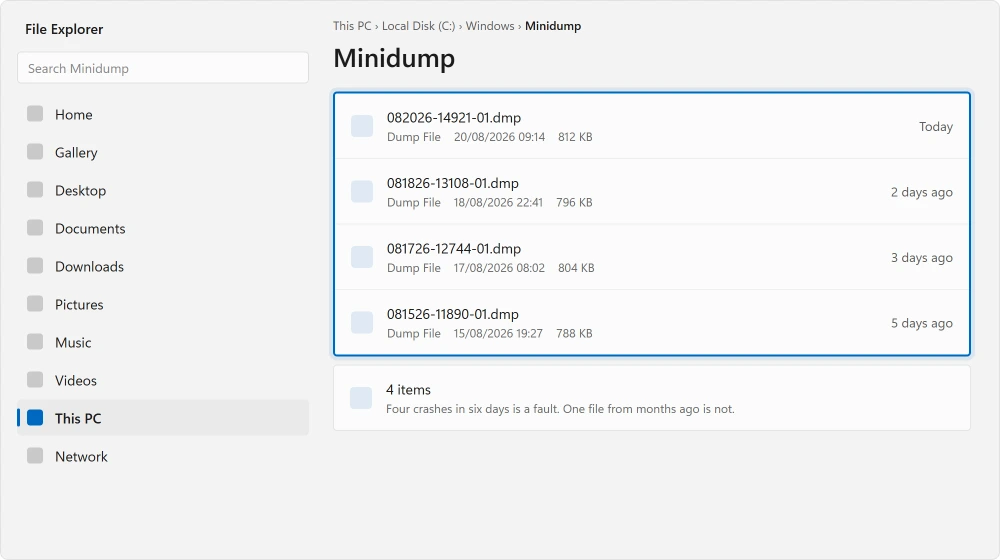
You do not even need to open them. The list alone tells you plenty. Four files from the past week is a completely different problem from one file dated March.
For the code itself, open Event Viewer from Start. Go to Windows Logs, then System. Look for a red error at the time it crashed.
If it says CRITICAL_PROCESS_DIED and you built the PC yourself
Read this one even if it sounds unlikely to you. Two separate people confirmed it.
Reported working by an owner on Microsoft's Q&A, 13 January 2024, after everything else had failed:
> "I removed the processor and heatsink (carefully) and blew out the socket area with compressed air, used a q-tip with alcohol and wiped all of the pads on the bottom of the CPU, cleaned off the old heatsink grease and reapplied new grease. It has now been running over a week with no blue screen issues."
Confirmed by a second owner ten months later, on 17 November 2024:
> "I built myself a PC and had this Bluescreen error since the beginning. For about a month I tried everything you did but never had the idea to resocket the CPU. So I cleaned the contact side of the cpu and put it back in with new thermal paste. I had no issues anymore since then. Thank you so much!"
Why it works, in the first owner's words: a modern CPU socket has over a thousand contact pads, and one speck of dust on one pad is enough.
So this is a strong candidate if your machine has crashed since the day you built it, rather than starting after an update. It is much less likely on a laptop, or on a shop-bought desktop that ran fine for years.
Ours, and marked as ours: this is real work with real risk. That is why it sits after the software checks rather than before them. Never removed a cooler before? Take your time over it rather than ruling it out.
If it started right after you added something
Documented by Microsoft, and it is the first step in its own stop code guidance: "shut down your PC, remove the hardware, and try restarting."
New RAM, a new drive, a new graphics card, a new dock. Take it out. See whether the crashes stop. That answers the question outright, which almost nothing else here does.
The same goes for software that quietly installs a driver. Virtual machine tools, VPN clients, antivirus and overclocking utilities all load code deep enough to cause this.
If it happens before you can do anything
Safe mode gives you a machine you can work on.
Documented by Microsoft: "If you're having trouble restarting, you can start your PC in safe mode."
Hold the power button for twenty seconds. Start it again. Repeat until Windows offers you the recovery environment. Then Troubleshoot, Advanced options, Startup Settings, Restart, and pick safe mode.
Safe mode loads almost no drivers. If the crashes stop there, your cause is a driver or a startup program rather than Windows itself. That is an enormous narrowing for one test.
If the stop code reads INACCESSIBLE_BOOT_DEVICE and Safe Mode fails too, check the BIOS storage mode first, especially after a BIOS reset.
If it names UNMOUNTABLE_BOOT_VOLUME instead, check the drive with chkdsk before you roll back.
The rest of what Microsoft documents
Three more steps. Do all of them before you open the case.
Check Device Manager for anything carrying a warning triangle. That usually names the guilty driver outright.
Check your free disk space. A drive with almost nothing left causes crashes that look like anything but a full drive, and the disk space problem behind a slow machine covers why that hits harder than people expect.
Install every pending Windows update, because driver fixes arrive that way. If updates themselves will not install, a stuck Windows update has to come first.
Other causes owners traced on the same thread
These are specific rather than general, so one of them may match your machine exactly.
Reported by owners, and none of these carries a second confirmation, so treat them as leads rather than answers:
A BIOS power setting, where lowering the package C state limit and disabling enhanced halt stopped the freezes on one machine.
A corrupted NVMe drive, where the crashes stopped once it had been formatted properly. Check that if yours is a newer drive.
CPU virtualization enabled in BIOS on a machine that did not like it.
And a storage compatibility problem between certain WD Blue drives and the 24H2 update. Check that against Microsoft's known issues list if your crashes began when that update landed.
Status: checked 20 August 2026 on 24H2 and 22H2. Microsoft says a single unexpected restart usually needs no action, and that newer builds show a black screen rather than a blue one.
Is one blue screen something to worry about?
No. Microsoft's own wording is that in most cases the problem is resolved by the restart and no further action is needed. It is repetition that matters. Once a month is noise, but once a day or every time you do one particular thing is a real fault.
Where do I find the stop code after the PC restarts?
Look in Event Viewer under Windows Logs, then System, for a red error at the crash time. The crash files themselves sit in C:\Windows\Minidump, one per crash and named by date, so the list alone shows you how often it is happening.
Why is my Windows 11 crash screen black instead of blue?
Because Microsoft changed it. The company states that the screen color and messaging vary depending on which version of Windows 11 you are running. A black stop screen is the same event as the old blue one, not a different or worse fault.
Can dust really cause CRITICAL_PROCESS_DIED?
On a self-built desktop, yes, and two owners confirmed it independently. A modern CPU socket has over a thousand contact pads and one speck on one pad is enough. It is a strong candidate when a machine has crashed since the day it was built.
The Short Version
- Microsoft says one unexpected restart usually needs no action at all.
- The stop code at the bottom of the screen is the only real diagnostic. Photograph it.
- A black crash screen on newer builds is the same thing as the old blue one.
- C:\Windows\Minidump holds one file per crash, so the list shows the frequency.
- Remove any hardware you added recently, which answers the question outright.
- On a self-built PC, reseating and cleaning the CPU fixed CRITICAL_PROCESS_DIED twice.
Where to Next
Never actually seen the blue screen because the machine restarts too fast? There is a setting for that and a log entry waiting for you.
Somebody will tell you to flash your firmware before you have finished reading the stop code. Find out first whether that is a reason or a reflex.
The habit to form is photographing that screen the second it appears. Everything here gets easier with the stop code and much harder without one, and it is gone in seconds.
If you have a code and are not sure what it points at, put it in the comments along with whether the machine is a laptop, a shop-bought desktop or one you built.
If your code says MEMORY_MANAGEMENT, do not buy memory yet. Microsoft lists thirty six causes for it and only two are hardware.
And if the screen flickered several times before it crashed, those flickers were the warning. Five graphics recoveries in a minute force the sixth to blue screen.
When the crashes keep coming back whatever the stop code says, Reset keeps your files and is lighter than a USB stick.
One thing to check before you go further: whether System Restore was ever switched on. Rolling back a bad driver is far easier than reading a stop code twice.
Before you chase the stop code, find out which day this began. Windows has been logging every crash by date since it was installed.
Those two facts together usually narrow it to one or two causes, and I am glad to work through it with you.

Isaac Smith is the founder and editor of PC Glance, a website that covers computers, laptops, and technology. He is a tech enthusiast and a computer geek who loves to share his insights and help his readers make smart choices when buying tech gadgets or laptops. He is always curious and updated about the latest tech trends.