
You type a sentence and watch the letters arrive behind your fingers. Sometimes a whole word turns up at once. Sometimes a key you definitely pressed never appears at all. So you hammer backspace to catch up.
Nothing makes a machine feel as broken as one that cannot keep up with your hands, and everything else looking fine makes it worse.
Every page about this hands you the same list of settings in the same order. That list is fine, and I will give it to you. It also misses the thing one owner spent a month chasing before he found it.
So this page sorts by when yours lags. That narrows it faster than any list of toggles.
It is slow from the moment you switch on
Start with the one setting built to do exactly this. Plenty of people switch it on by accident.
Documented by Microsoft on its input accessibility page.
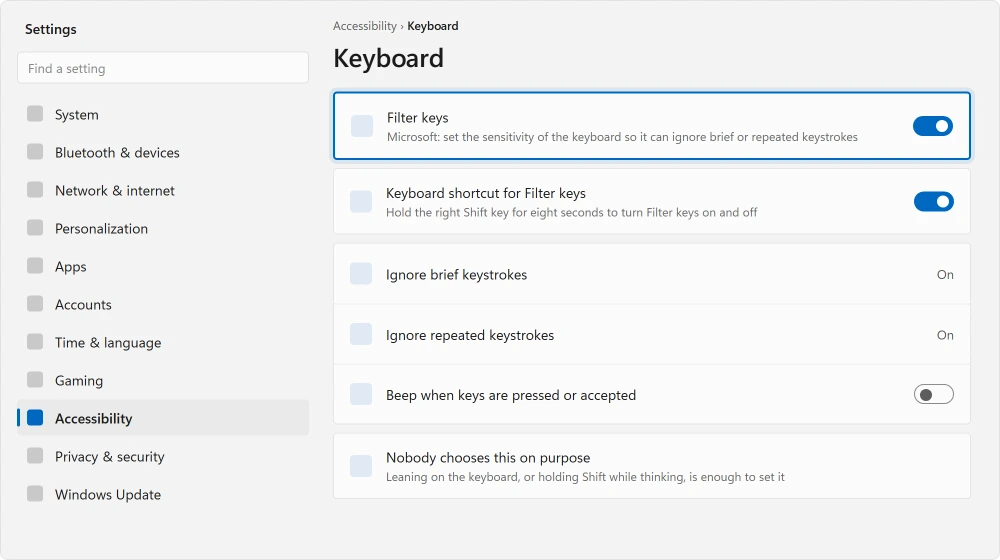
Filter Keys sets "the sensitivity of the keyboard so it can ignore brief or repeated keystrokes." That is its whole job.
If it is on and you did not mean it, your keyboard will feel deliberately unresponsive, because it is. A shortcut is why.
Hold the right Shift key for eight seconds and it turns on, and anyone who has leaned on a keyboard has had the chance.
Go to Settings, then Accessibility, then Keyboard, and look at the Filter keys switch.
Sticky keys is worth a glance on the same screen too. Microsoft describes it as letting you "press commands that use multiple keys (such as Ctrl+S) one key at a time".
That changes how Shift and Ctrl behave, and it confuses anybody who does not know it is on.
It is fine at first and gets worse the longer the machine is on
Nothing else you will read on this topic covers what follows. Confirmed by an owner on Microsoft Q&A, December 2025 into January 2026, on an Eluktronics MAX-17 laptop. His description of the symptom was precise.
In his words: "there was about a full second delay after pushing each key before the character registered on the screen. Sometimes the keys do not even register at all. I have to push keys repeatedly before getting a response on the screen, including the backspace key."
Look at what he had already done. Restarted. Cleaned the keyboard. Installed every Windows update. Set the repeat rate to fastest. Disabled Filter Keys. Reinstalled the keyboard driver.
He also ran sfc /scannow. It found a corrupt file, fixed it, and changed nothing.
That is the entire internet's advice on this topic, worked through in order, with no result. If you have done the same list, you already know that feeling.
Then he found it. "One of the fans in the laptop became faulty and was not increasing in speed appropriately, causing the machine to overheat. Once I replaced the fan, the laptop cooled properly and the keystroke delay went away."
A Microsoft moderator confirmed the mechanism on the same thread. Overheating makes the processor thermal throttle hard, and that "slows down system interrupts, leading to the exact typing lag and missed keystrokes you described."
So a keyboard that lags can be a cooling problem, not a keyboard problem, not a driver problem, and nothing you will find in keyboard settings.
If Task Manager shows System Interrupts high while the keys lag, a device or driver may be calling the processor nonstop.
Ours, and marked as ours: the tell is timing. A dying fan does not throttle a cold machine. The lag arrives after twenty minutes or an hour, and it is gone again by morning.
If that matches yours, listen to the fan and feel the underside. Do that before you touch another setting.
Where the machine is running hot generally, a laptop that is too hot to sit on covers what to do about it.
Only when it is running on battery
Windows slows things down to save power. On a laptop that can slow the path your keystrokes take.
Reported by advisers on Microsoft's boards, more than once. On some laptops the built-in keyboard sits behind an internal USB hub. Windows suspends that hub to save power, and waking it up costs you the first keystroke.
To rule it out, open Control Panel, then Hardware and Sound, then Power Options.
Choose Change plan settings for your plan, then Change advanced power settings. Set USB selective suspend setting to Disabled on both battery and plugged in.
Nobody confirmed this one worked. It is adviser guidance, repeated across several threads, and I am printing it as that rather than as a fix. It costs a minute and a little battery life.
Keys drop or repeat rather than arriving late
This is a different fault with a different cause. It just feels similar while you are typing.
Keys repeating by themselves? Or needing to be held down? The repeat delay and repeat rate govern both. Press Windows + R and type control keyboard.
If specific keys are dead or type the wrong character, that is not lag at all. A keyboard that is not typing properly sorts that one by what yours actually does.
Only inside one app
Then nothing on this page will help. Windows is delivering your keystrokes on time. That program is not handling them.
Browsers are the common one, and usually an extension is responsible. Turn them off as a group, confirm the lag goes, then turn them back on one at a time.
Ours, and marked as ours: test in Notepad first. It is about as thin a program as Windows has. If Notepad keeps up and your other app does not, you have your answer in ten seconds.
Typing that keeps up while a desktop shortcut key takes seconds to open its program is a separate fault, covered on the slow shortcut keys page.
Status: written 21 August 2026 on current Windows 11 and 10. One owner traced a full second of keystroke delay to a failing cooling fan, and a Microsoft moderator confirmed the mechanism.
Why is there a delay when I type on Windows 11?
Filter Keys is the first thing to rule out, because Microsoft designed it to ignore brief keystrokes and a held Shift key switches it on by accident.
If that is off, note when the lag appears. Lag that arrives only after the machine has been running a while points at heat rather than the keyboard.
Can overheating cause keyboard lag?
Yes, and it is confirmed. An owner with a full second of delay per keystroke found a fan that was not spinning up properly, and replacing it cleared the lag entirely.
A Microsoft moderator explained it as the processor throttling hard enough to slow system interrupts.
How do I turn off Filter Keys?
Go to Settings, then Accessibility, then Keyboard, and switch off Filter keys. It is worth knowing that holding the right Shift key for eight seconds turns it on, which is how most people end up with it enabled without ever choosing it.
Why does my keyboard lag only in Chrome?
Because the lag is in the program rather than in Windows. Type the same sentence in Notepad.
If that keeps up with you, the keyboard and Windows are fine, and a browser extension is the usual culprit. Disable them all, check, then re-enable one at a time.
The Short Version
- Filter Keys is designed to ignore brief keystrokes, and eight seconds on the right Shift key turns it on.
- Lag that appears only after the machine has been running points at heat, not the keyboard.
- One owner replaced a faulty fan and a full second of keystroke delay disappeared.
- A Microsoft moderator confirmed that thermal throttling slows system interrupts enough to cause it.
- USB selective suspend is adviser guidance for battery-only lag, with nobody confirming it worked.
- Lag in one program only is that program's fault. Notepad settles it in ten seconds.
Where to Next
If the letters are arriving promptly but coming out as the wrong symbols, that is not lag, and three separate settings share the name that confuses it.
If your lag comes and goes with how long the machine has been on, go and listen to the fan tonight. That is a five second check, and it is the one thing here no other page will tell you to do.
If it turns out to be something else entirely on your machine, leave me a comment. I read them, and a named cause is worth more to the next person than another list of settings.
Dropping or repeating keys are a different fault. A keyboard that is not typing right is the page for that one.
Not sure whether the delay is the keyboard or Windows? a two-minute test separates the two.
Where keys arrive late or not at all rather than lagging, an accessibility shortcut may have armed itself.
And if the whole machine feels slow rather than just your typing, a machine that feels slow all over starts somewhere else entirely.

Isaac Smith is the founder and editor of PC Glance, a website that covers computers, laptops, and technology. He is a tech enthusiast and a computer geek who loves to share his insights and help his readers make smart choices when buying tech gadgets or laptops. He is always curious and updated about the latest tech trends.