

You drag a window across the desktop and a faint copy trails behind it. You move the camera in a game and the edges smear. Dark scenes show it worst, and once you have seen it you cannot unsee it.
That is a miserable thing to live with on a screen you probably paid extra for, and I do not think you should have to. It is fixable more often than people expect.
Almost every page tells you to set response time to its fastest setting. That is half right, and the missing half is why it backfires. So: what ghosting actually is, then six things to try.
First, what ghosting actually is
Documented by ASUS on its own gaming monitor setup guide. I am starting here because the definition decides everything you do below it.
Response time, in its words, "determines how fast a display can shift from one color or shade to another."
Some shifts are slower than others. ASUS says "certain transitions may take longer than others, which can result in 'ghosting,' or a blurry trail behind moving objects."
So ghosting is your pixels being slow. It is a property of the panel. Not a Windows fault, and no driver update creates or removes it.
1. Check your refresh rate is not sitting at 60
Do this first. It is free, and it is very often wrong.
Windows does not always pick a monitor's best refresh rate. A 144 Hz panel running at 60 Hz shows every motion artifact more clearly. Plenty of people never open the dropdown to check.
Go to Settings, then System, then Display, then Advanced display, and look at the refresh rate.
The picture splitting across the middle covers this setting in more detail. Tearing and ghosting are different faults that share a cause here.
2. Turn overdrive on, but not to maximum
This is the setting everyone means when they say response time. On your monitor's own menu it goes by Overdrive, Response Time, OD, TraceFree or Rampage Response. It depends on who made it.
Documented by ASUS: it "'overdrives' the pixels to result in faster response times for clearer, smoother motion, which is crucial in fast-paced combat."
The part that gets left out follows in the same breath. ASUS says "setting it too high can cause 'overshoot,' which can cause inverse ghosting, or a colored trail behind moving objects."
So the advice to crank it to maximum can hand you a second artifact instead of removing the first. That is what people mean when they say the fix did nothing.
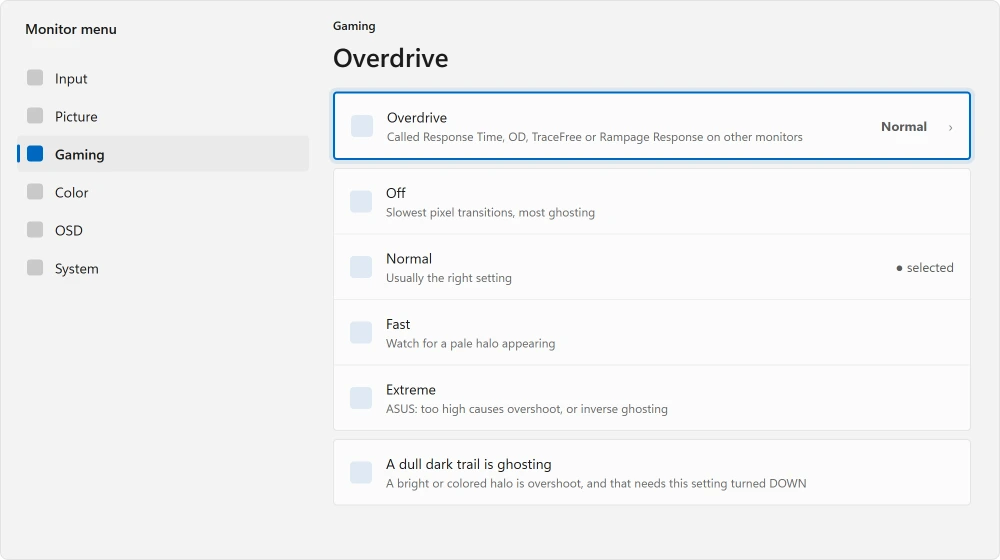
Ours, and marked as ours: start on the middle setting, not the top one. Most monitors with three or four overdrive levels are tuned so the middle one is the setting that actually looks right. The top one exists for a spec sheet.
3. Learn to tell ghosting from inverse ghosting
These look similar at a glance. They need opposite fixes. So this is worth thirty seconds.
Ordinary ghosting leaves a dull, dark, smeared trail behind a moving object. The pixels are lagging. They are behind where they should be.
Inverse ghosting, or overshoot, leaves a bright or colored halo. Often a pale outline just ahead of the edge. The pixels have been pushed too far and are correcting back.
If you turned overdrive up and it got worse, you have overshoot, not ghosting. Turn it back down a notch, and going higher from here makes it worse every time.
4. Use the test the monitor makers use
Documented by ASUS, which points at an independent test rather than its own:
"The Blur Busters UFO Ghosting Test can help you dial in the right setting for you, put that on your screen and flip between overdrive options to see its effect."
That is how to do this properly, and I would rather send you there than guess. Put a moving test pattern on your screen. Change one setting. Look again.
ASUS adds a caveat worth keeping. Real game content is the final decider, so check a dark scene too. A pattern on a white background hides the transitions that ghost worst.
5. Rule out the cable and the connection
Ghosting is a panel property. But a connection that cannot carry your resolution at full rate quietly drops you to a lower one. That puts you back at number one on this list.
Check the cable is doing what you think. A DisplayPort or HDMI cable rated below what your monitor needs still connects. It just runs slower.
Ours, and marked as ours: watch the dropdown. If 144 Hz is missing at 1440p but there at 1080p, the link is your limit rather than the panel.
6. If it only happens on one input or one machine
Then the panel is fine and something upstream is choosing a worse mode. Where the picture vanishes entirely rather than smearing, a black screen at startup is the page for that.
Try the same monitor on a different computer. Then try a different input on the same monitor. Between them, those two tests name the culprit.
Ours, and marked as ours: older firmware often keeps a separate overdrive setting per input. Setting it on HDMI 1 and testing on HDMI 2 has fooled people. It costs nothing to check.
Where this stops being fixable
No setting turns a slow panel into a fast one. Overdrive can only push the pixels you have, and a budget VA panel with a slow dark transition will ghost whatever you do to it.
Worked through this list and dark scenes still smear? That is the panel telling you what it is. It is not a fault you have failed to find.
Status: written 21 August 2026. ASUS documents overdrive set too high as a cause of inverse ghosting, which is the artifact most often mistaken for the original problem.
What causes ghosting on a monitor?
Slow pixel transitions. ASUS describes response time as how fast a display shifts from one color or shade to another, and says some transitions take longer, leaving a blurry trail behind moving objects.
It is a property of the panel rather than a Windows setting.
Should I set response time to fastest?
Not automatically. ASUS says setting overdrive too high causes overshoot, which produces inverse ghosting: a colored trail rather than a dull one.
The middle setting is usually your better choice, and the fastest one exists mostly for the specification.
What is the difference between ghosting and inverse ghosting?
Ghosting leaves a dull, dark smear behind a moving object because the pixels are lagging. Inverse ghosting leaves a bright or colored halo because overdrive has pushed them too far and they are correcting back. They need opposite fixes.
Does a higher refresh rate fix ghosting?
It helps, and it is worth checking, because Windows often leaves a fast monitor running at 60 Hz. But refresh rate and response time are different things. A high refresh rate on your slow panel still shows a trail, just more often.
The Short Version
- Ghosting is slow pixels, not a Windows fault, and no driver update removes it.
- Check your refresh rate first, because Windows frequently leaves a fast panel at 60 Hz.
- Overdrive helps, but ASUS says setting it too high causes inverse ghosting instead.
- A dull dark trail is ghosting. A bright colored halo is overshoot and needs the setting turned down.
- ASUS points at the Blur Busters UFO test, then says to confirm on a real dark game scene.
- A cable that cannot carry your resolution at full rate drops you back to a low refresh rate.
Where to Next
If you only do one thing here, open the refresh rate dropdown. It takes ten seconds. It is wrong on more machines than you would believe.
Is your picture torn across the middle rather than trailing? That is a different fault, and screen tearing has it.
And if the screen misbehaves in ways that have nothing to do with motion, a black screen at startup starts elsewhere.
If your monitor hides its overdrive setting under a name I have not listed, post it in the comments with the model. I will add it, because that menu naming is the single most confusing part of this.

Isaac Smith is the founder and editor of PC Glance, a website that covers computers, laptops, and technology. He is a tech enthusiast and a computer geek who loves to share his insights and help his readers make smart choices when buying tech gadgets or laptops. He is always curious and updated about the latest tech trends.