
You press print. Windows says the job has gone. The printer sits there with a green light and does nothing at all. So you press print again. That is how three copies eventually arrive at two in the morning.
A machine that reports success and then does nothing is a particular kind of maddening. I would rather get you to the real question than hand you a list.
That question is one page long, and it splits this into two different faults.
First: print the printer's own test page
Not a Word document. The printer's own page, from its own control panel, with the computer left out of it. Most printers keep it under a setup or reports menu.
If that page prints, the printer, its ink and its power are all fine. Your problem is between Windows and the printer, and rungs one to six below are yours.
If that page does not print, nothing on your computer matters. That is a hardware or consumables problem and no driver will touch it.
One owner posted almost exactly this on Microsoft's Q&A boards in October 2025, after restarting both machines and installing a fresh driver.
Her words: "I can print a test page but nothing else." That one sentence told everybody reading which half of the problem she had.
1. Check Windows is sending it to the printer you think
This sounds too obvious to include. It is also the commonest cause of a job that vanishes without complaint.
Windows manages your default printer unless you tell it not to. It switches quietly to whatever you used last. That can be a PDF writer, a fax, or a printer at an old job.
Open Settings, then Bluetooth & devices, then Printers & scanners, and turn off Let Windows manage my default printer. Then set yours by hand.
Where nothing at all is reaching the printer, a printer Windows says is offline is a different fault worth ruling out.
If you print to Microsoft Print to PDF from Edge and no Save As box appears, that is an Edge 154 fault with a fixed build.
Ours, and marked as ours: if your missing pages turn up as PDF files in your Documents folder, you have just found them. That is Microsoft Print to PDF taking every job you send.
And if it refused because it says the ink is out, check that claim before you buy any. The level is a count rather than a measurement.
2. Clear the queue properly
A single stuck job blocks everything behind it. Cancelling from the little printer window very often fails to shift it.
Documented by Microsoft on its stuck print job page, which gives the manual route and says to use it "if canceling jobs does not clear the queue".
Press Windows + R on your keyboard, type services.msc, find Print Spooler, right-click and Stop.
Then open C:\\Windows\\System32\\spool\\PRINTERS and, in Microsoft's words, "delete all files in this folder".
If the spooler also eats your processor with nothing printing, a stuck job or a label printer program is the usual cause.
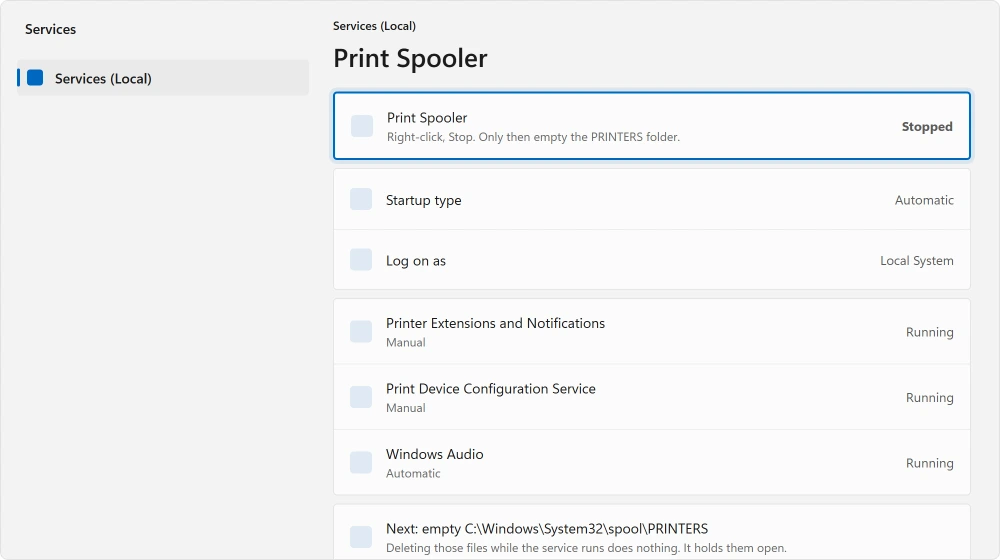
Then start Print Spooler again in the same window. Do the two halves in that order. Deleting those files while the spooler is running does nothing useful, because the service holds them open.
3. Restart the spooler on its own
If the queue was already empty, the service itself may simply have fallen over.
Documented by Microsoft: "the print spooler service handles print jobs and restarting this can resolve temporary issues with printer recognition."
Same window, right-click Print Spooler, choose Restart. Two seconds of your time and it costs nothing else.
Ours, and marked as ours: if the spooler stops again by itself within a few minutes, stop treating this as a printer problem. A spooler that will not stay running is usually a corrupt driver, which is rung five.
4. Power cycle the printer, the full version
The version most people do is not long enough to work.
Turn the printer off. Pull the power cable out of the printer and out of the wall. Wait a full thirty seconds. Then plug it back in and switch it on.
That gap matters. It drains the capacitors and forces the printer's own controller to start clean, which is what clears a stuck internal state.
5. The driver folder trick, and its limits
This is the most specific fix on this topic and the one you will not find in the usual lists.
Reported by an adviser on Microsoft Q&A, October 2025, as the accepted answer on a thread about a printer that spooled but never printed. Stop the Print Spooler service first, then press Windows + R and type spool.
Go into drivers, then x64, and find the folder named 3. Rename it to 3.old. Start the spooler again and restart the PC.
That folder holds the installed print drivers. Renaming it makes Windows rebuild them from scratch, with nothing uninstalled.
Now for the counterweight: a second owner on that same thread, in February 2026 with a Canon TS7712, reported finding no folders at all in that x64 directory.
The fix does not apply everywhere, and nobody on the thread confirmed it worked for them.
6. Remove the printer completely and add it back
Adding a printer twice is the usual mistake here. Removing it properly means the software too.
Go to Settings, Bluetooth & devices, Printers & scanners, click your printer and choose Remove.
Then press Windows + R, type appwiz.cpl, and uninstall the printer manufacturer's software from that list as well. Restart, then add the printer fresh.
If pages do come out but they look wrong, streaks and lines down every page sorts that by the mark itself.
Ours, and marked as ours: install the maker's own full driver package rather than letting Windows pick a generic one, especially on an all-in-one.
The generic driver often prints and nothing else, which is a different complaint you will make next week.
When none of it works
I am not going to end this on false optimism.
The thread I read in full ended without a confirmed fix. The person who asked never came back to say what worked, and two other owners turned up underneath describing the same thing on different Canon models.
Ours, and marked as ours: the useful test then is another computer. Print from a phone, a tablet or a second PC to the same printer. If that works, the printer is fine. A Windows install is your problem.
One such Windows cause had a date on it. The August 2026 update stopped receipt and label printers that print raw or as text only, and the October update put that right.
If it does not, you have your answer and it is not a software one.
Status: written 22 August 2026. Microsoft documents the manual spool folder clear-out. The driver folder rename is adviser guidance, and one owner reported that folder was not there at all.
And if the printing half works while the scanning half does nothing, that is the opposite fault. Which half works decides the whole answer.
Why does my printer say ready but not print?
Because the job is not reaching it. Either Windows is sending to a different printer than you think, or a stuck job is blocking the queue.
Print the printer's own test page first: if that works, the printer is fine and the fault is on the computer side.
How do I clear a stuck print job that will not cancel?
Stop the Print Spooler service in services.msc, then delete everything in C:\\Windows\\System32\\spool\\PRINTERS, then start the service again.
Microsoft gives this as the method to use when cancelling the job normally does not clear the queue.
Why does my print job disappear without printing?
The commonest cause is Microsoft Print to PDF being set as the default, which turns your job into a file instead of a page. Check your Documents folder for PDFs you did not mean to make, and turn off Let Windows manage my default printer.
Should I reinstall my printer driver?
Only after the queue and spooler steps, and when you do, remove the manufacturer's software in appwiz.cpl as well as the printer itself.
Installing the maker's full package beats letting Windows fit a generic driver, which often prints but breaks scanning.
The Short Version
- The printer's own test page splits this into two unrelated faults in one minute.
- Windows manages your default printer and will switch it to Print to PDF without telling you.
- Microsoft's manual queue clear-out is stop the spooler, empty the PRINTERS folder, start it again.
- A spooler that keeps stopping by itself points at a corrupt driver, not at the printer.
- Renaming the 3 folder in spool\\drivers\\x64 rebuilds the drivers, but one owner had no such folder.
- Printing from a phone to the same printer tells you whether to blame the PC or the hardware.
Where to Next
If the status beside your printer reads something specific rather than nothing at all, that phrase narrows the search a long way.
If the printer is new and Windows has never seen it, this is a setup job rather than a fault. One sentence from Microsoft settles most of those.
If the printer is fine from the PC and invisible from a phone, that is a separate problem with a separate answer. An iPhone that cannot see a printer is usually not the printer.
Go and print that test page before anything else here. It takes a minute and it decides which half of this page is worth your evening.
If Windows is telling you the printer is offline rather than sitting there looking ready, a printer that says it is offline is a different fault with a different list.
And if pages are coming out but they look wrong, streaks and lines on every page sorts that by the mark itself.
If pages come out but come out badly, head cleaning is the next step and it is not free.
If paper is going in and stopping rather than nothing printing, pull it the way it was already travelling and not backwards.
Went hunting for a driver download and found the maker's page no help? Microsoft changed how printer drivers work in 2026.
Where the job goes to a printer you never picked, Windows manages the default itself unless you stop it.
Found a cause I have not listed? Put it in the comments. This is a topic where the threads mostly end unresolved, so a named fix is worth a lot.

Isaac Smith is the founder and editor of PC Glance, a website that covers computers, laptops, and technology. He is a tech enthusiast and a computer geek who loves to share his insights and help his readers make smart choices when buying tech gadgets or laptops. He is always curious and updated about the latest tech trends.