
Your laptop is on the charger. The icon shows the plug. The percentage has not moved in an hour, and hovering over it gives you that flat little phrase, plugged in, not charging.
It reads like a fault. Often it is the machine doing precisely what somebody told it to do, and I would rather you knew that before you start uninstalling drivers.
So: the short answer first, then the rest of it.
The short answer: what number did it stop at?
Look at the percentage it is stuck on. If it is somewhere between 60 and 80, that is very likely not a fault at all.
Most laptop makers now ship software that deliberately stops charging partway up, because a lithium battery held at 100 percent all day wears out faster than one held at 80.
Lenovo, ASUS, Dell, HP and others all have a version of it, under names like Battery Conservation Mode, Battery Health Charging or Battery Care.
An owner confirmed exactly this in November 2022, after two days of trying to fix a brand new laptop that would not go past a certain point.
In her words: "The issue has now resolved. It turns out my pc was in fact automatically designed to power down to a certain battery percentage in order to extend battery life. Since hitting around 80% it started charging again, much to my relief!"
Before that she had already done what every page tells you to do: "I have tried reinstalling and updating the battery drivers however this does not solve the issue."
So go and open your laptop maker's own app first. Lenovo Vantage, MyASUS, Dell Power Manager, HP Support Assistant, MSI Center. Look for a charge limit and see what it is set to.
If it stopped at a number that makes no sense
Zero, or four percent, or ninety-eight. Then a limit is not your answer and the rest of this page is.
The thing worth understanding before you try anything
There is one sentence that changes how you read every other suggestion on this topic.
Reported by an adviser on Microsoft's own boards, answering somebody convinced they had a Windows bug:
"Windows doesn't have anything to do with whether the battery charges or not, this is a function of the hardware. The only thing that windows does is show the status, as reported by the Firmware for the device."
Charging is done by a circuit on the motherboard, negotiating with a chip inside the battery pack. Windows reads the result and draws an icon.
That is why the fix everybody recommends usually does not last, and there is a thread that demonstrates it rather than just asserting it.
An owner reinstalled the battery drivers and reported back the same hour: "I have tried removing and reinstalling the appropriate battery drivers, for the moment it is working."
Forty-five minutes later he posted again: "The problem is back again."
Reinstalling the battery driver is still worth doing once. It clears a stale reading. But if it works and then stops working, you have learned something real: the driver was never the problem, and repeating it is not going to help.
The hard reset, done properly
This one is genuinely worth your time and most people rush it.
Shut the laptop down completely. Unplug the charger. If the battery comes out, take it out.
Hold the power button down for a full thirty seconds with nothing connected. Then put the battery back, plug the charger in, and start it up.
That drains the residual charge from the board and forces the charging circuit to renegotiate from scratch, which is the one software-free thing you can do to a hardware problem.
Check the driver once, not repeatedly
Having said what I said above, do it once.
Press Windows + X, open Device Manager, expand Batteries. Right-click Microsoft ACPI-Compliant Control Method Battery and choose Uninstall device. Restart.
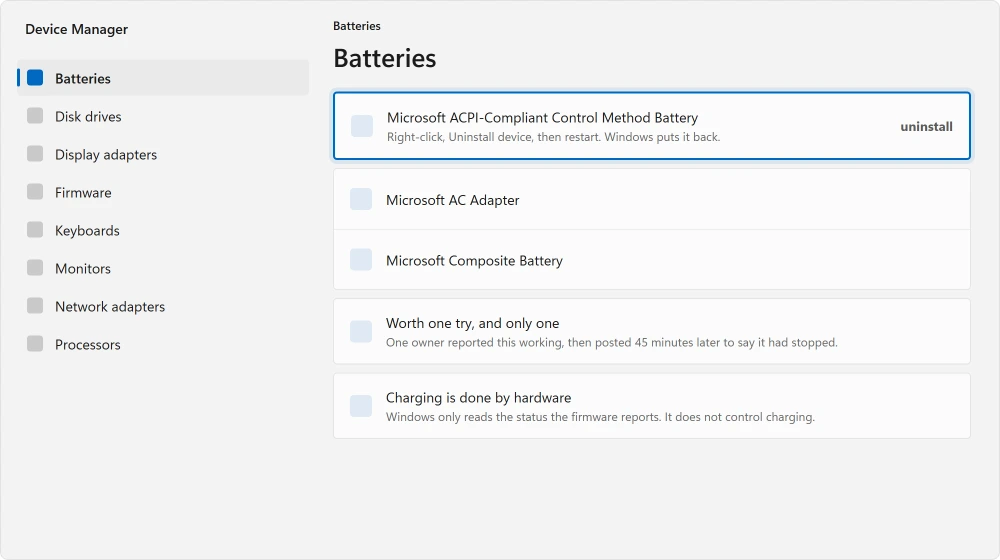
Windows reinstalls it on the way back up. Nothing is lost.
Ours, and marked as ours: if the percentage moves after this and then freezes again within the day, write that down.
That pattern is your evidence when you call the manufacturer, and it is much more useful to them than "it will not charge".
The physical checks, in order of how often they are the answer
If the machine also runs hot, a laptop too hot to sit on is worth reading beside this, because heat and charging faults travel together.
The wall socket and the brick. Two-piece chargers separate at the join between the cable and the brick, and it does not look separated. Push it together firmly.
The port. Get a light and look into it. Dust and pocket lint compact into the bottom of a charging port over years and hold the plug a millimetre short of contact.
The cable, near the plug. Bend it gently along its length. If the charging light flickers as you flex one spot, you have found it.
A borrowed charger of the right rating settles the whole question in a minute, if you can get one.
Watch the wattage rather than just the connector. A USB-C laptop will happily accept a phone charger, report itself as plugged in, and still lose charge while you work, because it is drawing more than the charger can give.
That looks exactly like a charging fault and is not one.
Windows may flag it with a small warning mark on the battery icon, and that mark says the laptop is pulling more than the charger supplies.
When it is the battery, and how you know
Every battery dies eventually and Windows will tell you roughly where yours is.
Open a terminal and run this. It writes a report you can open in your browser.
powercfg /batteryreportCompare Design Capacity with Full Charge Capacity. That gap is the wear. A battery down near half its original capacity behaves oddly in ways that look like charging faults.
And if it will not start at all rather than not charging, a computer that will not turn on is the page you want.
Ours, and marked as ours: a swollen battery is the one thing here that is not a wait-and-see. If your trackpad has started sitting proud, or the case no longer closes flat, stop using the machine and get it looked at.
That is a safety issue rather than an inconvenience.
What is actually left after all that
Most of the internet's advice on this topic is software advice for a hardware function, which is why so many threads end without a fix.
The one confirmed resolution I found was somebody discovering their laptop was working as designed. The one clearly documented failure was the driver reinstall wearing off in under an hour.
Ours, and marked as ours: if you have checked the charge limit, discharged the machine, tested another charger and read the battery report, you have done the whole useful list. What is left is a repair, not a setting.
Status: written 22 August 2026. One owner confirmed a manufacturer charge limit as the cause, and another documented a battery driver reinstall working and then failing again within the hour.
Why does my laptop say plugged in but not charging?
Most often because the maker's own software has set a charge limit, usually around 60 to 80 percent, to make the battery last longer.
Open your laptop maker's app and look for a battery conservation or health charging setting before assuming anything is broken.
Does reinstalling the battery driver actually fix charging?
Rarely, and not for long. Charging is handled by hardware on the motherboard, with Windows only reading and displaying the result.
One owner reinstalled the driver, reported it working, and posted again forty-five minutes later to say the problem had returned.
What is a normal battery capacity after a few years?
There is no single number worth quoting, so run powercfg /batteryreport and compare Design Capacity with Full Charge Capacity on your own machine.
That gap is your actual wear, measured, rather than an average that may have nothing to do with you.
Can a phone charger damage my USB-C laptop?
It will not damage it, but it may not charge it. A laptop drawing more power than the charger supplies will show as plugged in and still lose percentage while you work. Check the wattage on the brick, not just whether the plug fits.
The Short Version
- A machine stuck between 60 and 80 percent is usually obeying a charge limit, not failing.
- Open your maker's own app first: Lenovo Vantage, MyASUS, Dell Power Manager, HP Support Assistant.
- Windows only reports charging status. The charging itself is done by hardware.
- A driver reinstall is worth one try. One owner watched it stop working again inside an hour.
- Hold the power button thirty seconds with the charger out to force a clean renegotiation.
powercfg /batteryreportgives you your real wear instead of a guess.
Where to Next
Packing a spare battery pack for the trip instead? It has to ride in the cabin, and there is a watt hour limit on it.
Open your laptop maker's app before you touch anything in Windows. If there is a charge limit set, you have your answer in about thirty seconds and nothing on this page was ever broken.
If the machine will not power on at all rather than not charging, a computer that will not turn on is the page you want.
And if it runs hot as well as charging badly, a laptop that is too hot to sit on is worth ruling out, because heat and charging problems travel together.
If it charges fine but runs flat far too quickly, that is wear rather than a charging fault. One command tells you what the battery can still hold.
Charging slowly is a different complaint from not charging at all. You can read the actual rate in milliwatts and compare it to the charger.
If yours turned out to be a charge limit, say so in the comments with the make. I would like to build a list of which app hides it where.

Isaac Smith is the founder and editor of PC Glance, a website that covers computers, laptops, and technology. He is a tech enthusiast and a computer geek who loves to share his insights and help his readers make smart choices when buying tech gadgets or laptops. He is always curious and updated about the latest tech trends.