
You updated your Mac to macOS 27, pressed Print, and nothing came out. Then you found the line in the printer queue: "The printer software is not compatible with this device".
Seeing that on a printer that printed perfectly last week is awful. Before you price up a new one, give me five minutes.
In most cases the printer is fine. The update took away a piece of Apple software the old driver needs, and one Terminal command puts it back.
What changed in macOS 27
Every Mac that can run macOS 27 has Apple silicon, from the first M1 models onward. Many older printer drivers were written for Intel Macs and never rebuilt.
Those drivers only ever worked through Rosetta. Apple describes it as software that "works in the background to automatically translate your Intel-based apps for use with Apple silicon."
After the upgrade, Rosetta was simply missing on plenty of Macs. A Level 9 member on Apple's forum put it plainly: "the upgrade to macOS 27 Golden Gate removed it for some users (me, included)."
A printer driver will not ask for Rosetta the way an app does. The same member noted: "That prompt does not happen with a printer driver." So the print queue just reports that the software is not compatible.
Apple's own Rosetta page does not say the update removes it. It does say Rosetta "is available for any Mac with Apple silicon using macOS 27 or earlier", which is why fix 1 works.
1. Install Rosetta again with one command
This is the fix owners confirmed most, and it takes about a minute.
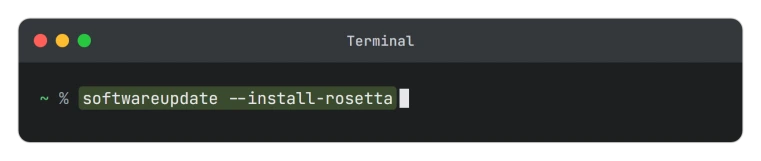
Make sure your Mac is online. Open Terminal from Applications, then Utilities, and paste this line, exactly as Apple's Rosetta page gives it:
softwareupdate --install-rosettaPress Return and follow the prompts. Apple says to "follow the onscreen instructions", and one software company's support page tells its customers to type a when asked to agree to the terms.
On a thread with 30 people reporting the same Brother fault, the first owner to try it wrote: "Solved Brother printer works normally now."
Two more replied within days. One wrote "That worked, thanks!" Another had an older Brother laser: "This fixed my Brother HL-2240 as well, Thanks!"
An HP owner on a separate thread tried a workaround first, then came back six days later with a simpler verdict: "The best fix for now, is to just install Rosetta."
Once it finishes, clear any stuck jobs and print again. Still showing the error? Delete the printer and set it up again, as in fix 2.
One warning comes with this. Apple says that from macOS 28, Rosetta "will be available only for certain older, unmaintained games". It buys you time, not forever.
2. Delete the printer, then set it up again
Try this whether or not Rosetta helped. It lets macOS pick the best way to reach the printer. Often that is AirPrint.
Apple's macOS 27 guide explains the default: "When you add a printer, macOS uses AirPrint to connect to the printer." AirPrint needs no driver at all. Rosetta never enters into it, and it is the same system an iPhone uses to print.
macOS 27 has a new Print Center app in the Utilities folder. Select your printer in the sidebar, then choose Printer, Remove Printer. Then choose Printer, Add Printer.
You can do the same in System Settings, Printers & Scanners, using Add Printer, Scanner, or Fax.
When you add it, look at the Use menu. If it offers AirPrint, take it.
Brother's own macOS 27 statement points the same way: "We recommend using AirPrint to print and scan."
One owner with a Brother DCP-7065DN fixed theirs exactly like this: "I fixed my Brother DCP7065DN by deleting it from the Printer settings and then adding it back. It installs new CUPS drivers and that works."
3. No AirPrint? Try the generic PostScript or PCL driver
Older laser printers often speak a printer language that macOS already understands, even with no maker's driver.
Apple's guide covers this in one line. You "can also try choosing generic PostScript or PCL printer software from the pop-up menu depending on your type of printer."
So delete the printer and add it again. In the Use menu, choose Generic PostScript Printer. For a PCL model, pick the PCL option instead.
An owner with an HP Color LaserJet CP2025 on USB, a printer HP no longer supports, got it printing this way: "I was able to use the generic Post-Script driver."
It will not suit every printer. Many cheaper inkjets speak neither language. A generic driver may also miss extras such as two-sided printing, so print a test page before you rely on it.
4. A Brother laser on your network? Change how it connects
This one is narrower, and it came from a Brother HL-4150CDN owner who refused to give up.
They followed Brother's Network User Guide and switched the printer to its Ethernet setup, using Brother's BRAdmin Light utility. Nothing printed straight away.
After powering both the Mac and the printer down overnight, it worked. In their words: "you must give your system & printer time to negotiate the process, it does not happen immediately".
Another owner replied five days later: "Bench Made's solution worked for me". A third, with a Brother L2395DW, set the printer to Wi-Fi printing and reported "It now prints."
That makes three owners printing again, two over Ethernet and one over Wi-Fi.
My reading, which is ours and not Brother's: a network printer can often be reached over AirPrint or IPP. Neither needs a Mac driver. That would explain why changing the connection helps.
5. Check your printer maker's macOS 27 page
Before buying anything, see what the maker says about your exact model.
Brother publishes a macOS Golden Gate 27 compatibility page. When I read it on 24 September 2026, every model listed showed the same status, Checking.
Its advice is short. "We recommend using AirPrint to print and scan. If your machine does not support AirPrint, you can download alternative drivers and software from our website."
Some models will never get a new driver. HP's CP2025 is one: an adviser on the HP thread noted that "HP discontinued support for this printer a while back".
Advisers also suggest each maker's own app from the Mac App Store, such as Brother iPrint&Scan or HP Print and Support. No owner on the threads I read reported it fixing printing. Try it after fixes 1 to 3.
6. Plan now for macOS 28
If Rosetta was your fix, the clock is running. Apple is clear that it ends with the next major release for anything but certain games.
The same Level 9 member laid out the options: "either a new printer (get one that supports AirPrint), or for example setting up a Raspberry Pi as a print server".
A third option is ours. If one Mac drives an old printer you love, you can keep that Mac on macOS 27 and skip macOS 28 on it.
What does not help, or needs care
Waiting for Brother is not a plan for older models. Their page still listed every model as Checking ten days after release.
A printing system reset wipes every printer you have set up. It does not bring Rosetta back either. If you want it anyway, the Tahoe printing guide covers the reset and when to use it.
Owners also posted links to fix scripts on GitHub. I have not tested them and cannot vouch for what they change inside macOS. I would not run them. The Rosetta command in fix 1 comes from Apple.
Status: macOS 27.0, checked 24 September 2026 against Apple's own Rosetta page and five forum threads. Reinstalling Rosetta is the fix owners confirmed most for printers whose drivers were built for Intel Macs. Apple says Rosetta stays available through macOS 27, then from macOS 28 only for certain older games. Brother lists every model as Checking, and AirPrint printers need no driver at all.
What does printer software is not compatible mean on a Mac?
It means the printer's driver was built for Intel Macs, and it needs Rosetta to run on Apple silicon. After the macOS 27 upgrade, Rosetta was missing on several owners' Macs, and printer drivers do not ask for it. Installing Rosetta with Terminal fixed it for owners on Apple's forum.
How do I install Rosetta on macOS 27?
Open Terminal from Applications, then Utilities. Type softwareupdate --install-rosetta and press Return, then follow the prompts to agree to the terms. Your Mac needs to be online. Rosetta works in the background afterwards, so there is nothing to open.
Will my old printer work on macOS 28?
Not through Rosetta. Apple says Rosetta will only be available for certain older, unmaintained games from macOS 28. An AirPrint printer, a generic PostScript or PCL driver, or a newer driver from the maker are the routes that do not depend on Rosetta.
Do I need a new printer after updating to macOS 27?
Usually not. Reinstall Rosetta first, then try re-adding the printer through AirPrint or a generic driver. Owners with Brother and HP printers from years ago got printing again this way. Replace the printer only if none of those work.
Does AirPrint still work on macOS 27?
Yes. Apple says macOS uses AirPrint when you add a printer, and AirPrint needs no printer driver on the Mac, so Rosetta does not affect it. If your printer supports AirPrint, choose it in the Use menu when you add the printer.
The Short Version
- The macOS 27 message means an Intel-era printer driver cannot run, usually because Rosetta is missing.
- Open Terminal and run
softwareupdate --install-rosetta. Owners with Brother and HP printers confirm it works. - Delete the printer and set it up again, and choose AirPrint in the Use menu if it appears.
- No AirPrint? Try Generic PostScript or PCL, which got an old HP laser printing again.
- On a Brother network printer, switching it to Ethernet or Wi-Fi printing got three owners printing.
- Rosetta ends with macOS 28, so plan on AirPrint or a newer driver before then.
Where to Next
The error sounds like the printer has died. It has not. The part that stopped is a translator the old driver was leaning on, and it is still yours to install until macOS 28.
Got it printing again? Leave a comment with your printer model and the fix that worked. The more models this page can name, the faster the next person gets going.
If macOS 27 itself stalled on the way in, reading the update progress bar properly tells you whether it is really stuck.
And if you share the printer with a Windows PC that has also stopped, what changed with Windows printer drivers this year is the page for that machine.

Isaac Smith is the founder and editor of PC Glance, a website that covers computers, laptops, and technology. He is a tech enthusiast and a computer geek who loves to share his insights and help his readers make smart choices when buying tech gadgets or laptops. He is always curious and updated about the latest tech trends.