

You update your iPad, go to put two apps side by side, and the three little dots that sat at the top of each window have gone. Dragging an app to the edge does not do what it used to.
Split View did not vanish. It moved into iPadOS 26's new window system.
The thread asking about it has 1,481 Me too clicks and over 116,000 views. I read it through to this week's replies and checked every step against Apple's multitasking page, updated this month.
What changed for the owners
The question that started it all was plain: "Since the update to IOS 26 for iPad, I noticed a couple of things have been removed".
In their words, the missing part was this: "Previously, I was able to have two windows side by side while doing tasks".
Another owner explained what replaced the dots: window controls like a Mac's, which close, hide or enlarge a window rather than split it.
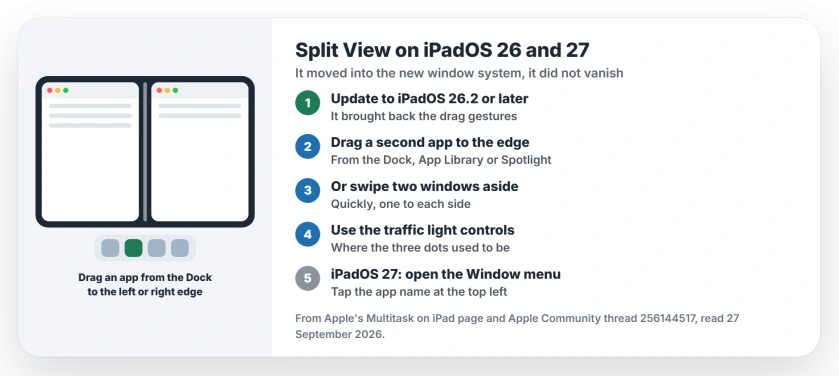
Status: iPadOS 26 and 27, checked 27 September 2026. Apple says to drag a second app to the screen edge. The three dots are now traffic light window controls.
1. Update to iPadOS 26.2 or later
The early 26 releases were the hardest. A later reply in the thread put it simply: "Thankfully iPadOS 26.1 and 26.2 brought back two things: Slide Over and dragging gestures for Split View and Slide Over".
So check Settings, General, Software Update first; putting the update first is our call. The steps that follow assume 26.2 or newer, including iPadOS 27.
2. Drag a second app to the edge
This route comes nearest to the old Split View. Apple's multitasking guide says that with one app in full screen, you can "drag another app from the Dock, App Library, or Spotlight to the left or right edge of the screen".
One owner described the same move this month: "open the dock by just swiping slightly, then drag an app all the way to left or right". In capitals, their verdict was "WELCOME TO SPLIT VIEW!" and the steps match Apple's page.
To change the split, Apple adds: "To resize the apps, drag the bar in the middle to adjust the size of the app windows".
3. Or swipe two open windows to the sides
If both apps are already open, you do not need the Dock. Apple documents a second route: "quickly swipe a window to the left or right side of the screen", then send the other window to the opposite side.
Apple's word there is quickly. A slow drag of the top edge only moves the window, which the same page gives as the way to move an app.
4. Use the traffic lights, where the dots were
The old three dots did not disappear, they changed shape. The same owner put it this way: "now they are visually a traffic light button".
Apple's instruction for them is to "tap and hold the window controls button" and then choose an option. On an app in full screen, swipe down from the top first, since Apple says the controls then show in the menu bar.
5. On iPadOS 27, open the Window menu
iPadOS 27 adds a quicker path. A Level 10 volunteer said to tap the app's name at the top left to open its menu, then choose the Window menu.
In their words: "Here you can easily access slide-over, split screen and other window views". Apple's page backs the menu bar route: "You can access and search all the commands available within an app in the menu bar".
6. Want one app floating? Use Slide Over
Slide Over came back as well. Apple says: "In iPadOS 26.2 or later, you can set one window as a Slide Over window to stay open on top of other windows".
Tap and hold the window controls, then tap Enter Slide Over. Swipe it off the edge to hide it, and swipe in from that edge to bring it back.
Other iPad problems
If the menu bar will not appear when you swipe down, the iPad menu bar page covers the Windowed Apps setting and the swipe. And if tapping a file opens the wrong app, the iPad Files app page explains Open With.
Did Apple remove Split View on iPadOS 26?
No. It became part of the new window system. Drag a second app to the left or right edge, and the two share the screen.
How do I put two apps side by side on an iPad?
Open one app full screen, bring up the Dock, and drag the second app to the left or right edge. Drag the middle bar to resize.
Where did the three dots go on my iPad?
They became traffic light window controls at the top left. Tap and hold them to see the arrange options.
Is Slide Over back on iPad?
Yes, from iPadOS 26.2. Tap and hold the window controls, then tap Enter Slide Over.
The Short Version
- Update to iPadOS 26.2 or later.
- Drag a second app to the screen edge.
- Or swipe two windows to the sides.
- The dots are now traffic lights.
- iPadOS 27 adds a Window menu.
- Slide Over is back from 26.2.
Where to Next
Open an app now, swipe up a little for the Dock, and drag a second app to the right edge. Then drag the middle bar until the split suits you.
Found a faster way on iPadOS 27? Tell me in a comment, and I will test it against Apple's page for other iPad owners.

Isaac Smith is the founder and editor of PC Glance, a website that covers computers, laptops, and technology. He is a tech enthusiast and a computer geek who loves to share his insights and help his readers make smart choices when buying tech gadgets or laptops. He is always curious and updated about the latest tech trends.