
You want to change a setting on your watch, and holding your wrist up for five minutes gets old fast. Good news: your iPhone can show the watch screen, and you can tap it there instead.
I read Apple's two guides on this, one for the watch and one for the iPhone. A MacRumors post from 30 September reminded owners the feature is there, tucked away in Accessibility.
What one owner found
The post put it plainly: "If you want to fiddle with something on your watch but don't want to awkwardly hold your wrist up the whole time, you can mirror it onto your iPhone".
They used it straight away. In their words: "I did it just now to root around in some settings."
Another member saw a familiar idea in it: "Similar to iPhone mirroring on the Mac."
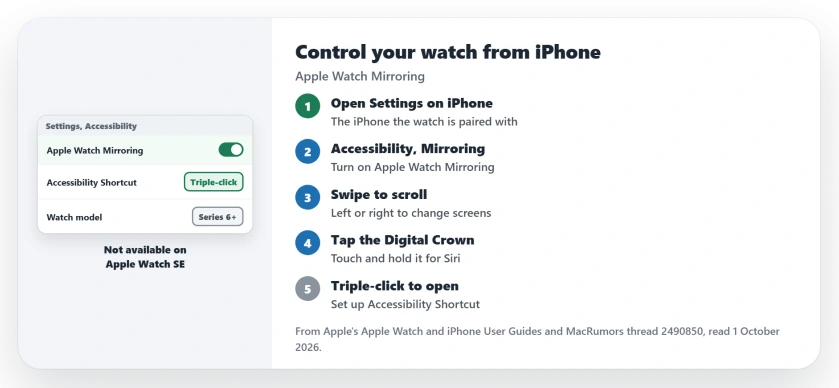
Status: checked 1 October 2026. Apple Watch Mirroring shows your watch screen on your iPhone. It works on Series 6 and later, not on Apple Watch SE. Turn it on in Settings, Accessibility.
1. Turn it on from your iPhone
Start on the iPhone your watch is paired with. Open the Settings app.
Apple's step: "Go to Accessibility > Apple Watch Mirroring, then turn on Apple Watch Mirroring."
The watch face then shows on the phone. Apple says: "An image that mirrors your Apple Watch display appears on your iPhone."
2. Use the watch buttons on the screen
You work it with taps and swipes. Apple's guide puts it simply: "Use gestures on the mirrored image."
- Scroll. Apple: "Swipe the display up or down."
- Change screens. "Swipe the display left or right."
- Digital Crown. "Tap the Digital Crown on the display."
- Side button. "Tap the side button on the display."
- Siri. "Touch and hold the Digital Crown on the display."
On an Apple Watch Ultra, the Action button shows too. Apple says to "Tap the Action button on the left side of the display."
3. Check your watch model
Not every watch can do this. Apple's iPhone guide lists it for the Series 6 onward.
The SE is left out. Apple's watch guide is direct: "Apple Watch Mirroring isn't available on Apple Watch SE."
Both limits are documented by Apple. So if the option is missing, check the model in your iPhone's Watch app first.
4. Open it faster with a triple-click
One member asked whether it can sit on the Home Screen as a widget. Apple's quick route is a button instead: "You can triple-click a button if you set up Accessibility Shortcut".
Set that shortcut in your iPhone's Accessibility settings. Pick Apple Watch Mirroring. A triple-click then opens your watch screen on the phone.
5. Know who it was built for
Apple made this for people who find the watch hard to handle. In Apple's words: "People with physical and motor disabilities may find it easier to control their Apple Watch from the larger screen on their paired iPhone."
It works with iPhone assistive tools too. Apple says "You can use touch or assistive features like Voice Control, Switch Control, and more on your iPhone to interact with Apple Watch."
The owner guessed the same: "I think it's intended for people with dexterity or mobility issues." But I would use it for any long job, like sorting watch settings.
Turning it off
When you are done, close the mirrored screen with its close button on the iPhone. Your watch carries on as normal.
If you know iPhone Mirroring on a Mac, this is the same idea for the watch. When that one times out, the iPhone Mirroring page has the fixes. And for the new watchOS 27 app layout, see the app grid page.
Can I control my Apple Watch from my iPhone?
Yes, from the Series 6 on. Turn on Apple Watch Mirroring in Settings, Accessibility on the paired iPhone.
Why can't I find Apple Watch Mirroring?
Apple leaves the SE out. The watch must be paired to that iPhone.
Can I open Apple Watch Mirroring quickly?
Yes. Set up Accessibility Shortcut, and a triple-click opens it.
The Short Version
- Your iPhone can show and control your watch screen.
- Settings, Accessibility, Apple Watch Mirroring.
- Swipe to scroll and change screens.
- Tap the Digital Crown and side button on the copy.
- Series 6 and later, not Apple Watch SE.
- Accessibility Shortcut opens it with a triple-click.
- Close it with the close button when done.
Where to Next
Turn on Apple Watch Mirroring now and open a watch setting you have been putting off. It is easier on the bigger screen.
If a supported watch shows no such option, name the model in a comment. New finds go onto this page.

Isaac Smith is the founder and editor of PC Glance, a website that covers computers, laptops, and technology. He is a tech enthusiast and a computer geek who loves to share his insights and help his readers make smart choices when buying tech gadgets or laptops. He is always curious and updated about the latest tech trends.