
Your Macs used to reach the Synology over AFP, and each person saw only their own folders. Now, over SMB, everyone sees every shared folder in the list. That is worrying in an office, even when the folders stay locked.
A Synology owner moving off AFP raised this on MacRumors. I read their thread alongside Synology's SMB help page and Apple's own notes, and the fix is one checkbox.
Why this started now
If you wondered why AFP stopped, Apple gave notice a while ago. Its macOS Sequoia notes said: "Apple Filing Protocol (AFP) client is deprecated and will be removed in a future version of macOS."
Apple's macOS 27 guide to the servers a Mac can reach now lists "SMB/CIFS, NFS, FTP, and WebDAV services running on UNIX, Linux, and Windows servers". AFP is not on the list.
The owner found the same while moving their users to macOS 27: "I realized that Apple had dropped support for AFP." So they switched the Synology to SMB.
Status: checked 1 October 2026. Synology's Hide shared folders from users without permission setting stops SMB from listing folders a user cannot open. Another owner just switched it on after reading about it.
What the owner saw
SMB worked at once, with one surprise. In their words: "If someone now logs in via CMD+K then their credentials they now see ALL the shared folders."
Nothing was actually open to the wrong people. "They only have access to the ones they are entitled to", the owner wrote. But "Under AFP it only showed the shared folders they had access to."
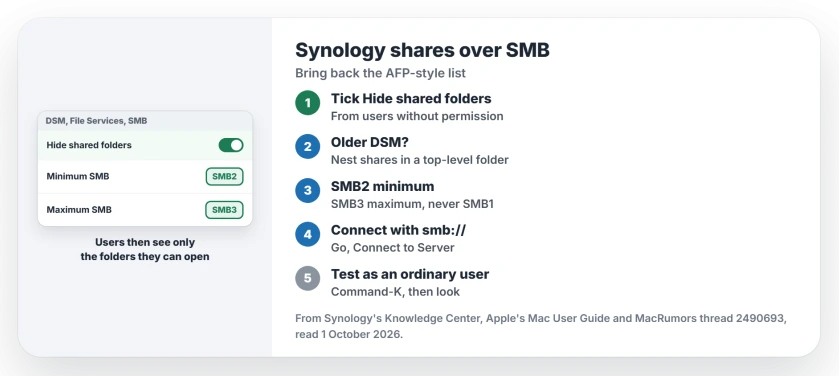
1. Turn on Hide shared folders in DSM
A member pointed to a Synology setting under Control Panel, then File Services, then SMB. Their advice began: "See if this setting exists on your Synology server".
Synology's SMB help page describes it: "Select the Hide shared folders from users without permission checkbox if you do not want users to view shared folders that they do not have permission to."
The fix is user-reported as well as documented. Another member had never noticed it, and wrote: "Ooh, nice. Didn't know that existed. Just enabled it. Thanks!"
2. On older DSM, use a top-level folder
Older Synology units may lack it. The member who suggested it warned: "It may be that only newer versions of the server software support the top-level share setting that I mentioned".
Their fallback: "You could work around this, maybe, by creating a top-level folder, putting all your shared folders in that". Then you hide the subfolders from users without rights, using the folder's own setting.
3. Set SMB2 as the minimum and SMB3 as the maximum
Another member spotted a second problem in the owner's settings: "You have both min and max set for SMB1." The owner raised the top end: "I set maximum to SMB3."
Synology explains both settings. The maximum lets you "set the latest SMB protocol that will be supported by your Synology NAS". The minimum sets the earliest.
Synology also warns: "We strongly advise against using SMB1 because this older protocol has known security issues". A member's advice fits it: "I'd leave max at SMB3 and use SMB2 as the minimum unless you've got an old client."
That member added a point you should know. The version range does not hide anything: "changing the SMB dialect won't change the enumeration." The checkbox in step 1 does that job.
4. Connect with an smb:// address
On your Mac, use Connect to Server with an address that starts with smb. Apple says: "The network address consists of the protocol (such as smb://) followed by a Domain Name System (DNS) name or IP address and a pathname."
One member also turned on Bonjour discovery on the Synology, so it shows in the Finder sidebar. With SMB2 to SMB3 set, they wrote: "that fixed missing shares for me after afp went away".
5. Check it from a user's Mac
After the change, sign in from a Mac with an ordinary user account. Press Command-K, connect, and look at the list.
That user should now see only their own folders. If they still see everything, check that the checkbox saved, then reconnect.
For macOS 27 trouble reaching the shares on an older Mac, the file sharing page covers that case. And if network drives drop after sleep, see the network drive page.
Why do Mac users see every Synology shared folder over SMB?
Synology lists all shared folders over SMB unless you tick Hide shared folders from users without permission. Under AFP the owner never saw that list.
How do I hide Synology shared folders from users without permission?
In DSM, open Control Panel, then File Services, then SMB, and select the Hide shared folders from users without permission checkbox.
Does macOS 27 still support AFP?
Apple's macOS 27 server guide no longer lists AFP, and Apple said the AFP client would be removed. The owner found AFP gone and moved to SMB.
The Short Version
- macOS 27 users reach the Synology over SMB now.
- SMB lists every shared folder by default.
- Tick Hide shared folders from users without permission.
- On older DSM, nest shares in a top-level folder.
- Set SMB2 as the minimum, SMB3 as the maximum.
- Connect from the Mac with an smb:// address.
- Test with an ordinary user account.
Where to Next
Open DSM now and tick Hide shared folders from users without permission. Then test it from one user's Mac.
If your DSM has no such checkbox, post your DSM version in a comment. I add every working fix to this page.

Isaac Smith is the founder and editor of PC Glance, a website that covers computers, laptops, and technology. He is a tech enthusiast and a computer geek who loves to share his insights and help his readers make smart choices when buying tech gadgets or laptops. He is always curious and updated about the latest tech trends.