
You click Downloads in File Explorer and the window says Working on it, then turns white and shows Not Responding. Every other folder opens fine.
I would unpin Downloads from Quick access and pin it again before trying anything bigger. Owners report three fixes: that one, resetting the folder's location, and clearing out a download that never finished.
One Microsoft Q&A thread on the Downloads freeze has 10+ people with the same question, and the This PC version of it has 100+.
Why one folder freezes
File Explorer reads every file in a folder to build its view. A broken shortcut in Quick access, a moved folder, or a half-finished download can leave it waiting on something that never answers.
One owner noticed the difference between two routes into the same folder. "When attempting to navigate to Downloads from the quick access element on file explorer, it was stuck". Opening it from its real location worked.
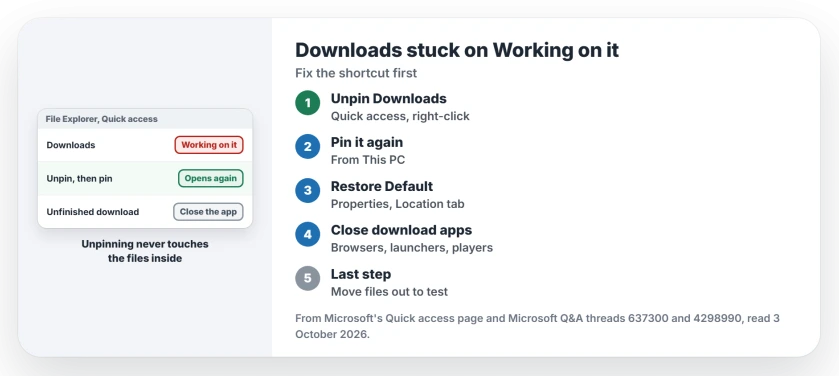
Status: checked 3 October 2026. Owners cleared the freeze by unpinning and re-pinning Downloads, restoring its default location, or removing a download that never finished.
Unpin Downloads, then pin it again
Right-click Downloads on the left and pick Unpin from Quick access. Open the folder through This PC instead, then right-click it and pin it again.
An owner on the thread did exactly that: "I unpinned the Downloads folder from the quick access tab and navigated to the folder via explorer. It worked."
They credited the owner who suggested it: "The solution from Alfonso Nova solved my problem."
Microsoft's Quick access page covers both moves. Microsoft says to "Unpin it when you don't need it there anymore", then pin it back with a right-click.
Restore the folder's default location
Right-click Downloads, open Properties, choose the Location tab, and press Restore Default. One owner's steps start the same way: "Right Click on Downloads folder and hit Properties".
That answer has 10+ helpful votes. A later reply reads: "Worked perfectly for me on a 4 yr old PC with 371 files in the Download folder."
Ours: I like this one, because it points Downloads back at your own user folder, where Windows expects it.
Close what is holding a download
An unfinished download can lock your folder. One owner traced theirs to a media player: "I uninstalled an app that was accessing an incomplete download, it was VLC player. This fixed my problem completely."
Ours: before uninstalling anything, close the browser, game launchers and media players, and pause any downloads. Then try the folder again.
If Windows blocks moving the folder because a download inside is still held open, File Locksmith names the program.
Move the files out as a last step
The person who asked got in only by clearing it from the command line. Their reply reads: "I was forced to delete all files in Downloads folder using CMD."
Another owner had a failed game download in there: "deleting everything sure did fixed it for me". A third, unsure which step worked, wrote: "I'm not sure which actually resolved the issue, but I think it was deleting the contents."
Ours: I would move your files to another folder rather than delete them, then look for one with no size or a strange name. That is usually the download that never finished.
If Downloads will not open at all and calls itself corrupted and unreadable, copy what you can, then run chkdsk.
When This PC is the slow one
The 100+ thread describes the same freeze one level up: "Whenever Windows explorer needs to open the This PC view, it lags and stays as Not Responding for some time."
An adviser there suggested clearing Quick access history, and Microsoft's page gives the switch for it. "If you want to see only your pinned folders, you can turn off recent files or frequent folders." The asker never confirmed a result.
If File Explorer opens on Home and you would rather start somewhere lighter, pointing it at This PC is one setting.
What did not help
System repairs, for the asker. They had run DISM, sfc and a full Disk Cleanup before posting, and Downloads still hung.
Restarting Windows Explorer from Task Manager. Ours: it closes the frozen window, but the folder hangs again until the cause is fixed. Restarting Explorer helps when the whole window stops, not with one folder.
Why does my Downloads folder say Working on it?
File Explorer is still trying to read something in the folder or in its Quick access shortcut. A broken pin, a moved location or an unfinished download are what owners found.
Will unpinning Downloads delete my files?
No. Unpinning only removes the shortcut from Quick access. The folder and its files stay put, and you can pin it back straight away.
Why do other folders open but not Downloads?
Downloads collects half-finished files from browsers, games and installers. One owner's freeze came from VLC holding an incomplete download, which no other folder had.
The Short Version
- Unpin Downloads from Quick access, then re-pin it.
- Properties, Location, Restore Default also worked.
- Close apps that hold an unfinished download.
- Move the files out as a last step, not first.
- This PC lagging? Turn off recent files in Quick access.
- DISM, sfc and Disk Cleanup did not help.
Where to Next
Right-click Downloads in the left pane now and unpin it, then pin it again from This PC. If it still hangs, restore its default location.
Did re-pinning fix yours, or did you find a stuck download in there? Tell me in the comments, because the culprit app is useful for the next reader.

Isaac Smith is the founder and editor of PC Glance, a website that covers computers, laptops, and technology. He is a tech enthusiast and a computer geek who loves to share his insights and help his readers make smart choices when buying tech gadgets or laptops. He is always curious and updated about the latest tech trends.