
You booted from a Windows USB stick, picked your drive, clicked Next, and setup stopped with We couldn't create a new partition or locate an existing one. Formatting the drive did not change a thing.
I would unplug every drive you are not installing to before trying again. Setup gets confused by more than one boot partition. Owners fixed it by removing the extra drive, wiping the target, or converting it to GPT. None of that takes long.
One Microsoft Q&A question about this error counts 100+ people stuck at the same screen.
Why setup refuses
Windows setup builds a small boot partition as well as the main one. It may find another boot partition on a second drive. Or the layout may not match how the PC started. Either way, it stops instead of guessing.
Whoever started the 100+ thread had tried for days: "I haven't sent a rocket yet to the moon, but maybe it would be easier than installing Windows these days."
Status: checked 3 October 2026. Owners fixed it by removing a second drive, wiping the target drive, converting it to GPT, or remaking the USB stick on a Windows PC.
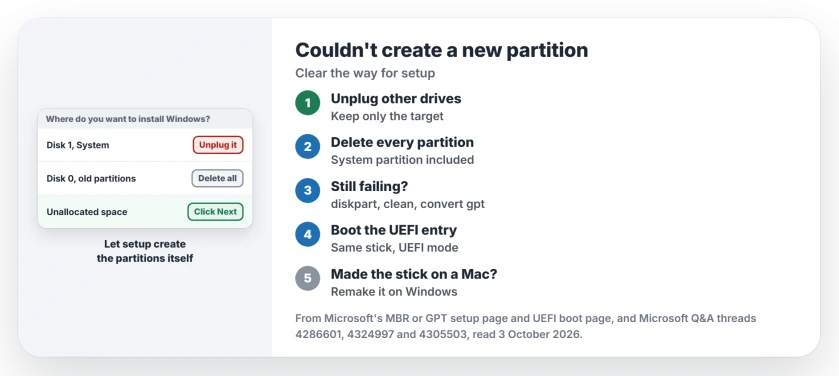
Unplug every other drive
On that thread, an adviser spotted the cause in the screenshots: two partitions marked System, one on each disk. Their verdict, with 20+ helpful votes, was that "this causes a conflict in setup". Then: "Remove Disk 1."
Ours: I would unplug external drives and card readers too. Disconnect any second internal drive if you can reach it. Leave only the target drive and the USB stick.
Delete every partition on the target
Owners report leftover partitions tripping setup too. The same adviser's next answer has 30+ helpful votes: "Delete all 3 partitions on Disk 0. Most importantly delete System."
Microsoft's setup page gives the same route on the drive picker screen, with one warning: "If your PC has multiple drives, make sure you're deleting the partitions on the correct drive."
Then select the unallocated space and click Next. Microsoft says what follows: "Windows detects that the PC was booted into UEFI mode, and reformats the drive using the GPT drive format, and begins the installation."
This erases the drive. Copy anything you need off it first, on another PC if this one will not start.
Convert the drive to GPT with diskpart
If deleting on screen is not enough, wipe the drive from a command prompt. Microsoft: "From inside Windows Setup, press Shift+F10 to open a command prompt window."
diskpart
list disk
select disk 0
clean
convert gpt
exit
Check the disk number in list disk first. The clean command wipes whichever disk you selected. The accepted answer on a 30+ thread uses these commands, with 50+ helpful votes, and the asker replied: "Great…. Thanks its worked for me"
That answer adds one rule to keep: "do not manually create the partition". Close the window and pick the unallocated space instead.
Installing next to an existing Windows, and Disk Management will not shrink C far enough to make that space? An unmovable file sets the limit.
Start the USB stick in UEFI mode
GPT drives need setup started in UEFI mode. The accepted answer says a new USB stick means "the drive needs to be GPT, not MBR if your BIOS is set to UEFI".
Open the boot menu and pick the entry that starts with UEFI. Microsoft's example is choosing "UEFI: USB Drive" rather than the legacy entry for the same stick.
Ours: if the boot menu lists your stick twice, that is why. One entry starts UEFI mode. The other starts legacy mode.
Make the USB stick on a Windows PC
One owner made their stick on a Mac, and setup failed every time. An adviser explained: "There are many threads reporting problems with bootable Media Creation Tool (MCT) (Windows iso) created on a MAC."
Surface Go owners met the same thing with Microsoft's own fix USB, where a copy made on a Mac came up four files short.
Their eventual fix was long: "All it took was to install Debian, VirtualBox in Debian, Windows 11 in VirtualBox in Debian, and use said Windows 11 to create the working installation media."
Ours: I would borrow any Windows PC instead.
To get the image itself, use the official Windows 10 download options. Choose a saved ISO or let the tool prepare a USB.
Setup that copies everything and then stops at Finishing up has the same root. There, remaking a Mac-made stick as MBR is the fix several owners confirmed.
What did not help
Creating partitions by hand. The 100+ asker made one in diskpart, and marking it active failed with "The ACTIVE command can only be used on fixed MBR disks".
Switching between MBR and GPT at random. Match the drive to the mode the USB stick started in. Setup builds the rest itself.
Is it safe to delete all partitions during Windows setup?
Only on a drive you are happy to erase. Everything on it goes. Check the disk size against the drive you meant before you delete anything.
Why does Windows setup need the drive to be GPT?
Setup started in UEFI mode installs to a GPT drive. Microsoft also notes that GPT handles drives over 4 TB and more partitions than the older MBR layout.
Should I install on an M.2 SSD with the old drive still connected?
Ours: disconnect the old drive for the install and reconnect it afterwards. Fitting the new SSD correctly matters just as much as the setup screens.
Upgrading from inside Windows instead? A full boot partition can stop that too, and two commands clear it.
The Short Version
- Setup found something it cannot build around.
- Unplug every drive except the target and the USB stick.
- Delete all partitions on the target, System included.
- Still failing? diskpart, clean, convert gpt.
- Never create the partition by hand.
- Start the USB stick from its UEFI boot entry.
- Make the stick on a Windows PC, not a Mac.
Where to Next
Shut down and unplug every other drive. Start setup again from the UEFI entry in the boot menu. Delete every partition on the target and click Next on the empty space.
Which one fixed yours, the extra drive, the GPT conversion or a new USB stick? Tell me in the comments, so the order of this page follows what works.

Isaac Smith is the founder and editor of PC Glance, a website that covers computers, laptops, and technology. He is a tech enthusiast and a computer geek who loves to share his insights and help his readers make smart choices when buying tech gadgets or laptops. He is always curious and updated about the latest tech trends.