
Your PC restarts into a blue screen that names UNMOUNTABLE_BOOT_VOLUME, then does it again, and again. For some owners it began the morning after an update.
I would let Windows check the drive first, then roll the system back. Owners got their PCs back with System Restore after a preview update, and with a reset that kept their files.
The newest Microsoft Q&A thread on this stop code, from April 2026, has 10+ people with the same question.
What the stop code means
Microsoft's bug check page puts it in one line: "This indicates that the I/O subsystem attempted to mount the boot volume and it failed."
In plain words, Windows could not open the drive it starts from. Microsoft says: "This bug check is typically related to the failure of the OS Boot storage device such as hard drive."
Typically is not always. On both threads that ended well, the drive was fine.
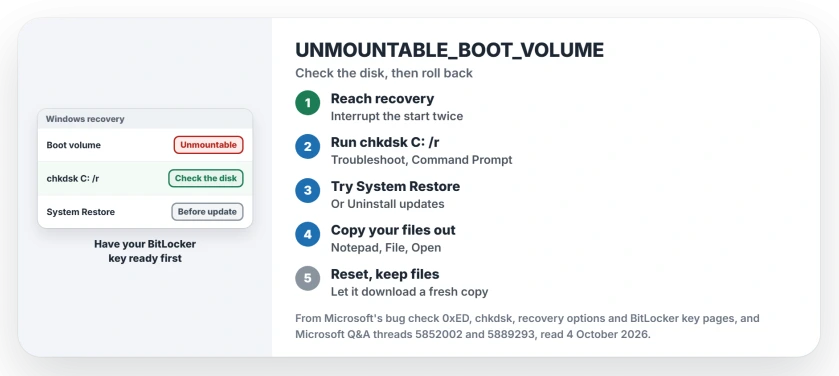
Status: checked 4 October 2026. Owners recovered with System Restore after a preview update, and with Reset this PC keeping files after chkdsk found no fault.
Get into the recovery menu
Hold the power button just as Windows starts to load, and do that twice. On the third start, Windows should open its recovery menu.
The April 2026 asker could not get there at first: "I already press F8 but nothing happened same as hard shut down 3 time."
An adviser had them restore the BIOS defaults, then "ensure 'Windows Boot Manager' is set as the primary boot device". After that: "I can boot into recovery environments now".
If yours still will not open, a Windows USB stick made on another PC gets you the same menu. If it opens on Automatic Repair and stops, the SrtTrail log tells you more.
Check the drive with chkdsk /r
In recovery, choose Troubleshoot, Advanced options, Command Prompt. Microsoft says: "From the command prompt in the Windows Recovery Environment use CHKDSK /r to attempt to repair the file system."
Type chkdsk C: /r and press Enter. Microsoft's chkdsk page says /r "Locates bad sectors and recovers readable information." It can take an hour.
Ours: in recovery, Windows is not always on C:. Type dir C: first and look for a Windows folder. If it is missing, try D:.
The April 2026 asker's scan came back clean: "windows has scanned the file system and found no problem". The adviser's reading: "your drive is not faulty".
Have the BitLocker key ready
An encrypted drive stays locked in recovery until you type its key. Microsoft's BitLocker key page starts with your Microsoft account, opened on another device.
It adds: "Starting in Windows 11, version 24H2, the BitLocker recovery screen shows a hint of the Microsoft account associated with the recovery key."
A 2025 asker met that screen after leaving a laptop on all night. Ours: I would find the key before chkdsk or a reset. Write it down somewhere you can reach.
Roll back with System Restore
Did yours begin after an update? Start here. An HP owner hit it after a preview update: "The system restore is the only way i got to fix this issue."
They added: "after that restore, it worked fine." Choose Troubleshoot, Advanced options, System Restore. Choose a restore point dated before your update.
Microsoft's recovery page says System Restore "rolls back system files and settings (but not personal files)". Its other offer is Uninstall updates, in the same Advanced options list, for faults that follow an update.
Then stop it coming back. The same owner skipped the update afterwards. "But it somehow installed."
The adviser pointed to the early updates toggle in Windows Update. Switching it off "will stop the Optional Preview Updates installing on your PC".
Copy your files off first
Before any reset, the HP thread's adviser offered a trick that needs nothing extra. In recovery's Command Prompt: "Type notepad.exe and press Enter."
Then File, Open: "You should be able to use the Open File dialog like a small File Explorer window to drag your files out onto a USB to create a safe copy of your files."
Ours: it is slow, but it reaches your Documents and Desktop folders while Windows cannot start. I would do it before anything that writes to the drive.
Reset and keep your files
No restore point, or no change? The April 2026 asker reset Windows from recovery and let it download a fresh copy.
The adviser's warning came first: "be sure to choose to keep your files at the start of the process." The asker's next message: "It works omg".
Microsoft's page describes the reset in two short sentences: "Reinstalls Windows. You can choose to keep your personal files or remove everything." It also warns: "Apps and settings are removed."
If the reset itself refuses, the problem resetting your PC page has the fixes owners used.
When the drive is failing
Microsoft's last line on the stop code: "If these steps are not successful it is possible that the hard drive has failed."
It adds: "Some hard drive vendors provide diagnostic tools that may help confirm a hardware failure." Ours: copy what you can before you test or swap it. A failing drive can get worse under long scans.
What did not help
Boot commands, for a 2024 asker on an MSI laptop. They wrote that "some commands such as bootrec /fixboot (access denied), bcdedit, bootsect /nt60 do not work".
Startup Repair, for the April 2026 asker. Their scan "suddenly shift to Troubleshoot menus", and Startup Repair gave up.
A 2022 case had another trigger: turning on Virtual Machine Platform. The owner wrote: "I manually enter safe mode and it rolls back the virtual machine platform and my PC boots again."
They later found it "seems to be fixed in 22621.607", a Windows 11 build from that autumn.
Can I fix UNMOUNTABLE_BOOT_VOLUME without losing files?
Often, yes. chkdsk and System Restore leave personal files alone, and a reset can keep them. Owners report both. Copy your files off first anyway.
Does UNMOUNTABLE_BOOT_VOLUME mean my drive is dead?
Not always. Microsoft ties it to the boot drive, but on the April 2026 thread chkdsk found nothing and a reset fixed it.
Why does recovery ask me for a BitLocker key?
Your drive is encrypted, and recovery cannot open it without the key. Look in the Microsoft account used on that PC, from another device.
The Short Version
- Windows could not open the drive it starts from.
- Interrupt the start twice to reach recovery.
- Run chkdsk C: /r from recovery's Command Prompt.
- Started after an update? System Restore fixed one PC.
- Reset with your files kept fixed another.
- Copy files out through Notepad's Open dialog first.
Where to Next
Find your BitLocker key now if the drive is encrypted, then run chkdsk from recovery. If it reports no problems, go to System Restore before you reset.
Which step brought yours back? Name your PC and its last update in the comments. Patterns show up fast.

Isaac Smith is the founder and editor of PC Glance, a website that covers computers, laptops, and technology. He is a tech enthusiast and a computer geek who loves to share his insights and help his readers make smart choices when buying tech gadgets or laptops. He is always curious and updated about the latest tech trends.