
You press Ctrl, Windows key and an arrow to jump to your next desktop. It used to be instant. Now Windows pauses, slides across, flickers the wallpaper and shows a label at the bottom.
I would turn off Windows' animation effects first. It takes ten seconds, and owners called the result instant.
The question went up on Super User in October 2023, after a Windows 11 update. It has 29,493 views, and its accepted answer has 64 votes.
What changed
The asker had switched desktops all day without noticing. Then came an update. "Desktop switching used to be instant."
They described the new behavior step by step: "Now, it pauses for a second or two, slides over, flickers the background wallpaper", and then a label names the desktop you landed on.
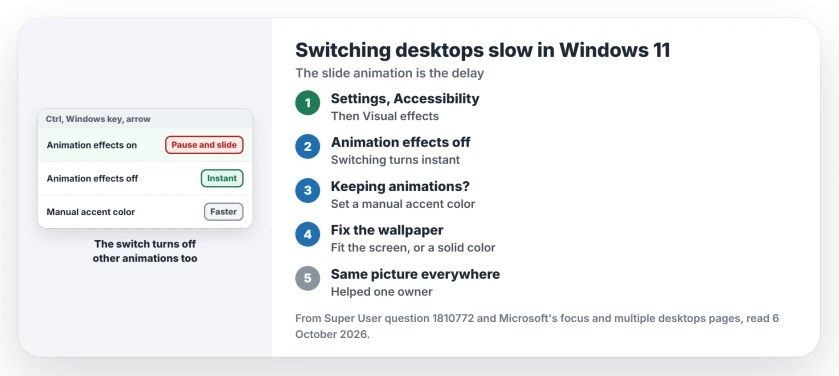
Status: checked 6 October 2026. Desktop switching in Windows 11 paused and slid after an update. Turning off Animation effects made it instant for the asker; a fixed accent color helped others.
The Desktops button on the taskbar was just as slow. So this is not your keyboard. It is the animation.
1. Turn off Animation effects
Open Settings, then Accessibility, then Visual effects. Switch Animation effects off.
Microsoft says the same switch on its focus page stops Windows showing animations, and it lives under Visual effects in Accessibility.
The asker's verdict: "Woooot, disabling animation effects makes switching instant!" Owners report it too, further down that thread.
There is a trade, because the switch covers all of Windows and not just your desktops. One owner noticed "it causes window snap to snap instantly", and other effects go with it.
A stranger tip came from another owner. They turned it off and then on again, and wrote that "enabling them back again few seconds later made the animation lag acceptable again". I would try that if you miss the animations.
2. Keep animations, but fix your accent color
Before the animation switch, the asker tried a manual accent color. Open Settings, then Personalization, then Colors, and set Accent color to Manual.
In their words, it "has made the world of difference". Another owner agreed: "In my case, the biggest improvement was setting up a fixed accent color."
Ours: an automatic accent color is picked from your wallpaper. With a different picture on each desktop, Windows has a new color to work out on every switch. That is our guess at why a fixed color helps.
3. Match your wallpaper to your screen
A third owner traced the pause to wallpaper that does not fit the screen. "You may notice that right before you switch desktops, the image shifts slightly upwards."
The cure is a picture cropped to your screen's shape, or a solid color. Using one image everywhere helps too.
The same owner who fixed the accent color added: "After setting the same background image on both of my virtual desktops, now the change is instant."
Microsoft's own desktops page shows where each desktop's background is set. Right-click a desktop in Task View and select Choose background. Microsoft notes a solid color cannot differ between desktops, so a solid color covers them all.
Still not instant?
One commenter said the fixes shorten the wait but do not remove it. The pause before the slide stays until Microsoft changes it.
If windows seem to vanish while you switch, our page on windows lost on another desktop explains where they went. And if Task View opens by itself when you close a window, our Task View page has that fix.
Can I make desktop switching instant in Windows 11?
Nearly. With Animation effects off, the slide is gone and owners called the switch instant. You lose other animations across Windows as well.
The Short Version
- Slow desktop switching in Windows 11 comes from the slide animation.
- Turn off Animation effects in Accessibility, Visual effects.
- Prefer animations? Set a manual accent color.
- Use a wallpaper that fits your screen, or a solid color.
- The same image on every desktop helped one owner.
- A short pause can remain even then.
Where to Next
Open Settings, Accessibility, Visual effects, switch Animation effects off, and press Ctrl, Windows key and an arrow to test it.
Did the accent color alone do it for you, or did you need the animation switch too? Tell me in a comment.

Isaac Smith is the founder and editor of PC Glance, a website that covers computers, laptops, and technology. He is a tech enthusiast and a computer geek who loves to share his insights and help his readers make smart choices when buying tech gadgets or laptops. He is always curious and updated about the latest tech trends.