
You turn on Remote Desktop, type your Microsoft account email and password, and it answers that your credentials did not work. The password is right.
But the PC on the other end has only ever been unlocked with a Windows Hello PIN. That is the whole problem.
I would try one sign-in on that PC before changing any account or security settings. Type the password once on that PC. Remote Desktop then starts accepting it from the other one.
Asked on Super User in April 2022, the question has 162,344 views. On Microsoft Q&A the same error shows Same question 100+, with 41 answers under it.
What the PIN has to do with it
The asker had just installed Windows 11. Setup pushed them into a Microsoft account and a PIN, and then Remote Desktop refused every user name they tried. Switching the PIN off got them in.
One owner on Microsoft Q&A, in an answer with 70+ helpful votes, laid out the pattern. When the target PC was last unlocked with a PIN, "RDP remote login with the same identity (MSA) does NOT work". Unlocked with the password, it did.
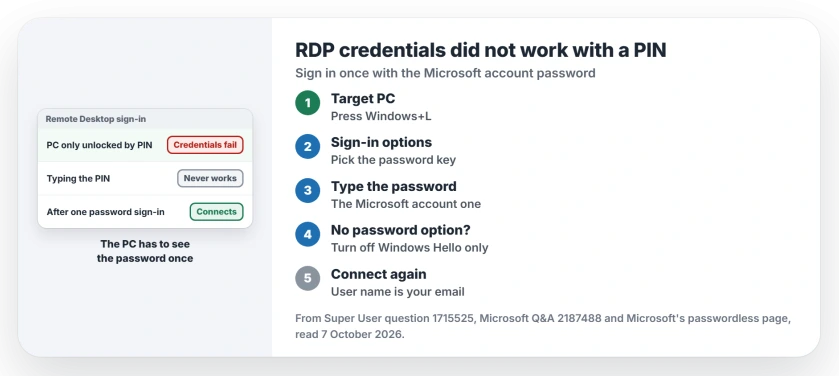
Status: checked 7 October 2026. Remote Desktop can reject a correct Microsoft account password on a PC only unlocked with a PIN. One password sign-in there fixed it for owners.
Microsoft says on its go passwordless page that with the Windows Hello only switch on, "you won't have the option to use your password".
Ours: Remote Desktop still asks for exactly that password. So the PC has to see it once.
1. Lock the target PC and use the password once
On the PC at the far end, press Windows+L to lock it. On the lock screen choose Sign-in options, pick the key icon for the password, and type your Microsoft account password. Then connect again from the other PC.
Signing out is not needed. One reader confirmed it on the thread: "Simply lock your screen, and re-login with the password". On Q&A, an owner who did the same wrote, "After I did that, I was finally able to log into the PC remotely".
The PIN can stay. The accepted answer says that once you sign in with the password, "you can re-enable the Hello sign-in if you want and still use the password with RDP". Daily unlocks stay the same.
2. No password option on the lock screen?
Then the Windows Hello only switch is on. Open Settings, then Accounts, then Sign-in options, and under Additional settings turn off "For improved security, only allow Windows Hello sign-in for Microsoft accounts on this device".
On Windows 10, Microsoft names it Require Windows Hello sign-in for Microsoft accounts. After the switch is off, press Windows+L and sign in with the password, not the PIN.
The same switch blocked password logins over SSH for an owner, and the SSH side has its own checks.
An owner on Q&A did exactly that: "This instantly solved a problem for me".
If your Microsoft account has no password at all, one owner turned off its passwordless setting on the account website, which makes you create one.
Then the I forgot my PIN link on the lock screen let them sign in with it, and they cancelled the new PIN.
3. Keep the PIN screen and use runas instead
One owner found a way that leaves your sign-in settings alone, using a command on the target PC. Open Terminal there and run this line, with your own email in place of the one shown.
runas /u:MicrosoftAccount\your@email.com cmd.exeType your Microsoft account password when asked. A Command Prompt window opens under your account, and Remote Desktop accepts the password from then on.
One reader replied, "Awesome, worked for me". They also explained why to start from an open Terminal: a mistyped password leaves an error you can read.
What to type in the Remote Desktop box
In the user name box, type the whole email address of the Microsoft account. The password is that account's password. Never the PIN. One owner put it simply: "The username used was my email address and password".
There is also a Use a web account to sign in checkbox under the Advanced tab. Microsoft documents it for PCs joined to Microsoft Entra, which is a work setup. It also needs the PC name, not an IP address.
One owner had it work between two Windows 11 PCs anyway, while another reader only ever saw the usual password box. Results vary.
If Remote Desktop cannot reach the PC at all and never asks for a password, this page is not your fix. Start with our Remote Desktop not connecting page, which checks the Windows edition first.
What I would not do
Switching to a local account gives you a password. A commenter warned that "That has a lot of side effects and might not be what you want". That changes the whole account to fix one sign-in on one PC.
Removing the PIN entirely, as the asker did, also works. It is more than you need. One password sign-in fixes the same thing and leaves Windows Hello in place, which our Windows Hello page covers in full.
Why do saved Remote Desktop credentials still fail sometimes?
The Q&A owner saw this too, after going back and unlocking the PC with the PIN again. Their saved credentials failed, while typing the same password again by hand worked. If your PC also runs Credential Guard, our saved RDP passwords page shows the cmdkey fix.
The Short Version
- Remote Desktop wants the Microsoft account password, never the PIN.
- On the target PC, press Windows+L, pick the password under Sign-in options, and sign in once.
- No password option? Turn off the Windows Hello only switch in Sign-in options first.
- runas with your account opens a window and teaches the PC the password, PIN untouched.
- The user name is the account's whole email address.
Where to Next
Walk over to the target PC now. Lock it, then sign in once with the Microsoft account password. Then try Remote Desktop from the other machine before changing anything else.
Did one sign-in hold for you after a restart, or did you have to repeat it? Tell me your Windows version, so I can note which builds forget it.

Isaac Smith is the founder and editor of PC Glance, a website that covers computers, laptops, and technology. He is a tech enthusiast and a computer geek who loves to share his insights and help his readers make smart choices when buying tech gadgets or laptops. He is always curious and updated about the latest tech trends.