
Your Chrome window is open, but its taskbar button is a plain white page. Or a pinned app shows a gray square, and you hover over each button to find the window you want.
The apps still open. Microsoft blames the icon cache. I would clear it properly. Windows 11 keeps two sets of icon cache files, and Microsoft's own steps delete only one of them.
On Microsoft Q&A, a thread about pinned icons that look like white paper reads Same question (200+).
Why the button goes blank
Microsoft's blank icons page names the cause. "The issue is related to problems with the icon cache and the IconHandler subkey".
It also notes that "double-clicking the blank icon can still open the application", which matches what owners describe. The app itself is fine.
The icon cache is where Windows keeps small pictures of every app's icon, so it need not draw them fresh each time. When an entry goes bad, your taskbar shows a blank page instead.
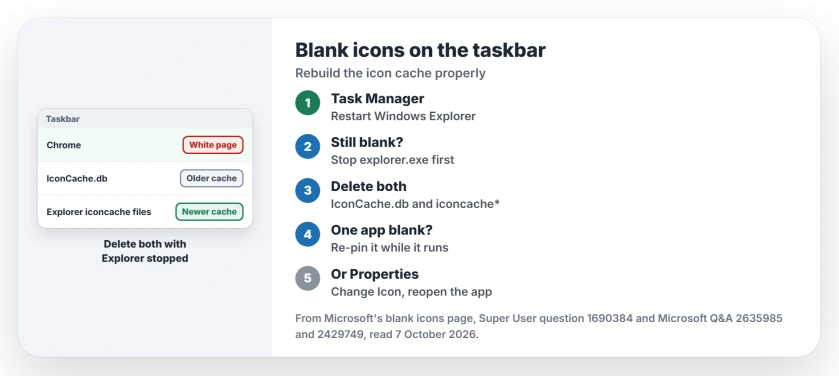
Status: checked 7 October 2026. Blank taskbar icons mean a damaged icon cache. Restart Explorer, then delete both cache sets with Explorer stopped, or re-pin the app while it runs.
Ours: IconCache.db sits in the AppData Local folder on our Windows 11 Home machine, last written on 21 September.
The same machine has fifteen iconcache files in the Explorer folder beneath it. The 48-pixel one had been rewritten on the day we checked.
1. Restart Windows Explorer first
Open Task Manager with Ctrl+Shift+Esc, find Windows Explorer under Processes, right-click it and choose Restart. Your taskbar disappears for a moment and redraws.
An owner on Microsoft Q&A swears by it: "Should fix the paper icon". They added that they do it all the time, back on Windows 8.1, and a later reader confirmed it worked for them.
If the white pages come back after the restart, the cache itself is damaged. Move on to step 2.
2. Clear both icon caches, with Explorer stopped
Microsoft's steps end Windows Explorer in Task Manager, then delete IconCache.db from AppData Local and start explorer.exe again. "This process clears the icon cache and restores the display of your taskbar icons", the page says.
The highest-voted answer on Super User deletes the newer files as well. I would run the full set rather than Microsoft's single delete. Open Command Prompt, not PowerShell, and run these lines one at a time:
ie4uinit.exe -show
taskkill /IM explorer.exe /F
DEL /A /Q "%localappdata%\IconCache.db"
DEL /A /F /Q "%localappdata%\Microsoft\Windows\Explorer\iconcache*"
%windir%\explorer.exe
Your desktop and taskbar vanish after the second line and come back with the last one. Save your work first.
One owner who ran them wrote "This fixed the issue for me, lets hope it doesn't break again", after fixing it many times with other methods.
Stopping Explorer matters. An owner on Microsoft Q&A found that deleting the file did nothing until Explorer was ended first. On Super User, another could not delete the files at all while Explorer had them in use.
In PowerShell, those DEL lines fail. One reader got "A positional parameter cannot be found that accepts argument" and had to switch.
If thumbnails in your folders look wrong as well, our cache page covers the thumbnail cache next to this one.
3. Unpin and pin again while the app is open
Start the app first. Right-click your button, choose Unpin from taskbar, then right-click again and choose Pin to taskbar.
An owner on Microsoft Q&A explained why it works: the button now shows the icon because "it represents the running app, not the shortcut". Another reader does the same, and the "icon resets on the taskbar to the correct one".
It may not work for you. One owner wrote it "Did not work for any of my apps with missing icons", so step 4 is the fallback.
Re-pinning has a cousin fault: an app you unpinned that reappears after every restart, which a layout file or policy is putting back.
4. Point the shortcut back at its icon
Right-click your blank button, then right-click the app's name in the menu that opens and choose Properties. Select Change Icon, pick the right icon from the list, then OK, Apply and OK. Then close the app and start it fresh.
A reader who had tried many other fixes wrote "After attempting ~10 other solutions this simple method worked". They had several apps to fix, and "they all had to be corrected and re-launched one at a time".
If your blank app is from the Store, such as Photos or Snipping Tool, it has no Properties entry in that menu, as one owner found. This step is for desktop programs.
5. When every icon on the taskbar is blank
Microsoft gives you two deeper steps. The first re-registers the Shell Experience Host for all users, from PowerShell run as administrator, followed by a restart:
Get-AppXPackage -AllUsers | Where-Object {$_.InstallLocation -like "*ShellExperienceHost*"} | Foreach {Add-AppxPackage -DisableDevelopmentMode -Register "$($_.InstallLocation)\AppXManifest.xml"}The second is a registry check you only read. HKEY_CLASSES_ROOT\lnkfile\shellex\IconHandler names a class, and Microsoft says to "Make sure that the (Default) value in this key is Shortcut" for it.
Ours: all three values Microsoft lists matched on our laptop, ending in C:\Windows\System32\windows.storage.dll. If yours differ, another program has replaced the handler, so find that program first.
For the taskbar settings themselves, our taskbar page shows what you can change.
Desktop icons that draw fine but spread wide across the screen have their own fix: the spacing values under WindowMetrics.
Is it safe to delete the icon cache?
Yes. Microsoft's own fix deletes it, and Windows draws your icons again and stores fresh copies. Deleting it leaves your files, settings and installed apps exactly as they were.
The Short Version
- Blank or white taskbar icons mean a damaged icon cache. The apps still open.
- Restart Explorer first, from Task Manager.
- Then stop Explorer and delete IconCache.db plus the iconcache files in the Explorer folder.
- Still blank? Re-pin the app while it is open, or reset its icon in Properties.
- Every icon blank? Microsoft's Shell Experience Host and IconHandler checks.
Where to Next
Fix each app separately, reopening it before the next. The reader who fixed several at once ended up with generic icons and had to start again.
Same app blank after every update? Tell me which one, and I will look at how it installs its shortcut.

Isaac Smith is the founder and editor of PC Glance, a website that covers computers, laptops, and technology. He is a tech enthusiast and a computer geek who loves to share his insights and help his readers make smart choices when buying tech gadgets or laptops. He is always curious and updated about the latest tech trends.