
You right-click the desktop, point at New, and the list shows Folder, Shortcut and a few Office files. Text Document is gone, and it was there last week.
I would not start in the registry, which is where the older fixes send you. On Windows 11 the entry belongs to the Notepad app, and repairing Notepad brought it back for owner after owner.
Same question stands at 700+ on one Microsoft Q&A thread about it. A newer Windows 11 one sits at 400+.
Where the Text Document entry lives now
Ours: we opened the Notepad package file, version 11.2607.14.0, on the Windows 11 Home machine this site tests on. It declares the New menu entry for .txt files itself, with an empty, zero-byte template called NewTextDocument.txt.
The registry key the older fixes create, ShellNew under .txt, was not on our laptop at all. So when Notepad is broken, missing or no longer in charge of .txt files, the menu entry can go with it.
Owners saw exactly that. One removed the new Notepad in favor of the classic one, and believes the entry vanished "because I've uninstalled the new Notepad app from the store".
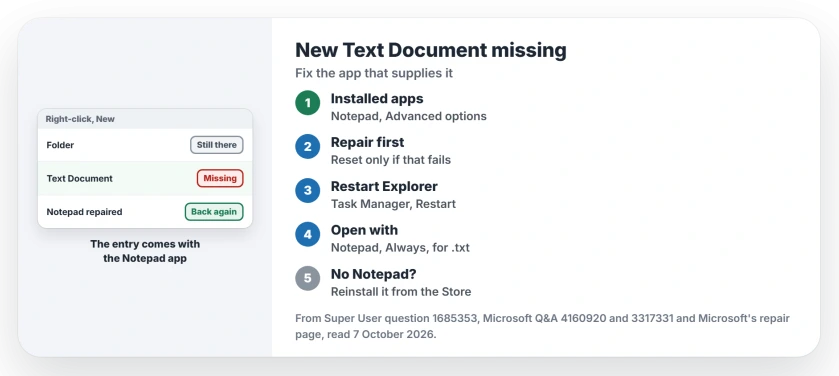
Status: checked 7 October 2026. On Windows 11 the New, Text Document entry comes with the Notepad app. Repair or reset Notepad, make it the .txt default, or reinstall it.
1. Repair Notepad, then restart File Explorer
Open Settings, Apps, Installed apps, and find Notepad. Select its three dots, then Advanced options. Microsoft's repair page has you try Repair first.
Microsoft says "If it isn't available or doesn't fix the problem, select Reset". I would start with Repair, because it keeps your open Notepad tabs where Reset clears the app.
Then restart File Explorer. Open Task Manager with Ctrl+Shift+Esc, right-click Windows Explorer and choose Restart. Your taskbar blinks out for a second.
One owner chose Repair for that reason, and wrote "Doing just repair instead of reset restored the missing explorer new context menu item after restarting explorer".
Another put it shortly: "Repairing and then restarting file explorer did the trick for me". A third reset Notepad, then "had to close all explorer windows then use Task Manager to restart Windows Explorer".
Not every PC came back this way. One reader tried both buttons and reported "Neither worked", and step 2 is for that case.
2. Make Notepad the default for .txt files
You can also fix it from a text file's own menu, as an owner on Microsoft Q&A did. Right-click any .txt file, choose Open with, then Choose another app, pick Notepad and select Always.
"Now this worked", they wrote, with no restart. They later set Notepad++ back as their default, and the New entry stayed: "it is now again the default but still things work".
On Super User, another owner switched .txt to a different app and back to Notepad after a feature update, with the same result. On our laptop, Notepad was the .txt default.
3. Reinstall Notepad from the Microsoft Store
If Notepad is not in Installed apps at all, there is nothing to repair. One reader found "No notepad in the list".
Open the Microsoft Store, search for Windows Notepad, install it, then restart File Explorer. Another reader: "I can confirm this works".
The same reader warns against installing it once and removing it again, since "it'll remove it from the context menu after uninstall". If you prefer another editor, keep Notepad installed anyway.
4. Using Notepad++ or another editor instead
If you installed Notepad++ at some point, an adviser on Microsoft Q&A blamed "a registry error usually triggered by a 3rd party program like Notepad++". The asker used the registry file they linked and replied "Thanks It Works".
If Notepad has to stay uninstalled, your fix is in the registry. Back it up first. In Registry Editor, browse to HKEY_CLASSES_ROOT\.txt.
Add a key called ShellNew; inside it, you add a new String Value called NullFile, left empty. Then open HKEY_CLASSES_ROOT\txtfilelegacy and set its (Default) value to Text Document.
The owner who posted those steps explains why you need the second half: "Because it has none per default, the entry does not show up yet". Ours read that way, with no name set.
A reader of the matching registry file answer said "This one worked for me without a reboot". Another needed File Explorer restarted first.
If the right-click menu misbehaves in other ways too, our right-click page goes through the rest.
Why did Text Document vanish after an update?
Owners often noticed it after an update. One wrote simply, "This just disappeared for me".
Ours: Notepad is updated through the Microsoft Store, apart from Windows itself.
An app update can change it on a day Windows Update did nothing, so check Notepad even if Windows did not update. Our Notepad page explains the two Notepads on your PC.
The Short Version
- On Windows 11 the New, Text Document entry is declared by the Notepad app.
- Repair Notepad in Settings, Apps, Installed apps, then restart File Explorer.
- Make Notepad the default app for .txt files again.
- No Notepad in the list? Reinstall it from the Microsoft Store.
- Keeping another editor? Add ShellNew with NullFile under .txt in the registry.
Where to Next
Right-click the desktop after each step and look under New before trying the next one. One owner on Q&A only needed File Explorer restarted.
If Text Document still refuses to appear, tell me which editor opens your .txt files now, and I will check what it changed.

Isaac Smith is the founder and editor of PC Glance, a website that covers computers, laptops, and technology. He is a tech enthusiast and a computer geek who loves to share his insights and help his readers make smart choices when buying tech gadgets or laptops. He is always curious and updated about the latest tech trends.