
You right-click an app on your taskbar, choose Unpin from taskbar, and it is gone. Then you restart, it is back in the same spot, and unpinning it again only lasts until the next day.
I stop unpinning at that point. Something is putting it back, and that is what I look for.
On Microsoft Q&A, 70+ people clicked Same question on a thread about Office apps returning after a restart. Super User's version, icons pinned after every reboot, has 67,681 views.
Something keeps pinning it back
Windows can be told which apps belong on the taskbar. It then keeps telling itself.
Microsoft's page on taskbar pins says pins set this way "are restored upon the next policy update cycle, even when users unpin them".
Your unpin lasts until the next round, and how often that comes depends on how the layout arrived.
For a layout from a provisioning package, Microsoft gives the interval as "Each time the explorer.exe process restarts". A restart restarts Explorer. The pin comes back.
Microsoft's table names two more routes. A management service reapplies its layout "Every 8 hours or based on the ConfigRefresh interval", and a group policy does it when the policy changes.
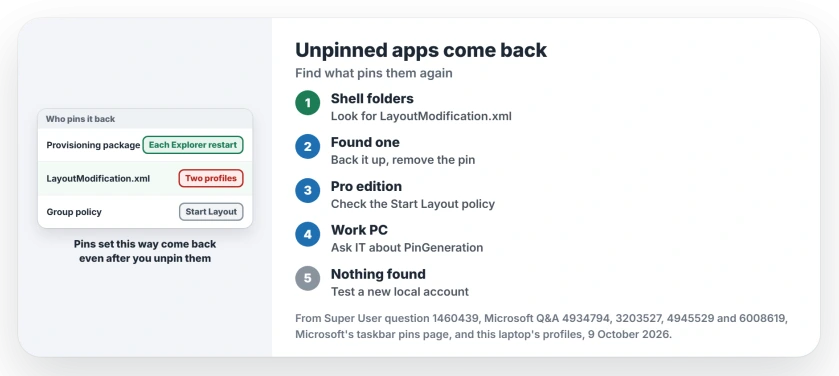
Status: a layout file or policy re-adds the pins, as Microsoft documents, and owners stopped it by editing that file. Both profiles on our laptop checked 9 October 2026.
Ours: on our Windows 11 Home 25H2 laptop, neither the Default profile nor my own holds a LayoutModification.xml. Each has a DefaultLayouts.xml with ten Start layouts and no taskbar section at all.
1. Look for a LayoutModification.xml
This file holds the pin list Explorer keeps applying, and it can sit in your own profile and in the Default profile that new accounts copy from. These two lines show both folders:
dir "%LocalAppData%\Microsoft\Windows\Shell"
dir "C:\Users\Default\AppData\Local\Microsoft\Windows\Shell"
Found one? Copy it somewhere safe first. I would rename the original rather than delete it, which keeps a way back.
Then open the copy in Notepad. The part to look for starts with CustomTaskbarLayoutCollection. Inside it, a TaskbarPinList holds your unwanted app.
A OneNote owner on Q&A removed those entries from the file in their own profile and wrote "It was option 2 the one that worked". The icon stayed gone after two restarts.
One Super User owner had to fix both copies, and in their words "Replacing both the default user and my current user's LayoutModification.xml files finally stopped the recurring pinning".
Microsoft explains what a PinListPlacement value of Replace does there: it "Unpins the default apps" and pins only the listed ones. So an older layout file can also bring back a whole set at once.
2. A Start Layout policy, on Pro and work PCs
On Windows Pro you can check Group Policy yourself, where Microsoft lists the setting as Start Layout, under Administrative Templates and Start Menu and Taskbar. It exists in both Computer Configuration and User Configuration.
If either one points to an XML file, that file decides your pins. Set the policy back to Not configured, or remove the app from the file it names.
A work or school PC is different. Those pins belong to your IT team and return by design. Talk to them before you edit anything.
They have a newer option now, called PinGeneration.
Since Windows 11 24H2 with KB5060829 and 23H2 with KB5060826, Microsoft says admins can mark a pin so that it "isn't repinned during the next policy update cycle" after you unpin it.
3. No layout file? Test a new account
A Microsoft support moderator on Q&A suggested this split in September 2026. The case was a Store icon that returned after every start on Windows 11 Pro.
Add a local account under Settings, Accounts, Other users, then sign in to it, unpin the app and restart.
I like this test because it changes nothing in your own profile. If the app stays gone there, the cause lives in your profile, and step 1 is the place to dig.
If it returns there as well, look wider. The Default profile, a policy or the app itself is putting it back.
Some apps pin themselves. A Windows 10 owner saw Word, Excel and PowerPoint pinned right after installing Office 2016, and they came back after every restart. That thread has 70+ on Same question and no confirmed fix.
Settings sync brought it back on Windows 10
One older case had a different cause. A Windows 10 owner in 2019 kept losing the fight with an Internet Explorer icon. An adviser told them to turn off Sync your settings first.
After that the unpin held. The owner wrote "No, It did not come back". On Windows 11 the sync switches moved to Settings, Accounts, Windows backup.
The folder of pinned shortcuts is not the cause either. The OneNote owner was given two options, deleting the shortcut from that folder or editing the layout file. The second one worked.
A pinned app that opens a second button beside itself is a separate mix-up, where the pin and the window carry different IDs.
Icons coming back blank rather than coming back unwanted? That is another fault, covered on our blank taskbar icons page. For moving or hiding the taskbar itself, see our Windows 11 taskbar guide.
The Short Version
- An app you unpinned that returns after every restart is being pinned again by a layout file or a policy.
- Look in both Shell folders for LayoutModification.xml. Back it up, then remove the app from TaskbarPinList.
- On Pro, check the Start Layout policy. On a managed PC, talk to IT about PinGeneration.
- Test a new local account to see whether the cause sits in your profile.
- Deleting the shortcut from the pinned folder was not the fix that worked.
Where to Next
Which app keeps coming back on your taskbar, and did a layout file turn up? Leave a comment.

Isaac Smith is the founder and editor of PC Glance, a website that covers computers, laptops, and technology. He is a tech enthusiast and a computer geek who loves to share his insights and help his readers make smart choices when buying tech gadgets or laptops. He is always curious and updated about the latest tech trends.