An Edge favorite or pinned tab doesn't create a Windows 10 taskbar button. Open the site in Edge and choose Settings and more > More tools > Pin to taskbar. Recreate a missing pin before changing Windows settings.
When the whole taskbar disappears, start with its visibility settings instead. A website that opens under the Edge icon may also be behaving differently from a site installed as its own app. These cases need different checks.
In this guide
1. Create a website pin rather than a browser bookmark
Open Microsoft Edge and visit the website you want. Check its address and let it finish loading. Click the three-dot Settings and more menu, choose More tools, then select Pin to taskbar.
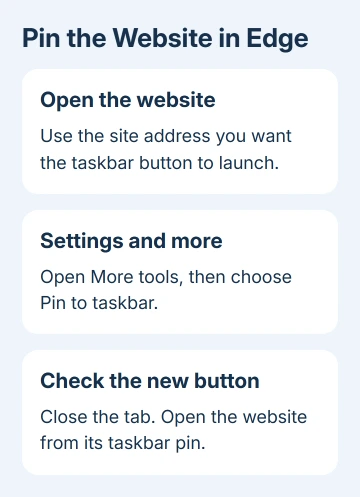
Accept the pinning confirmation if one appears. Look along the Windows taskbar for the new site button, then close the site tab and click that button. It should open the website you just pinned.
Microsoft says its taskbar pinning feature uses that menu route. Saving a favorite, pinning a tab inside Edge, and pinning Edge itself create different shortcuts in different places.
The Edge button opens the browser. Visiting a site inside Edge doesn't give that site its own taskbar shortcut. If you only see Edge, make sure the command you used was Pin to taskbar for the website.
If the command is missing, check Edge's Settings > About Microsoft Edge for updates. Relaunch if requested and retry More tools on the site. Don't install an old browser to recover a menu.
2. Recreate just the missing or broken site button
If the old button is present but opens the wrong page, right-click that specific button and choose Unpin from taskbar. Then open the correct address in Edge and pin it again using the website command.
If no old button remains, skip unpinning and create the new pin. Keep the other taskbar shortcuts; only this website needs a new launcher.
Close the setup window, then launch the site with its new button. Check the destination and browser profile. A work site can look broken if it opens in a profile signed in to the wrong account, even though the shortcut itself works.
If the website opens but asks for sign-in, complete the website's normal sign-in. A taskbar pin opens the site; it doesn't keep you signed in. It doesn't remove a site's account or permission requirements.
I'd recreate one affected pin before trying icon-cache repairs. If it opens the correct address afterward, the job is finished without changing unrelated Windows shortcuts.
For a button that exists but displays a blank symbol, the blank taskbar icon checks explain the icon problem on Windows 11. Use this article's Windows 10 pinning route for the missing website shortcut itself.
3. Use an installed site app when you want its own window
Some websites can be installed through Edge as apps. That gives the site a separate app window instead of treating it as an ordinary browser tab. Choose this route for a separate site window.
In Edge, open the site and choose Settings and more > More tools > Apps, then choose the option to install the current website. In versions with Apps directly in the main menu, open Apps there. Confirm the installation.
Open edge://apps to manage installed site apps. Find the site and open its Details. Under its pinning options, choose Pin to taskbar. The installed app and a favorite are separate items, so check the app's own entry.
Launch it from the taskbar and close the window again. Its button should remain if it was pinned successfully. A button that appears only while the window is open is a running app button, which still needs pinning.
Windows also lets you right-click a running app's taskbar button and choose Pin to taskbar. Use that for the installed site app. If you right-click the regular Edge button instead, you'll pin the browser.
If the app opens under an unexpected icon or alongside another browser button, check what the shortcut launches before deleting either. Two different shortcuts can lead to the same website through different windows.
4. Show the taskbar on the screen you're using
Move the pointer to the taskbar's usual edge. If the entire bar appears, automatic hiding is enabled. The website pin may still be present; the bar was simply out of view.
Open Taskbar settings by right-clicking an empty taskbar area. On Windows 10, turn off Automatically hide the taskbar in desktop mode to keep it visible throughout the day.
For a convertible running in tablet mode, also check Automatically hide the taskbar in tablet mode. These taskbar controls have separate Windows 10 switches. Windows 11 instructions that mention Taskbar behaviors don't match this screen.
With multiple monitors, check the main display first. In Taskbar settings, review the Multiple displays options and where taskbar buttons appear. A button visible on one screen but absent on another isn't necessarily a lost pin.
If the taskbar is crowded, look through its additional buttons before creating several copies. Keep the test simple: launch the website once, find its active button, then confirm whether that button stays after closing the window.
Once the site button stays pinned, center the Windows 10 app group with the Links toolbar if you prefer that layout.
5. Check a managed layout when pins vanish again
Restart Windows after recreating the pin and check it again. If the pin stays after you close the browser but disappears at every sign-in, check what might be removing it.
Work or school computers can have a taskbar layout set by an administrator. Tell IT the website address, how you pinned it, and whether it disappears after sign-in or only after a device restart.
The taskbar layout policy checks explain why managed layouts can keep changing pins. Don't edit a company layout file just to preserve one website shortcut.
If every app pin disappears on a personal PC, report it through Get Help. Include whether a newly pinned ordinary app stays on the taskbar after a restart. For Edge website pins alone, use Edge > Help and feedback > Send feedback.
For Windows 10, October 14, 2025 was the final day of standard support. Keep the browser current and check your PC's supported security-update or upgrade path. An outdated browser isn't a reliable way to fix website pinning.
The Short Version
Create a website pin through Edge's More tools menu, or pin an installed site app if you want a separate window. Recreate one broken pin, check Windows 10 taskbar visibility, and involve IT when a managed layout removes it again.
Checked November 15, 2026.
 If you have any business, I can build it online